Already built into Presenter
Bring your song library with you.
Keep the songs your team knows. Presenter detects supported song files, lets you review the list and choose what to import, then saves ordinary lyric files you can open and edit.

Start with a few songs and rehearse one service. Keep using your current setup while you prepare.
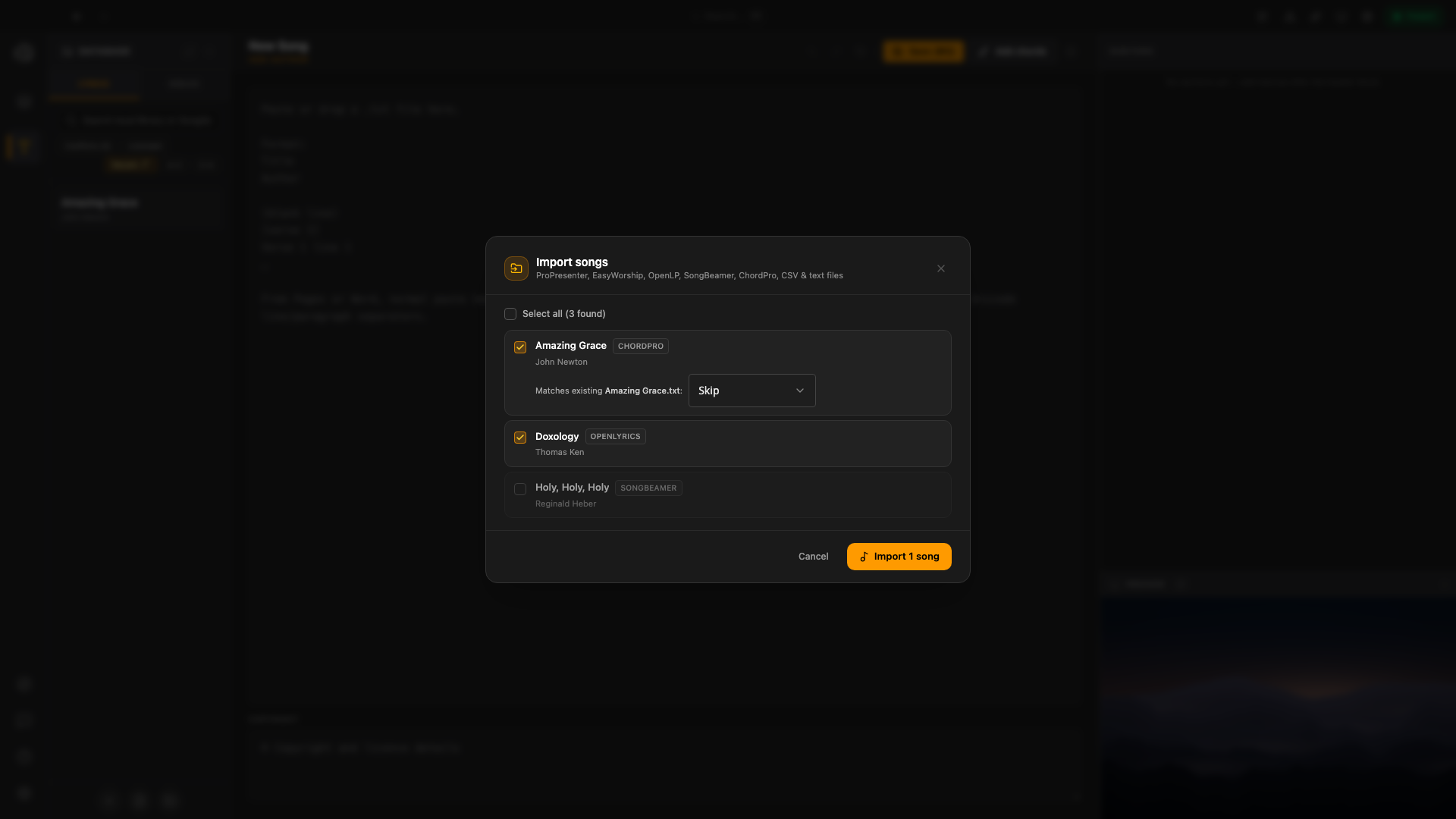
- Choose which songs to bring
- Duplicates start on Skip
- Plain-text files in your collection
Bring a few songs. Check them. Rehearse.
In Presenter, open Deck Builder → Library → Lyrics → Import songs. A small first import makes the result easy to check.
Choose a copy of your files
Back up your original library and collection. Choose supported song files or a folder; close the source program before copying its database.
Review the import list
Check titles, formats, warnings and duplicate matches. Deselect songs you do not need. Duplicates start on Skip; replacing a song overwrites its local file.
Check the saved songs
Open the result in Lyrics Designer. Compare lyrics, section labels and repeated choruses with the original, then build and rehearse one test deck.
Ready for your next service
Your songs, in a folder you control.
Imported songs become plain-text .txt files in your Presenter collection. Open them, correct them and include a copy in your own backups.
- Check every song’s words, section breaks and copyright.
- ChordPro chords remain available in Lyrics Designer and WorshipAssist.
- Set key, tempo, slide styling and service order separately.
Replacing an existing song has no Presenter undo and may affect decks that use it. Keep Skip selected unless you intend to replace it.
Formats Presenter can read
Open your source below to see which files to prepare. These routes bring across the song content present in those files; complete services, themes and output settings are prepared separately.
WorshipTools Presenter / Planning
Copy each song’s ChordPro source or lyrics into a text file
Open the song editor in WorshipTools Planning or Charts, copy the text, and save one .chordpro or .txt file per song. The Export list CSV is an inventory, not a lyrics export. Service plans, media and slide styling need separate preparation.
ProPresenter 7
.pro presentation files, or your whole library folder
Review the extracted text and metadata carefully. Slide labels, arrangement order, repeated slides and some metadata may be incomplete; prepare themes and media separately. Text export is a fallback for files that cannot be read.
ProPresenter 4–6
.pro4 / .pro5 / .pro6 files (XML)
Older ProPresenter libraries import the same way — including CCLI song numbers where present.
EasyWorship 6.1 / 7
Songs.db together with SongWords.db (or the older SongWords.dat)
Point SundayAssist at your EasyWorship database files and the whole song library is scanned in one pass.
OpenLP / OpenLyrics
songs.sqlite database, or OpenLyrics .xml / .zip exports
Both the OpenLP database itself and OpenLyrics exports (also used by several other tools) are recognised automatically.
SongBeamer
.sng files or your song folder
Imports song text and section breaks from song files. Check section order, multilingual text and copyright against the original; prepare other header settings separately.
ChordPro
.cho, .chordpro, .chopro, .chord, .crd, or ChordPro-style .txt files
Chords are preserved for WorshipAssist, while your projected lyrics are displayed without chords. Set the song’s key and tempo separately after import.
CSV & plain text
A .csv export or simple .txt lyric files
Use a CSV containing both song titles and lyric text, or one .txt file per song. A list of song titles alone cannot recreate the songs.
CCLI SongSelect
Lyrics .txt downloads from SongSelect
Enable the Downloads watcher in Settings → CCLI SongSelect, then download a lyrics .txt file in your browser. Presenter imports matching files from the folders you chose.
If your current tool exports CSV or ChordPro, Presenter can take it from there — even when there is no direct library file to open.
Your slides and media too
Bring media through the media library, then rebuild the order of one service. Preview every cue and rehearse the displays before going live.
PowerPoint & Google Slides
Drop a .pptx into Presenter for native playback with supported animations and videos, without Microsoft PowerPoint installed. Export Google Slides as .pptx or PDF, or use the Google Slides PDF import in Connect with Complete.
PDFs are native
Sermon slides, liturgy sheets, announcements — drop any PDF into the deck and present it page by page. No conversion step at all.
Images & video
Your existing backgrounds, loops, and announcement videos are just files — drag them into the media library and they're ready to go.
Moving your people and planning too?
Connect imports a reviewed people CSV without sending invitations. Teams, roles, assignments and service plans are set up separately. The guide includes the WorshipTools route and a sample CSV.
Do we have to rebuild our entire library?
Start with an export from your current program. Presenter supports several song formats. Check the formats above, import a small selection and review the result first.
Can we keep using our slides and media?
You can bring PowerPoint, PDF, images and video into Presenter. Check the supported options above and preview the result before your first service.
Bring your library. Keep your Sunday.
Download Presenter, import a small selection during the free 28-day trial, and rehearse your first service while your current setup remains available.