Reading songs
The reader is WorshipAssist's full-screen music stand. It shows one song at a time, keeps your place and lets you change songs without leaving the reader.
Open songs in the reader
- Open a setlist. To choose songs yourself, select Practice on my own under Play together.
- Choose Open songs for the full reader. When you lead or follow a band session, the same button says Live: others see or hear what you open.
- The first time, a short gesture guide appears. Tap once to dismiss it.
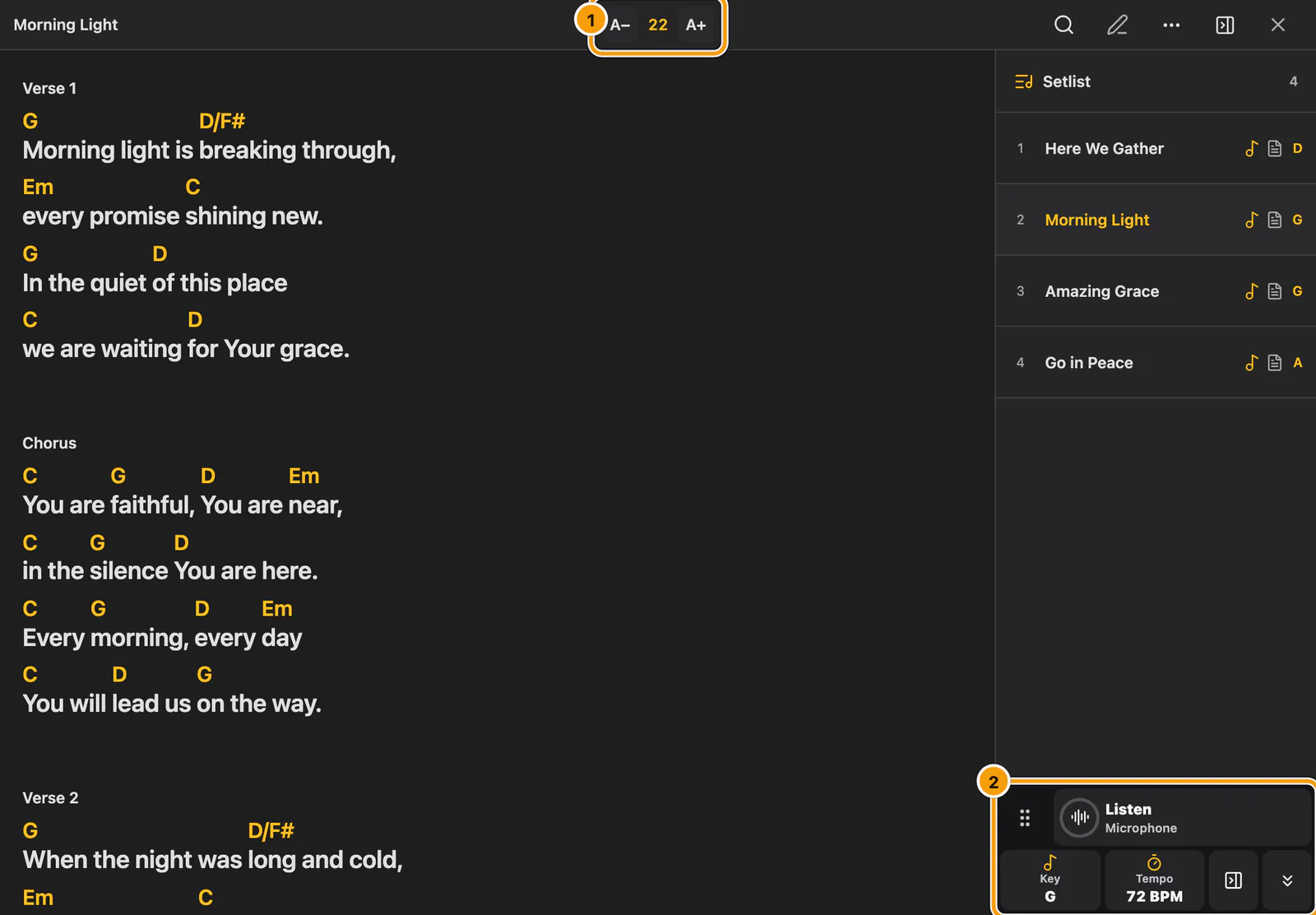
① Text size A− / A+ · ② Music controls
The top bar stays on one line. Use A− / A+ in the centre of the top bar to adjust the text size while you read. × at the top right closes the reader (Close songs, or Exit Live in a band session).
The gesture guide appears once, the first time you open the reader while this browser tab is open. Search, A–Z browsing, changing songs or setlists, returning to the reader and refreshing the page do not repeat it. On a computer without a touch screen, the guide shows the keyboard shortcuts for controls, the setlist and the previous or next song instead.
Use the controls
Once the guide is dismissed, tap the song to open Controls (Live controls in a band session you lead or follow). If the music controls are visible, you can also tap … in the top bar.
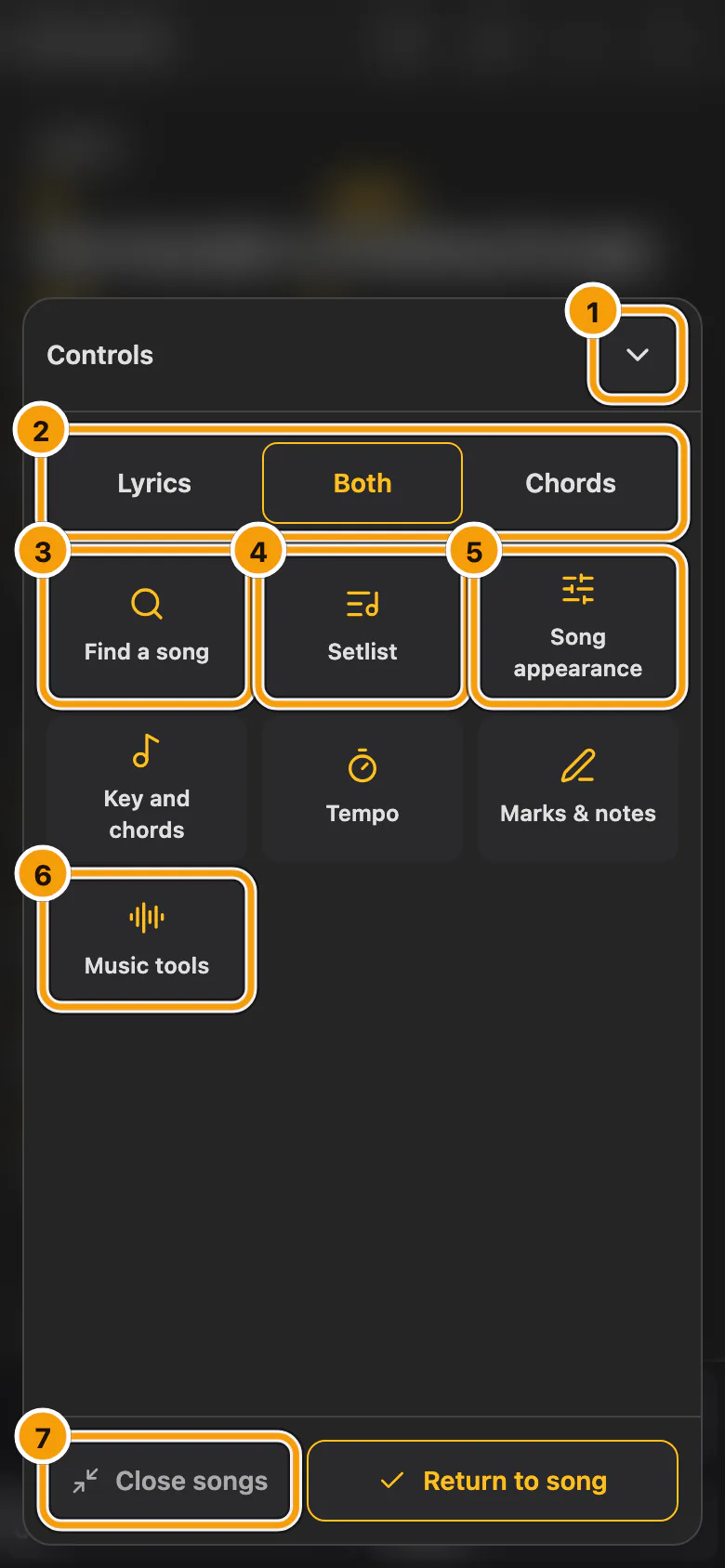
① Hide controls · ② Lyrics, Both or Chords · ③ Find a song · ④ Setlist · ⑤ Song appearance · ⑥ Music tools · ⑦ Close songs (Exit Live in a band session)
- Choose lyrics, lyrics with chords (Both), or chords.
- Find a song searches all songs available to you, including songs outside your current setlist. When shown, the search icon in the top bar opens the same search.
- Setlist shows the songs in the setlist you are playing.
- Song appearance and Marks & notes are explained in Song appearance and Marks & notes.
- On a tablet or computer, To Presenter next to the view choice suggests the open song to a connected Presenter. On a phone, the same button shows only its icon.
Song appearance, Find a song and Setlist share one panel over the blurred song. The back arrow returns to the controls; the downward arrow closes the panel.
To close only the controls, choose the downward arrow (Hide controls), Return to song, press Escape, or tap outside the panel. Your reading position and personal key stay intact. Choose Close songs to leave the reader (Exit Live in a band session).
Change songs
- Hold and drag: hold the song briefly and drag up or down to choose from the setlist, then release to open it.
- A–Z: drag along either edge of the screen to browse all songs alphabetically, with larger titles and author names.
- Search: choose Find a song in Controls and type a title.
Under A–Z list in Song appearance, choose Automatic, Left or Right. Automatic hides the edge letters until you drag; Left or Right keeps that side visible. This choice is saved on this device.
Play in your own key with My chords
My chords changes only the chords on your own screen, for example for a capo or a different instrument.
Use Key and chords in the music controls or in Controls. If the music readout is off, use the key in the top bar or My chords in Controls.
Your own key resets when you close the reader. Save for setlist saves the key as this song's key in this setlist, for the whole band. Tempo changes while you practise on your own stay on your device.
Compare key and tempo
The music bar with Listen, the key and the tempo shows in the reader from the start. Listen stays off until you choose it: only then does WorshipAssist ask for and use the microphone. Open Music tools from Controls or Song appearance to change it. Its switches are grouped under Listen, Practice and Record, each with an icon and a short hint. Turn off Show key and tempo to hide the music bar, or Listen with the microphone to hide the microphone control. The music bar follows the light or dark appearance.
WorshipAssist uses three names for a key: Band key is the key in the setlist, My chords is your own transposition and Heard is what the microphone hears. Use Key and chords and Tempo to compare them. Choose Listen and allow microphone access to estimate the sounding key and tempo. The dial shows the incoming microphone level. While the microphone listens, the music controls also show the chord it hears. It is an estimate and can take a moment to follow a change. When WorshipAssist suggests a key, choose Use to transpose your own chords and Undo to restore your previous key. Capo shapes are shown separately. Choose Stop listening to stop microphone analysis.
Key and chords shows one Band key row. A Chart row appears only when the open chart is displayed in a different key, after any setlist or personal transposition. To hide it, turn off Show chart key in Music tools. In the music bar the tiles read Chord, Key, Chart and Tempo; a small ear icon marks a value heard by the microphone. While listening, one line shows a microphone icon and the name of the microphone in use. A Bluetooth headset microphone is marked Lower quality; choose Use phone mic to listen with the built-in microphone instead. WorshipAssist never switches microphones on its own.
In the WorshipAssist and SundayAssist apps, Sound input in Music tools lets you choose where the app listens, for example an audio interface connected to the mixing desk, and which of its channels to use. It appears when more than one input or channel is available, and the app remembers your choice on this device.
If Listen can’t start the microphone, Check your microphone opens while the song stays open. Choose another input if one is listed, then select Try again. If access is blocked, allow the microphone in your app or browser settings first.
To move the music controls, hold them briefly and drag to the highlighted area at the top or bottom of the reader. On a tablet in one-column view, you can also dock them in the setlist sidebar. Use the sidebar button in the top bar to hide or reopen the sidebar. When it is hidden, the music controls return to the reader edge. Tap the grip to switch between the top and bottom without dragging.
Choose a key or tempo that isn't planned
When a song has no key or tempo in the setlist, the Key or Tempo tile in the music bar shows Choose. Tap it to open one clear choice over the blurred song:
- Choose Major or Minor, then tap the key in the large grid. The key the chords are written in is marked Suggested (without chords, the key the microphone hears); it is a hint, not a choice. The tempo the microphone hears is suggested the same way. Only what you tap or set is saved.
- Set the tempo with − and +, the slider, or Tap along to the beat (tap at least four times).
- Choose Save, or Not now to close without changes.
Setlist editors and the leader of a band session save the choice for the whole band. Anyone else keeps it just for themselves while reading; the setlist stays the same.
Practise and record
- Choose Practice on my own under Play together. Open Music tools and enable the tools you want.
- Tap the song and open Practice tools. Pad and Drums use the current key and tempo. You can play them without turning on the microphone.
- With Device recordings enabled, use the red Record button in the music controls or Record audio in Practice tools, then stop the recording. Your take is saved on this device. Open Recordings to play it, lower the Playback speed or use Set start A and Set end B with Repeat A–B.
Until you record a take, Recordings shows No recordings yet with a reminder to press Record in the music bar while a song is open.
A take uses only the microphone input. Pad and Drums can still be heard in the take if your microphone picks up your speakers.
Export audio gives you a copy. To put a copy in the band library, choose Share with band and confirm you have permission to share it. Band recordings use the band’s storage allowance.
If WorshipAssist closes unexpectedly while a take is recording (for example the battery runs out), the app saves what it had. The next time you open Recordings, the take is listed with a Recovered label, its length and its date. Choose Keep to treat it like any other take, or Discard to delete it. A recovered take stays on this device and is never shared or uploaded until you have kept it and chosen to share it yourself.
Enable Create chord charts in Music tools, then select Create chord chart for a recording and confirm you have permission to use the audio. Review the draft before saving it. You can also turn on Create a chord chart after recording for new recordings you have permission to use. When you choose Stop recording, WorshipAssist automatically analyses the take on this device and opens an editable draft. Publishing a chart to the band takes a separate action.
For a chord sheet with words, choose Make lead sheet on a recording. Make a lead sheet from a recording explains how to check it.
Read in two columns
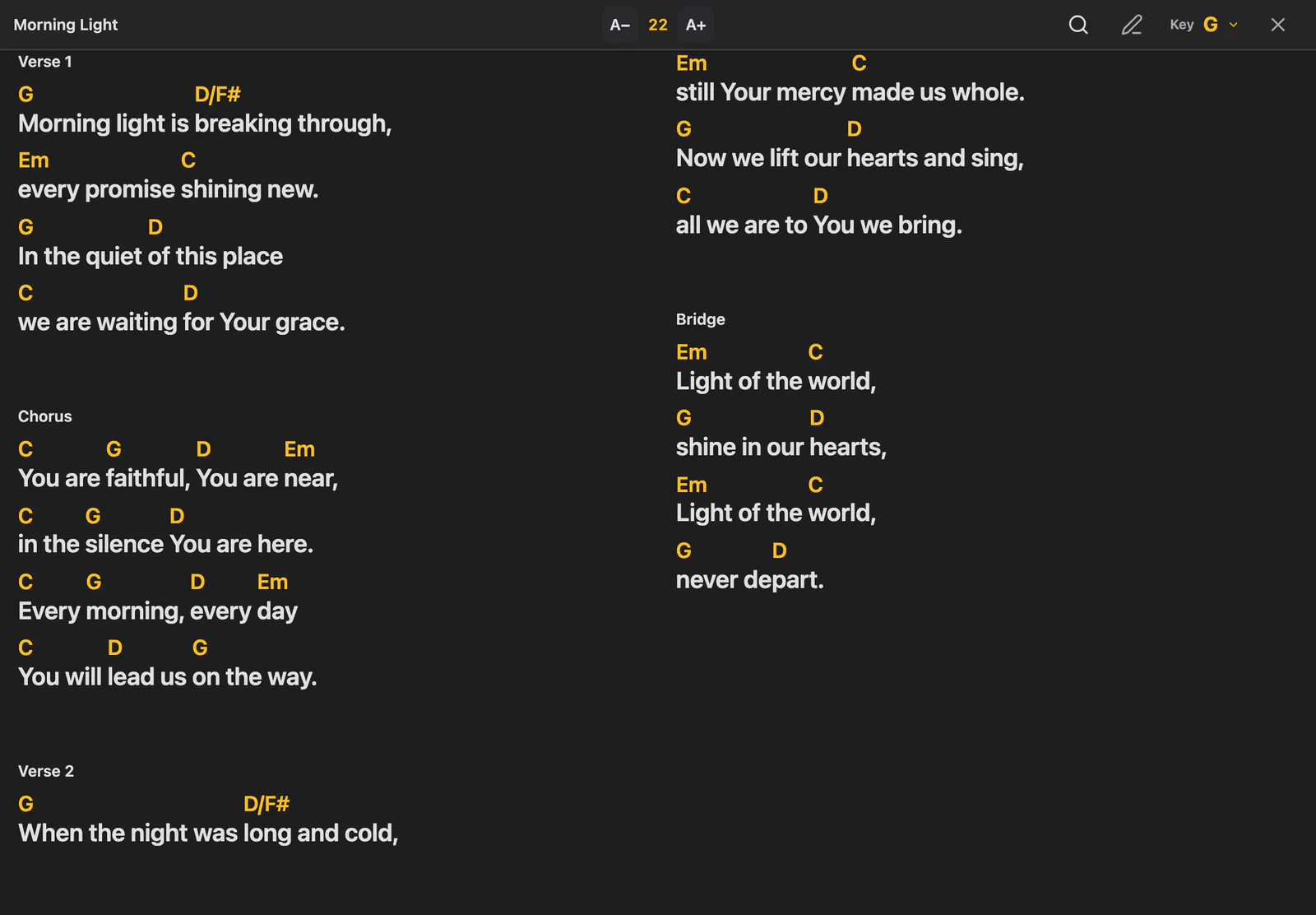
On a tablet or computer, choose 2 columns under Song appearance to see more of the song at once.
On the music stand
- While a song is open in the reader, the screen stays awake.
- A Bluetooth page-turner pedal scrolls the song: Page Down or the Down arrow goes forward, Page Up or the Up arrow goes back.
- Song-list errors appear in a message above the list. Dismiss it to keep browsing, or choose Try again when offered.