Marks & notes
Mark up a song the way you would on paper: circle a chord, underline a line, highlight a chorus or add a typed note such as "breathe here".
Start marking up
- With a pen: with an Apple Pencil, an Android stylus or another pen, simply write on the song in Live. Drawing starts straight away and the marking tools appear. Fingers keep scrolling and changing songs, and a quick tap with the pen still opens Live controls.
- Without a pen: tap the pen icon (Marks & notes) in the Live top bar, or choose it in Live controls. Draw with one finger and scroll with two.
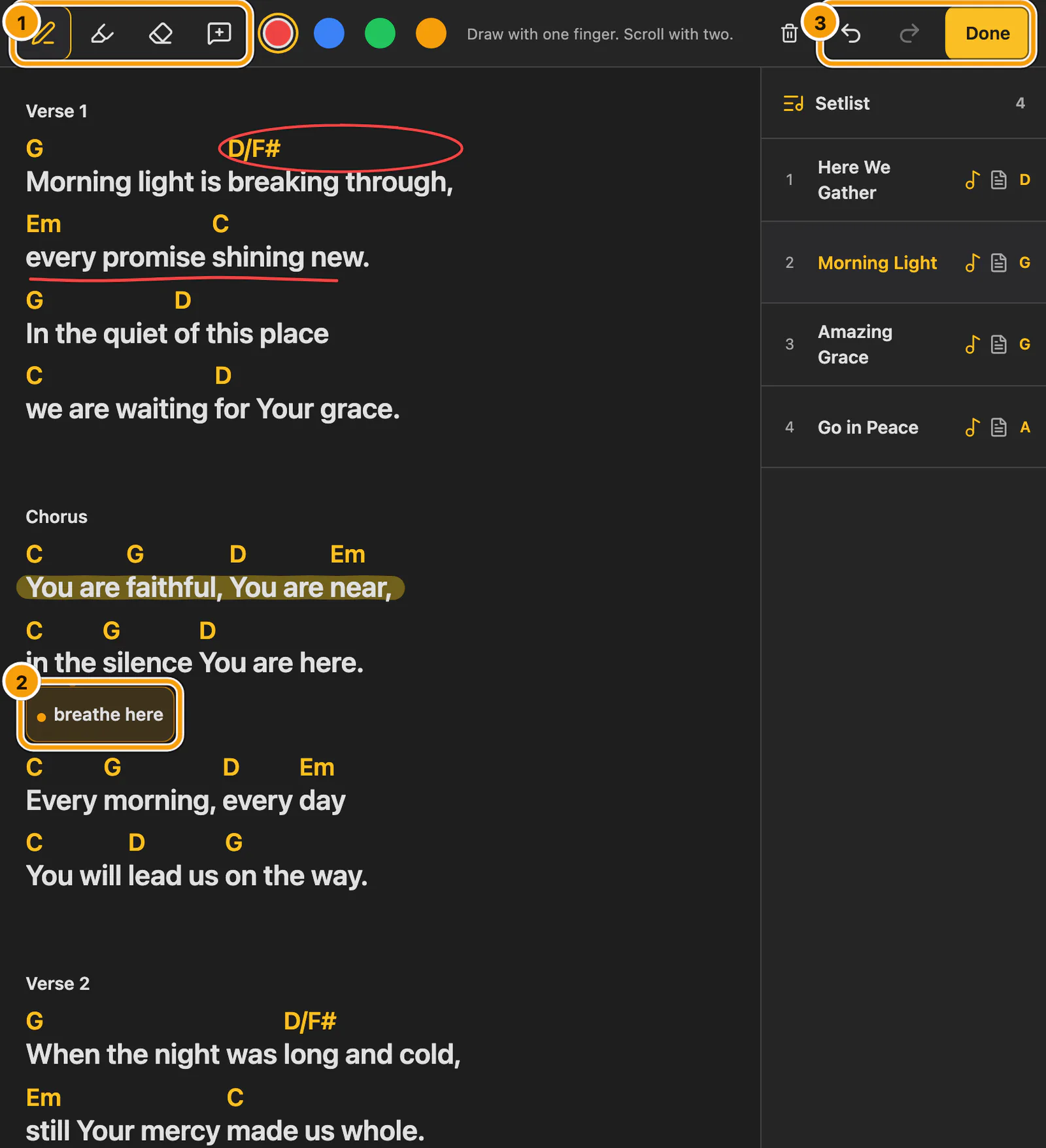
① Pen, Highlighter, Eraser and Note · ② A note under its line · ③ Undo, Redo and Done
Use the tools
-
Pen and Highlighter draw in the chosen colour; highlights sit behind the words.
-
Eraser removes a whole mark when you drag over it. A pen's eraser end works too, where supported.
-
Note adds a typed comment: Notes sit under their line. Tap one of your notes while reading to edit or delete it. The editor opens beside the note, word or chord you tapped. To move a note, hold it briefly and drag to another line. Release when the destination is highlighted. To reverse the move, open Marks & notes and choose Undo mark. 2. Type your note, for example "breathe here", and choose a colour. 3. Select Save note.
Notes appear under their line and never cover lyrics or chords. While marking up, tap a note to edit or delete it.
-
Undo and Redo (
Ctrl/⌘+Z,Shift+Ctrl/⌘+Z) work while marking up. The bin button removes every mark on the song after a second tap to confirm.
Choose Done or press Escape to return to reading.
Marks stay with the song
Marks belong to the song rather than the screen. They follow their words when you change the text size, columns, your own key or the screen orientation, and they appear in every setlist with that song. Marks on chords show whenever chords are visible. If the song is edited later, marks follow lines that moved; marks on removed lines are hidden.
Marks are private by default: other musicians, leaders and guests never see them unless you share them. They save on this device immediately and, when you are signed in, sync to your account, so marks made on a tablet also appear on your phone. Marks made offline sync when you reconnect, and changes from two devices are combined.
To read the clean song, turn off Show my marks in Song appearance. Hiding never deletes marks.
Share your marks with the band
- Open Live controls.
- Below Marks & notes, under Share my marks with the band, turn on This song or Every song in this setlist.
Band members who are in a live session with you can then turn on your marks under Marks from the band. They appear in a separate colour beside their own marks, with your first name on your notes. They can show or hide them but never change them, and their own marks, eraser and undo stay separate. Their view updates shortly after your marks sync to your account.
Turn the switch off to stop sharing at any time. Sharing and marks from the band need a signed-in account; guests keep their marks on their own device.