Start here
Go from download to your first service on screen in five steps.
Want the details? Install and set up Presenter covers Mac, Windows and Linux, your Connect account, Bibles, Presenter Free and what works offline. Moving from another program? Start with Migration to Presenter.
Five steps to your first service
1. Download Presenter
On the computer that runs your screens, open the download page and choose Mac, Windows or Linux. On Windows, the Microsoft Store version keeps Presenter up to date.
2. Open Presenter
Open Presenter and accept the content licence. Choose Log in if you have a Connect account, Create account if you are new, or Skip for now: Presenter also works without an account.
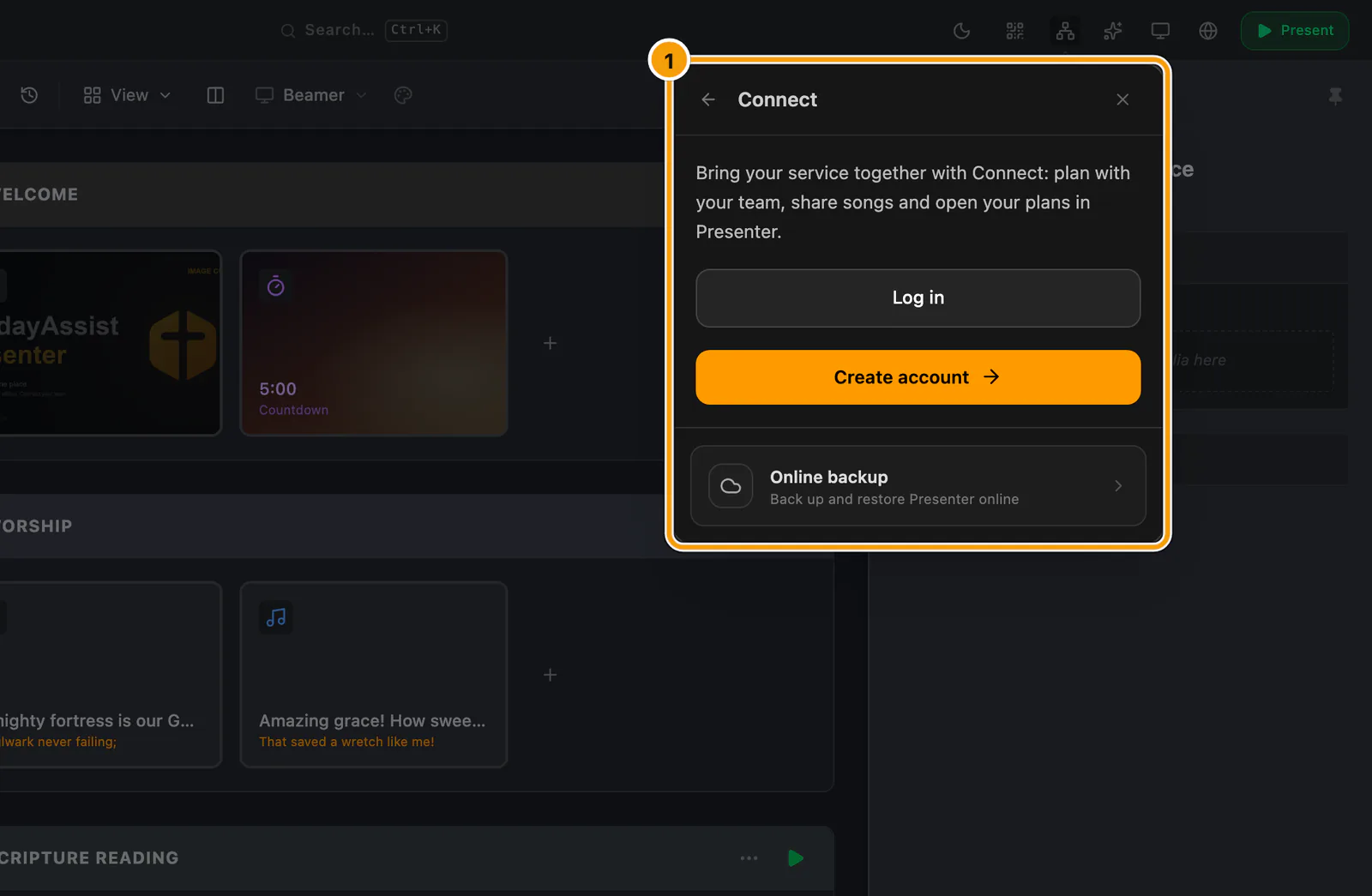
① Log in, create an account or skip for now
3. Build your first service
In Deck Builder, choose a collection folder and create a deck. Add a section, then drag songs, Bible passages or media from the Library into it. Presenter saves your changes as you go.
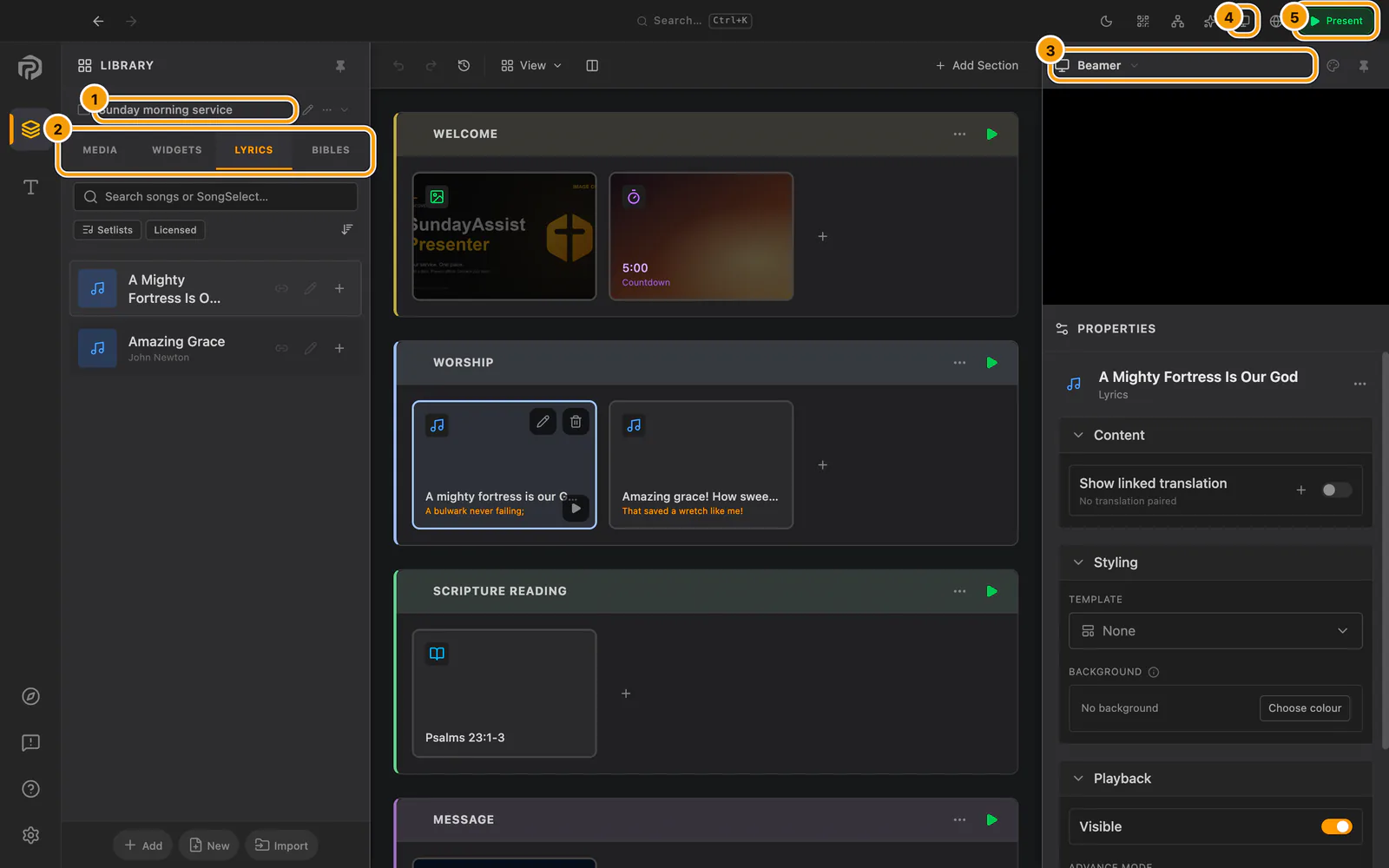
① Collection folder · ② Library · ③ Display profile · ④ Displays · ⑤ Present
4. Connect a screen
Connect the projector or TV to the computer. Open Displays in the title bar, switch that screen on and choose a display profile for it. Identify screens puts a number on every screen.
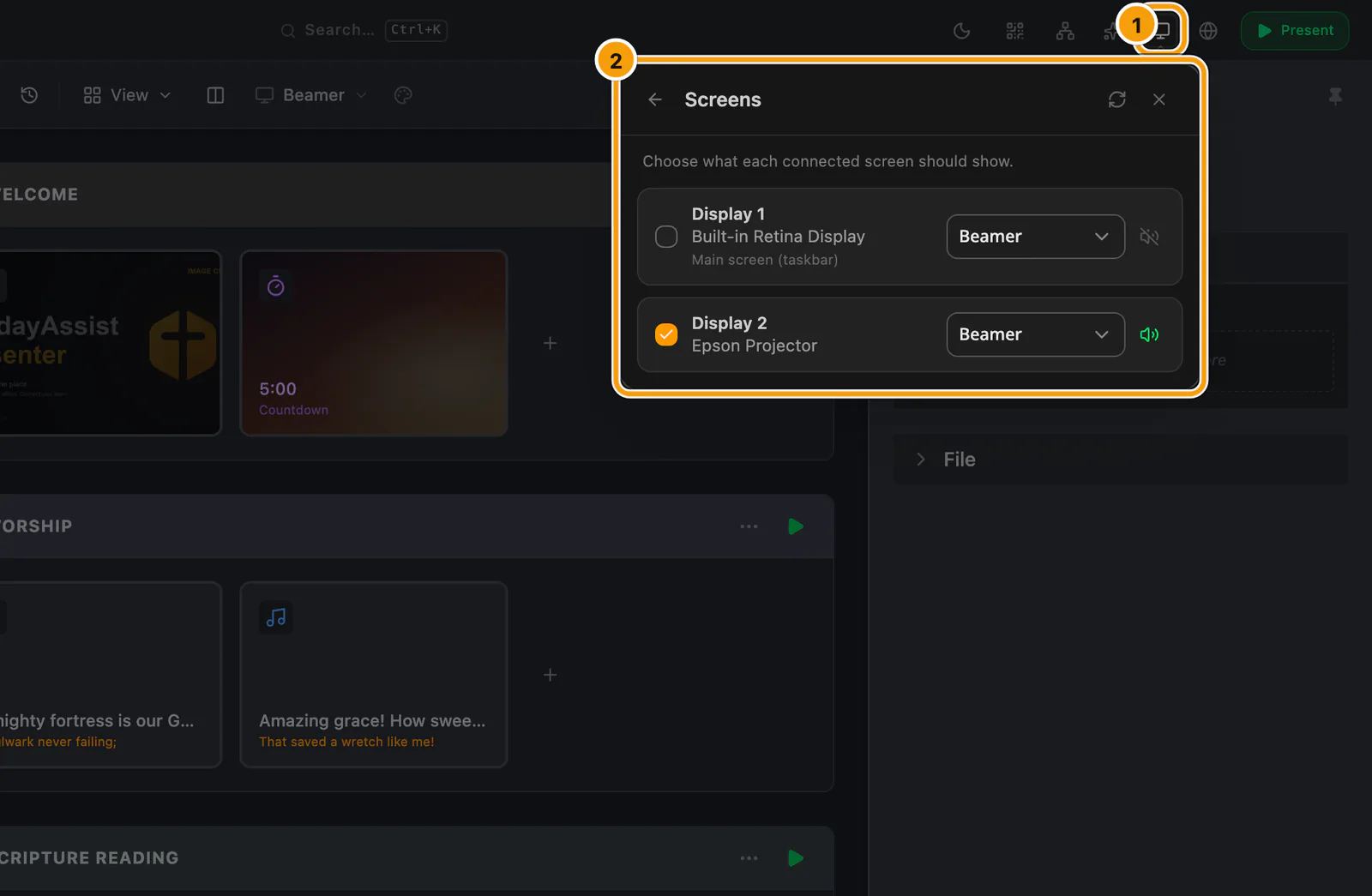
① Displays · ② Screens and display profiles
5. Present
Select the section or cue where the service starts and click Present twice. Next slide and Next cue take you further. Use the red stop control twice to end.
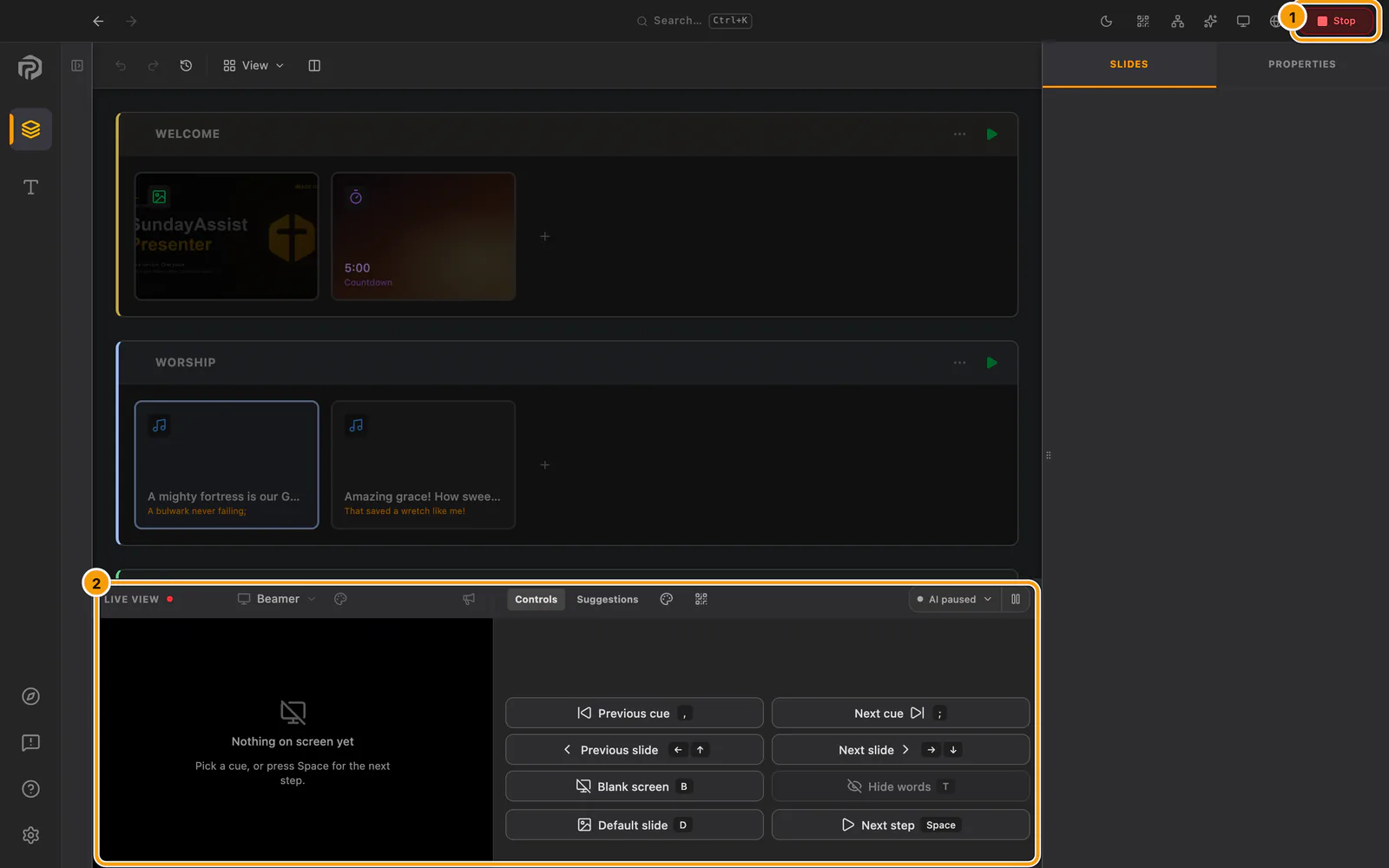
① Stop · ② Live View and live controls
Next steps
- Rehearse once in the real room with the real screens. Service checks & troubleshooting has a short checklist.
- The compass in the sidebar offers short tips and guided tours.
- Press
⌘K/Ctrl+Kto search decks, songs, Bible passages, widgets and settings. - Control slides from a phone: see Connect & phone remotes.