Connect & phone remotes
Use Connections for Connect, the phone connection method, custom integrations, and MIDI. Use Mobile control to create Viewer, Controller, or WorshipAssist access for a phone. Viewer and Controller are Remote, for the speaker and the room; WorshipAssist is for musicians. Controller works on the venue’s Wi-Fi in every Presenter edition. Viewer and the WorshipAssist QR code are available with paid Presenter or during the full Presenter trial. Paid Presenter includes phone control over the internet through SundayAssist Cloud: Presenter Flex, monthly or yearly, and Presenter Own during its update year. Complete includes it too. Presenter Free and the 28-day trial use the same Wi-Fi. Choose Anywhere for SundayAssist Cloud. Linked rooms (Presenter Link) and cloud integrations are part of Complete. Paid Presenter also includes 1 GB of personal online backups without media; Complete includes backups with media in its shared 50 GB.
Presenter 2.0 and later: Word cloud and quiz buzzer players join through the same QR code as the viewer. With SundayAssist cloud, their phones or tablets can use mobile data or any Wi-Fi; otherwise they must be on the same network as Presenter.
Presenter 2.0 and later: For Cast lots, Spin the wheel, mystery picture, memory verse, clues/story order, team draw, word cloud and buzzer, Full Controller shows the same game card as Presenter: instructions, the same main button, progress and, where available, Show all / Start again. The Score card offers +1 and Undo. When a game returns, its card says Picked up where you left off.
Log in or create a Connect account
Open Connections → Connect. Choose Log in for an existing account or Create account for a new one. The same panel opens the selected form and focuses the email field. Use its back arrow to return to the two choices.
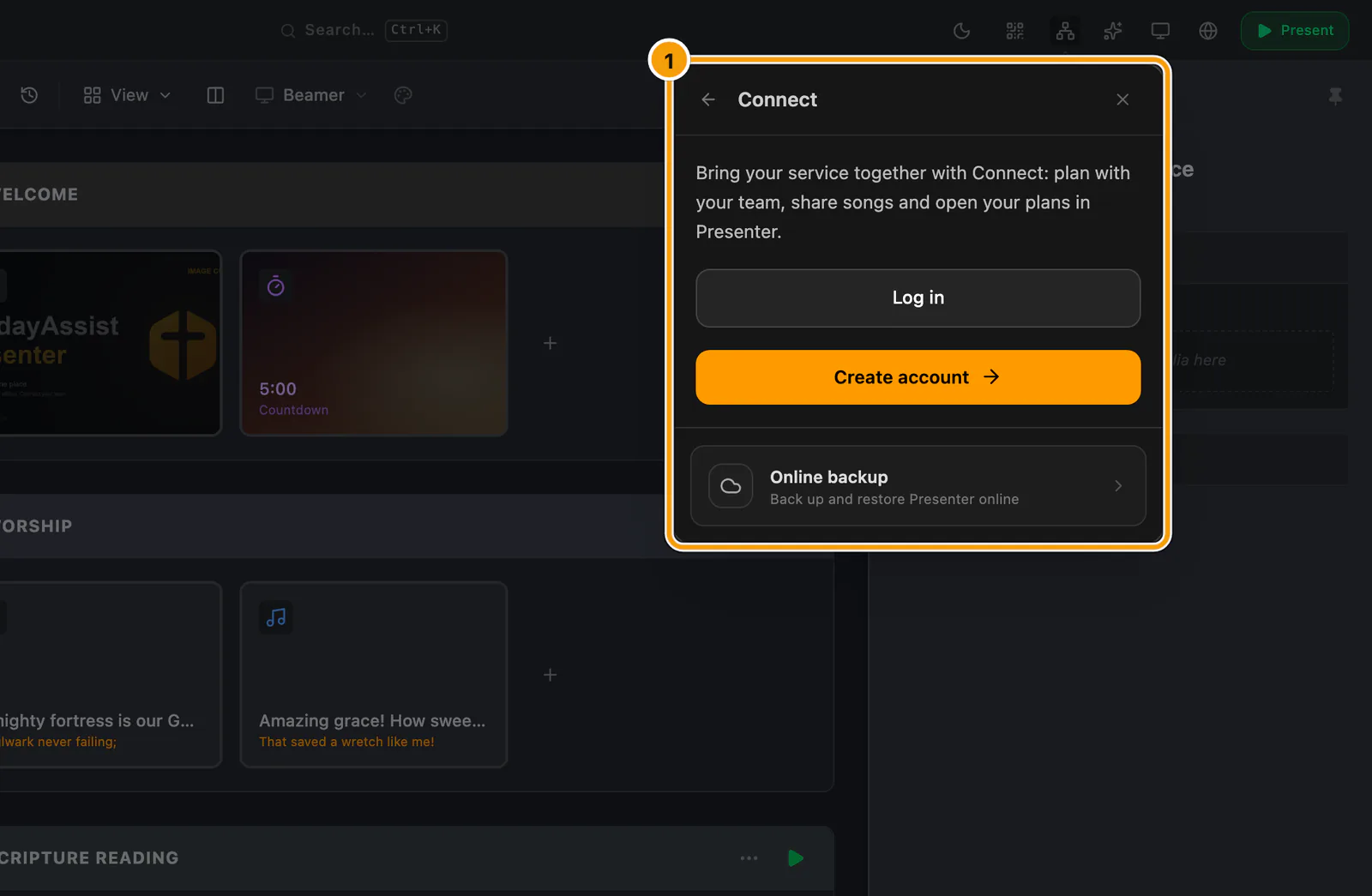
① Sign in or create an account
Choose Google, or enter your email address and select Log in with email or Create account with email. Enter the code from your email in Presenter. New users do not need to create an account elsewhere first. Apple is also available in the Mac App Store edition. Existing users can choose Use a password from the login form.
After verification, Presenter connects your organisation, asks you to choose if you have several, or asks for a church or workspace name if you do not have one. Skip for now keeps Presenter available without an account; you can return to Connect later.
After sign-in or restoring a saved session, Presenter automatically selects Anywhere through SundayAssist Cloud once your paid Presenter or Complete access is confirmed. Your explicit Same Wi-Fi or Own server choice is kept.
Connect a phone
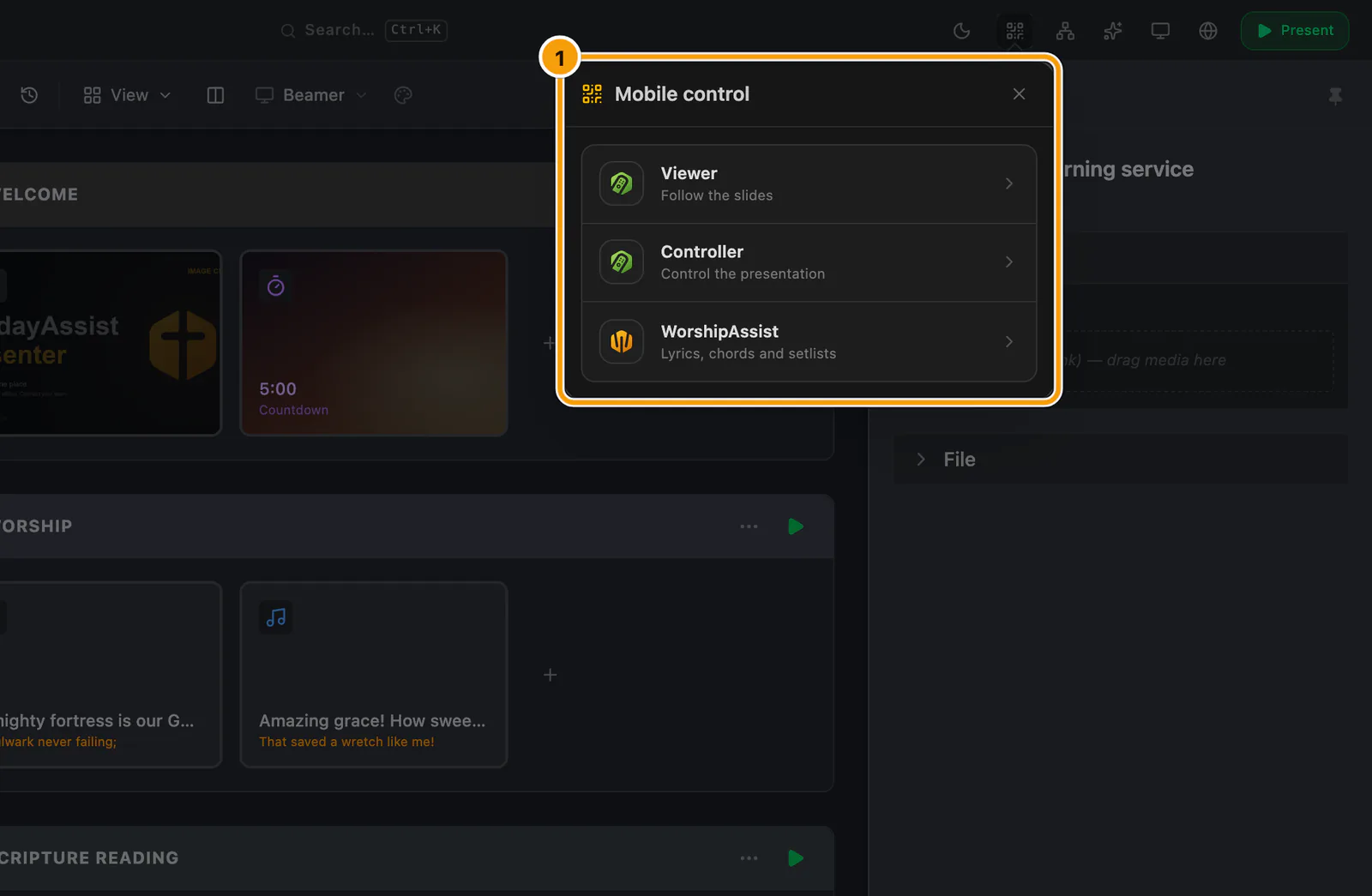
① Viewer, Control and WorshipAssist
- Open Connections → Phone remote.
- Choose a connection method:
- Same Wi-Fi: best for most venues; the phone and Presenter computer must use the same local network. Internet is not required. Presenter 2.0 and later: On Windows, the Mobile control QR view warns when Windows treats the network as Public, because phones then cannot reach Presenter. Choose Open network settings and set the network to Private.
- Own server: advanced; use an MQTT server managed by your organisation.
- Anywhere: connects through SundayAssist Cloud when the phone is on another network. Anywhere is included with Presenter Flex (monthly or yearly), Presenter Own during its update year, or Complete.
- Wait until the connection status is ready.
- Open the Mobile control QR icon in the title bar. Choose Viewer, Controller, or WorshipAssist, then scan its QR code or share its link.
The menu shows the number of active browser tabs beside each role. Choose a role to see its QR code. In Controller, choose Full or Simple directly above the QR image; this changes the access granted by that code. Copy QR link and Share PNG sit directly below the expiry label. The grouped option buttons below open separate views: Song suggestions for WorshipAssist, Session options, and More ways to connect for alternative links and the manual session code. From another network, sign in at remote.sundayassist.com with an account of the same church and enter the session code. The Presenter account needs Presenter Flex (monthly or yearly), Presenter Own during its update year, or Complete. From an option view, use the back arrow to return to the QR; from the QR, it returns to the role menu.
To show a pairing QR in your deck, add QR for Mobile Viewing, QR for Mobile Control, or QR for WorshipAssist from Library → Widgets. The QR preview in Mobile control cannot be dragged into the deck.
The updated phone connection requires updated Presenter and Remote. After upgrading Presenter, reload Remote and scan a fresh QR code. Update all connected Presenter computers together; earlier connection versions cannot communicate with the new version.
Presenter 2.0 and later: A paired phone's screen stays awake while it is connected. If a phone's first connection fails, for example on Wi-Fi that first needs a sign-in page, the phone keeps trying by itself and connects as soon as the network is back; Retry connection tries at once. A QR code that was refused still needs a new scan. A phone that scanned a code from a Presenter that is too old says Update Presenter, and a phone page older than the connected Presenter says Presenter was updated with Reload.
Scan the QR code from the Presenter computer you intend to use. Its connection credentials are specific to that computer and session.
| Role | Can do | Cannot do |
|---|---|---|
| Viewer | Follow the visual output and use enabled audience interactions. | Navigate or stop the presentation. |
| Controller | Navigate cues and their slides, blank, and control the presentation. | Edit the deck or song library. |
| WorshipAssist | View lyrics and chords, adjust shared tempo/transposition, search or create a song draft, reorder the shared playlist, and send a song or playlist suggestion to Presenter. | Control the presentation or add a cue without Presenter approval. |
Viewer shows lyrics, Bible passages, images, PDF pages and supported PowerPoint slides, plus enabled polls, quizzes and scoreboards. File video and YouTube playback are not streamed. Website cues provide a link to open the site; they do not mirror its interactive page.
For a guest who only needs the current song or presentation, choose Controller → Simple. Simple Remote can move through that cue's pages, stanzas or Bible slides and blank or show them; it cannot switch cues or start/stop the service. Full and Simple use separate QR codes, so both can be connected at once. Changing the displayed QR does not change phones already connected.
From Full Remote, open Remote options → Share Remote access to create access for Full Remote, Simple Remote, Viewer or WorshipAssist. Presenter still owns the granted role and expiry. Older Presenters may offer only the current role.
In Full Remote, open View at the top of the Service tab to choose Rows, with cue cards per section, or Columns, with every cue as one compact line under its section, so more of the service fits on the screen. The live cue's line is outlined and marked Live. Under When a cue with slides goes live, choose Open Slides to switch to its slides automatically, or Stay on Service to keep the service in view and open Slides yourself or by tapping the live cue again. Both choices are saved on that phone or tablet only.
Each role or controller mode has a separate session. Open Session options below the QR code. Extend session keeps the current QR and connected phones valid for longer and renews the displayed QR, so phones that scan it afterwards are covered too. Presenter 2.0 and later: Showing a QR renews it when less than four hours remain, or less than half the QR's lifetime if that is shorter. Connected Controller and WorshipAssist phones keep it valid for up to 72 hours after the operator last created, showed or extended it; Viewer phones do not extend it. Refresh QR creates a new session and invalidates the old session for that role.
Opening or creating a song in WorshipAssist changes the shared team screens. Sending it to Presenter asks to add it to the current section and present it. Presenter asks the operator to accept or decline, unless the operator has enabled automatic acceptance in Presenter. Check that preference before the service: with automatic acceptance enabled, a suggestion can change the live presentation. Pending song and playlist suggestions expire after 10 minutes if they are not accepted. A WorshipAssist QR also lets its holder create, update, duplicate and share Connect setlists and save church songs under Presenter's signed-in account and church, so share it only with musicians you trust. Refresh QR or signing Presenter out revokes this access.
WorshipAssist playlist and fullscreen
On first use, choose Vocalist for lyrics or Musician for lyrics with available chords. An existing saved view is kept. In Live, tap the song and open Song appearance for a live preview, background colour, and separate colours, fonts and sizes for lyrics and chords. Changes apply only to your screen and save automatically on this device and, when signed in, in your account. Account settings load on another signed-in device; offline changes retry when you reconnect. If sync fails, your local changes remain available and Try again is offered. Reset appearance restores the colours and typography without changing your lyrics/chords choice.
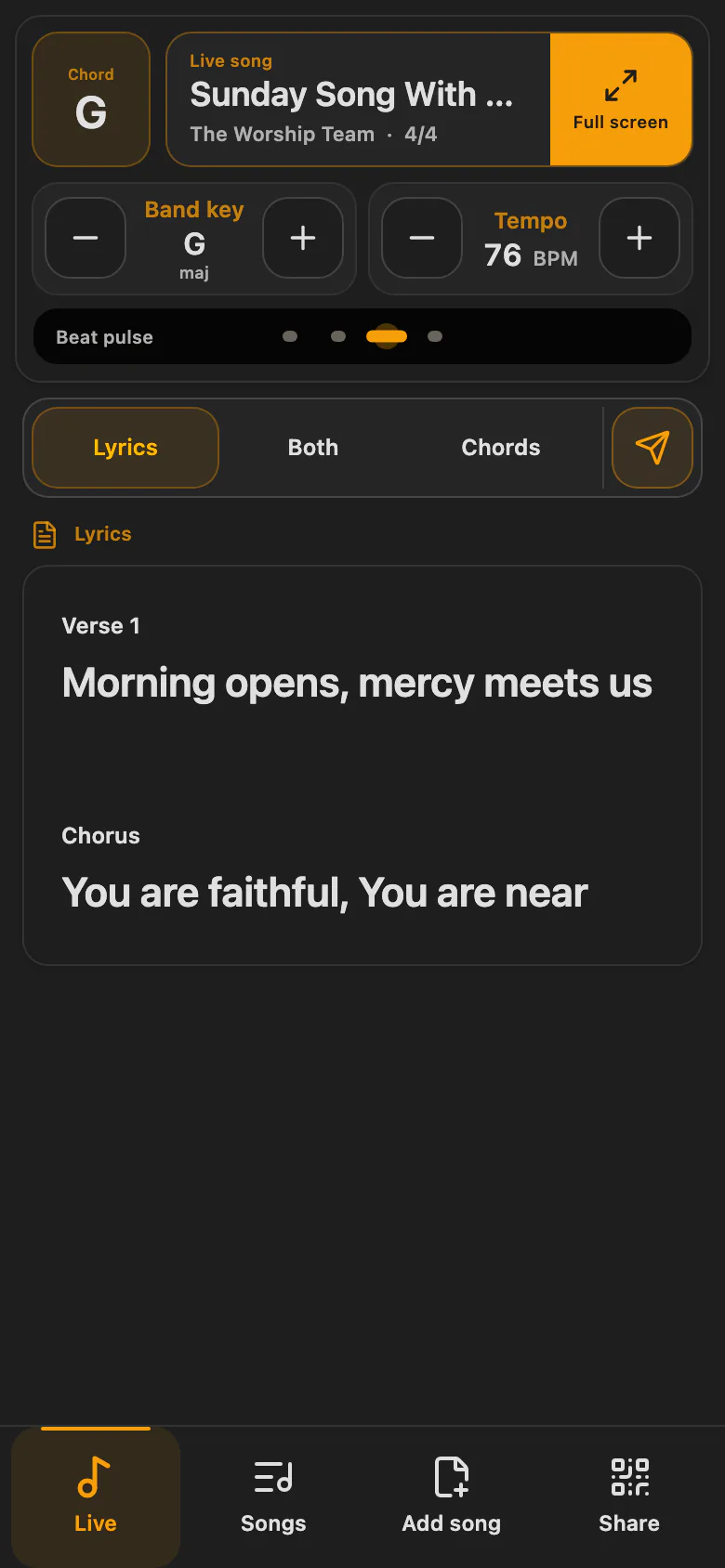
The first tap dismisses the gesture guide; tap again to open Live controls. Song appearance, Find a song and Playlist share one panel over the blurred song. The back arrow returns to controls; × or Done closes the panel. On tablets and desktops, choose 1 or 2 columns directly in the controls. Tap a colour swatch for the in-app colour plane and hue slider, or type a hex colour. Changes save automatically, so closing never discards your appearance.
Match background under Lyrics or Chords chooses black or white, whichever gives the strongest contrast against your current background. Each colour stays independently editable and is saved with your appearance.
WorshipAssist opens with all lyric cues in Presenter order, including repeated songs. Drag a song's handle to change the order. Presenter 2.0 and later: Switch between Presenter order and My order above the list. Songs the operator adds to the deck later still appear in your order, marked New in Presenter; edited lyrics keep their place. In Playlist options, Choose songs from deck keeps a selection of the current playlist, including songs you added, in its current order. Presenter saves your playlist with this deck, also after the deck is renamed or moved without content changes, so reopening the phone app, changing accounts or restarting Presenter keeps it available. The playlist of an unsaved deck is not kept after Presenter restarts.
Open a song, then choose Live or Full screen. The reader shows lyrics, lyrics with chords, or chords. A brief gesture guide appears once, when you first enter Live in this browser-tab session. Searching, browsing A–Z, changing songs or setlists, returning to Live and refreshing the page do not show it again. Use A− / A+ in the centre of the pinned top bar to adjust text size while reading. Tap the song for search, playlist and display controls. Swipe left for the next playlist song or right for the previous one. Hold briefly and drag to choose a playlist song; the playlist button offers the same choice without holding.
Tap once for compact controls at the bottom center, with the song still visible behind a light blur. ×, Return to song, Escape, or tapping outside the panel closes only the controls. Your reading position and personal key stay intact. Choose Exit Live to leave the reader.
Use Search or drag along either edge to browse A–Z while staying in Live. Search results can be added to the playlist without switching the current song or sending a suggestion to Presenter. Choose the song from the playlist when you are ready. The first Escape clears a search; the next closes the search view.
The pinned header keeps the title, text size and × exit on one line. The band key appears on tablets and desktops; tap it for My chords to transpose only your own displayed chords. This personal key stays with that song occurrence while you are in Live and resets when you leave; it does not change the saved song, setlist or band key.
In Presenter, open Mobile control → WorshipAssist → Song suggestions and turn off Show song suggestions to clear pending prompts and quietly decline new suggestions. Turn it on when you want to receive suggestions again. Accepting a suggestion adds or reuses the song in the currently active section and selects that cue as it is presented.
On a tablet, choose 2 columns in the fullscreen controls to use more of the screen. Your lyrics/chords choice, text size and column preference stay saved on your device. Other musicians can use their own settings while everyone shares the same playlist. Use the existing Share control to invite your team; additions and playlist changes are saved in Presenter and appear on connected devices.
Send a complete playlist to Presenter
In WorshipAssist, open Playlist options → Send playlist to Presenter to offer the current ordered song list to the operator. Presenter shows it in Suggestions. Choose Review playlist, check the songs, select an enabled section, and choose Add cue cards to section. The songs are appended in playlist order, including repeated songs; existing cues stay in place and live output does not change.
Playlist requests always need this review, even when automatic acceptance of individual song requests is enabled. If the deck or available sections changed, reopen the request and choose a valid section. Suggestion history records the completed decision. This playlist handoff requires Presenter 1.2.0 and the updated Remote; the phone shows an update explanation when it is unavailable.
Open WorshipAssist without a QR code
With an active Complete subscription, open the connection page in the Connect app to find active Presenters for the church already selected in the app. Select a Presenter to open WorshipAssist. On remote.sundayassist.com, sign in with an account belonging to that church; if you belong to several churches, select the organisation first. Presenter must be online and signed in to the same organisation.
Saved Connect setlists and playing together
You can also open WorshipAssist directly in Connect without a running Presenter; Connect and Complete include WorshipAssist for the church's band. Songs → Setlists holds named church setlists with song order and a key for each occurrence. Opening a setlist starts independent practice; Play together lets you join an available team session. See Connect songs and WorshipAssist for creating, sharing and leading a session.
In an updated QR-paired Remote, open Connect setlists from the playlist menu to use the signed-in Presenter's church library. Play together on the playlist or Live toolbar joins an available session. These features require a Presenter version that supports Connect setlists; older versions keep the local deck playlist. Saved Connect setlists and the Presenter deck playlist are separate, and choosing a song does not add or present a deck cue.
When following a band leader or Presenter, a manual song choice pauses following on your device. Jump to song moves once; Resume following follows subsequent changes too. A session manager can share a guest QR for the session, allowing musicians without accounts to read its songs and use personal keys. Guest access lasts 24 hours from creation or renewal and ends earlier when the session ends. A band session ends when its leader ends it, or after 12 hours without activity from the leader, and never lasts longer than 24 hours. That guest access cannot browse the church library, edit songs or control Presenter.
For standalone access, team settings and downloaded practice copies, see WorshipAssist.
When Anywhere is unavailable
Presenter 2.0 and later: Connections explains why Anywhere is unavailable and offers the action that fixes it. Same Wi-Fi remains one click away; Presenter does not switch automatically.
- Presenter Free: internet control requires Presenter Flex (monthly or yearly), Presenter Own during its update year, or Complete. Choose See options in Connections, or Upgrade Presenter in the License Center, or use Same Wi-Fi.
- No eligible paid access: sign in with the account that owns Presenter Flex (monthly or yearly), Presenter Own during its update year, or Complete. Presenter Free and the 28-day trial use Same Wi-Fi. Choose See options, or use Same Wi-Fi.
- Organisation access is required: choose Open Account and select your church’s organisation, which you must belong to, or use Same Wi-Fi.
- Cloud access is blocked: choose Use Same Wi-Fi. Contact your church administrator or SundayAssist support if the block is unexpected.
- Another refusal: choose Use Same Wi-Fi, try Anywhere again later, or send diagnostics if it keeps happening.
In the Mac App Store edition, billing happens outside the app, so Connections offers Use Same Wi-Fi instead of See options.
Phones can still connect on the same Wi-Fi while internet control is unavailable.
Connect Presenters in different rooms
On each computer, sign in with an account in the same organisation, which needs an active Complete subscription. The accounts can differ: each person uses their own, as long as they belong to that organisation. Open Connections → Connect Presenters (Beta). On the receiving computer, select Follow beside the source Presenter and wait for Deck ready before using its output. The source must stay running; internet is needed for account and subscription checks, including when the computers use the same local network.
Presenter 2.0 and later: To let people on other accounts follow a Presenter, turn on Let organisation members follow this Presenter under This Presenter on the source; it is off by default. Without it, only Presenters signed in with the same account can find and follow it. Any member of the organisation (owner, admin or editor) can follow, and the list shows only each Presenter’s name. If you remove someone from the organisation, their link stops within about 5 minutes; changing someone’s role can briefly reconnect other followers. Logging out, switching organisation or turning the option off on the source ends the link for people on other accounts. Connecting across accounts needs this update on both computers; Presenters on the same account keep working with older versions.
The receiving Presenter follows the source's current presentation and main output profile. Choose its physical screens locally. Following uses a temporary deck; Stop following returns to the receiving computer's own deck and clears temporary downloaded media.
Prepare local media on the source and wait for transfer readiness. Online media still needs its own connection; camera, screen-capture and NDI inputs are not copied between computers. Install any custom fonts on each computer. If the source disappears, static content can remain visible while timed media pauses. This connection does not provide automatic takeover or guarantee frame-locked video across rooms.
Sync the song library with Connect
- Open a deck collection in Presenter. Synced songs are stored in that collection's
songsfolder. - Open Connections → Connect, sign in, and choose the correct organisation.
- Select Sync songs with Connect.
- Read the result. It reports songs pulled from Connect, songs pushed from Presenter, conflicts, and any free-plan limit.
- If the black Resolve conflicts notice appears, choose its link. Lyrics editor opens with Conflicts already selected. For text or translation-link conflicts, choose the Presenter or Connect version; text conflicts also offer a merged version. Very large text conflicts use a choice between the complete versions. Page through each preview with its arrows; choosing a version keeps all of its text, including pages you have not opened.
If a song was deleted in one app and edited in the other, the review names both apps and shows two choices below the library filters: Delete from both apps removes the song from both libraries; Add back to both apps keeps the edited version in both libraries. The edited lyrics stay visible in the normal editor, with the slide preview on the right. Translation-link choices also appear below the filters; text conflicts keep their inline comparison and merge tools. Later leaves the conflict unresolved.
After a successful choice, the next conflict opens automatically. When none remain, All song conflicts resolved appears. Choose Show all songs or select a song to continue.
To use one app’s versions for all pending conflicts, choose Use Presenter for all… or Use Connect for all… below the library filters. Before confirming, review how many songs will be deleted, restored or updated in both apps. This applies the selected app’s current lyrics and translation links to the conflicts in that review. Progress shows completed choices. Stop after this song finishes the current choice and leaves the rest for later. If a choice fails or a reviewed version has changed, processing stops and the remaining conflicts stay available for review. Completed choices remain saved.
The manual action is bidirectional: it exchanges song edits and deletions. A local deletion stays deleted while offline or during a pull-only refresh; the next bidirectional sync archives the matching song in Connect. An unchanged local song follows an archive in Connect. If the other copy was edited, both choices remain available for review. After an acknowledged deletion, deliberately restoring the song in Connect makes it available again. Changes made only on one side synchronize without a conflict. The free plan can add up to 3 songs to Connect; existing cloud songs can still be updated. Complete removes that cap. Presenter 2.0 and later: a Connect or WorshipAssist subscription also removes it for Presenter song sync. Saving a song is not the same as running the manual sync, so use this action when a recent local change has not appeared in Connect.
Chords do not appear in Connect's Chords tab
- In Lyrics editor, use valid inline notation such as
[C]Every eye on [F]him, or put valid chords on their own line, for exampleC G Am For|| C | G | Am | F ||. - Save the song and wait for Auto-saved if it is an existing song.
- Confirm Presenter is connected to the organisation you are viewing in Connect.
- Run Sync songs with Connect and check the result for a free-plan skip or a merge conflict.
- In Connect → Songs, select Chords. That filter includes songs with recognised chord notation or a saved Chord Assistant chart.
A label such as [Chorus] names a stanza; it is not a chord. A chord-only line without bar marks must contain at least two recognised chord symbols.
Create a deck from a Connect event
- Open a deck collection, then go to Connections → Connect.
- Choose the correct organisation and event.
- Review the preview: section order, estimated cues, linked lyrics, attachments, notes, unlinked songs, and any visual directions. Loading this preview does not change local files. The preview can count attachments on every plan; downloading event and item files into the deck requires Complete.
- Resolve important missing song links in Connect if needed.
- Select Create & open auto-deck. Presenter creates a new deck file, downloads content included with the organisation's plan, and opens that deck.
- Read the result summary, then review every cue before presenting.
Running the action again creates another uniquely named deck. It does not merge Connect changes into the deck you already edited.
| Connect content | Presenter result |
|---|---|
| Event title and sections | Deck title and section order. |
| Linked songs | Local lyric files and lyrics cues. |
| Section and item notes | Notes stored with the relevant deck section and visible in Remote. |
| Item attachments — Complete | Supported files downloaded as cues beside the related item. |
| Unscheduled event attachments — Complete | Supported files downloaded into an Event media group. |
Volunteer assignments, responses, and other Connect administration are not presentation cues and are not copied into the deck.
Presenter 1.2.6 and later: The role-count menu and regrouped QR option views described in this guide apply from this version.