Settings overview
Open Settings with the gear, ⌘, on macOS, or Ctrl+, on Windows and Linux. Settings changes save automatically unless a control explicitly offers its own action.
Use the title bar for service-time controls

| Need | Open |
|---|---|
| Find a deck, song, Bible passage, widget, or setting | Search or ⌘K / Ctrl+K |
| Pair Viewer, Controller, or WorshipAssist phones | Mobile control |
| Sign in to Connect, choose phone connection mode, or open MIDI controls | Connections |
| Turn AI on, run setup, choose languages, or check downloads | AI Assistant |
| Choose or test the microphone used by AI | AI Assistant → Microphone |
| Enable projectors, route sound, identify screens, or check NDI | Displays |
Open slide styling through Settings → Personalisation & slides, or use the palette in the header above the cue preview or Live View. The display-profile picker is in the same header. Personalisation & slides offers the church logo, text/layout, background, Bible, translation, copyright, live message and transitions.
Presenter 2.0 and later: A small red ! on a title-bar button means something there has a fault; a small hollow ring means it needs setting up or is paused.
Church icon and logo
Open Settings → Church logo, or open the palette and choose Logo overlay. Select the display profile you want to change. Show logo controls whether the image appears on that profile's output.
Presenter 2.0 and later: The church logo is part of paid Presenter. Presenter Free cannot add or change a logo and does not show one. A logo saved earlier is kept for when you upgrade, and you can still turn it off or remove it.
When signed in, Presenter automatically uses your organisation's church icon from Connect and saves an offline copy. Choose local image or Browse Connect images selects a separate image for this profile; it stays selected when the church icon changes. Choose Use church icon to return to the Connect icon and its framing. Upload or replace the shared icon in Connect's organisation settings.
Under Image framing, See everything shows the complete image; Fill square crops it to fill the logo frame. Keep visible when filling selects Top, Bottom, Left, Right or Center. A framing choice here stays in place even when the Connect icon updates. Use church icon also restores Connect's framing. These choices save automatically and apply to the selected display profile. Presenter also follows the precise crop position and zoom saved for the church icon in Connect. The church icon in Presenter's title bar opens the account and organisation controls; a custom projection logo does not replace that account identity.
Style several display profiles
In a Settings styling section, open the display-profile picker and choose Edit multiple profiles. Select the profiles you want to change, or Select all profiles. The panel identifies which profile supplies the values shown. Only the settings you edit are applied to the selected profiles; selecting profiles does not copy their entire appearance. Check the preview for each output after changing text, backgrounds or logos.
Reuse and share collection designs
Presenter 2.0 and later: Select a cue, choose its display profile and adjust its appearance as usual. Open Collection designs in Properties and choose Use as default for…. Lyrics, Bible passages, countdowns, clocks and other supported widgets each have their own default, separately for each display profile. Existing and new cues without custom styling follow it; individual cue and saved song styling takes priority.
You can keep several named templates for the same cue type, such as four lyric backgrounds. Right-click a cue and choose Save as template…, then give it a name. To link another cue of that type to it for the selected display profile, right-click that cue, open Apply template and choose the template’s name. The Template row under Styling in Properties opens the same list. This replaces that profile’s existing cue styling; cue content and other profiles stay intact. Undo restores the previous choice and styling.
With a mouse, point at Apply template in a cue’s right-click menu to open its choices. Click or use the keyboard to open it as well. On a narrow screen, tap and use Back to move between template choices and management.
A default is a template choice. Click the star beside a saved template to make it the collection default for that cue type and display profile. Click the filled star again to return to the display profile’s usual appearance. The star changes the default without linking the selected cue to that template.
Presenter 2.0 and later: In the template menu, each template shows a ✓ when the cue uses it, a star to make it the default and ⋯ for its actions: Rename…, Update from this cue (it takes the selected cue’s current styling), share it with your church or Delete template. Deleting asks for a second click in the menu. Updating “Clock front”, for example, updates every cue linked to it in every deck in this collection, including decks opened later. Individual cue styling remains on top; a linked template takes priority over saved song styling. Reset to default styling, at the end of Apply template, removes this cue’s template choice and styling overrides; saved song styling then still applies. Deleting a template makes linked cues fall back to collection defaults while retaining their individual overrides. Other collections have independent copies. Sharing or saving Presenter defaults includes all named templates and their backgrounds.
Presenter 2.0 and later: Share a styling template with your church: open Apply template in a cue’s right-click menu, choose ⋯ next to the template and then Share with your church. Members of your organisation see it under Shared with on every computer and account; choosing it adds a copy to the collection and applies it. Owners, admins and editors can share and remove shared templates. Sharing needs SundayAssist Complete; shared backgrounds count toward your church’s 50 GB of cloud storage.
Presenter 2.0 and later: A shared template is a full copy in each collection, so it keeps working offline and in backups. When someone changes it, other computers update their copy while nothing is presenting; during a service the screens never change by themselves, and ⋯ → Update applies the newer version straight away. If it was changed both here and elsewhere, choose which version to keep. Removing a template from your church keeps every copy as an ordinary collection template. A .sadesign file is always a separate copy that is not linked to your church.
To remove a type’s collection default, choose Reset the default for… or click its filled star. Cues following that default return to the selected display profile’s usual appearance; cues explicitly linked to a template keep that link. To make a cue follow collection defaults again, right-click it and choose Apply template → Reset to default styling. These actions do not change cue content, durations or linked songs. Settings that ignore cue-specific styling still take priority.
With a collection open, changes to Global display-profile styling are saved in that collection. Individual cue overrides remain in the deck; saved song styling remains with the song. Older collections keep their existing appearance until you save a collection design or change profile styling. Screen assignments and device connections stay on this computer.
Choose Presenter defaults → Use this collection to keep its designs ready on this computer. New collections start with that saved set automatically. In an existing collection, choose Presenter defaults → Apply to this collection… and confirm Replace designs. No file copying is needed. Saving or resetting Presenter defaults never changes existing collections; Presenter defaults → Reset defaults stops using that saved set for future collections. You can still export a .sadesign file to share with another person or computer.
Choose Export or import → Export to file… to save one .sadesign file, then share that file. In another collection, choose Export or import → Import from file…, select it and confirm Replace designs. This replaces that collection’s saved templates, default choices and profile styling, keeping its cue content, individual overrides and screen assignments. Linked cues follow the replacement templates; if their template is missing, they fall back to collection defaults. The file includes referenced background images and videos. Font names travel with the design, but font files do not: install the required fonts separately and check each output profile before presenting.
Presenter 2.0 and later: Collection backups also include collection-designs.json and the local media referenced by those designs.
Settings sections
Presenter 2.0 and later: New installations start with advanced sections hidden: MIDI controllers, Network video (NDI), Rendering & performance, Data location, Spotify, Stock media and Presentation library. Choose Show advanced settings at the end of the sidebar, or search Settings, to show them. Existing installations keep all sections and can choose Hide advanced settings.
Presenter 2.0 and later: Settings opens on Overview. Needs attention appears only when something does, such as the license, the AI Assistant or a missing offline Bible. Your setup shows the current state of the church logo, text and background, Bibles, songs, backup, shortcuts and license; choose a row to open its section. In the title bar lists what lives there, such as screens, phones and Connect, and opens that menu. When you search, matching controls appear under each section; choose one to go straight to it. Removing something in Settings asks for a second click, and larger steps such as restoring a backup ask you to confirm first.
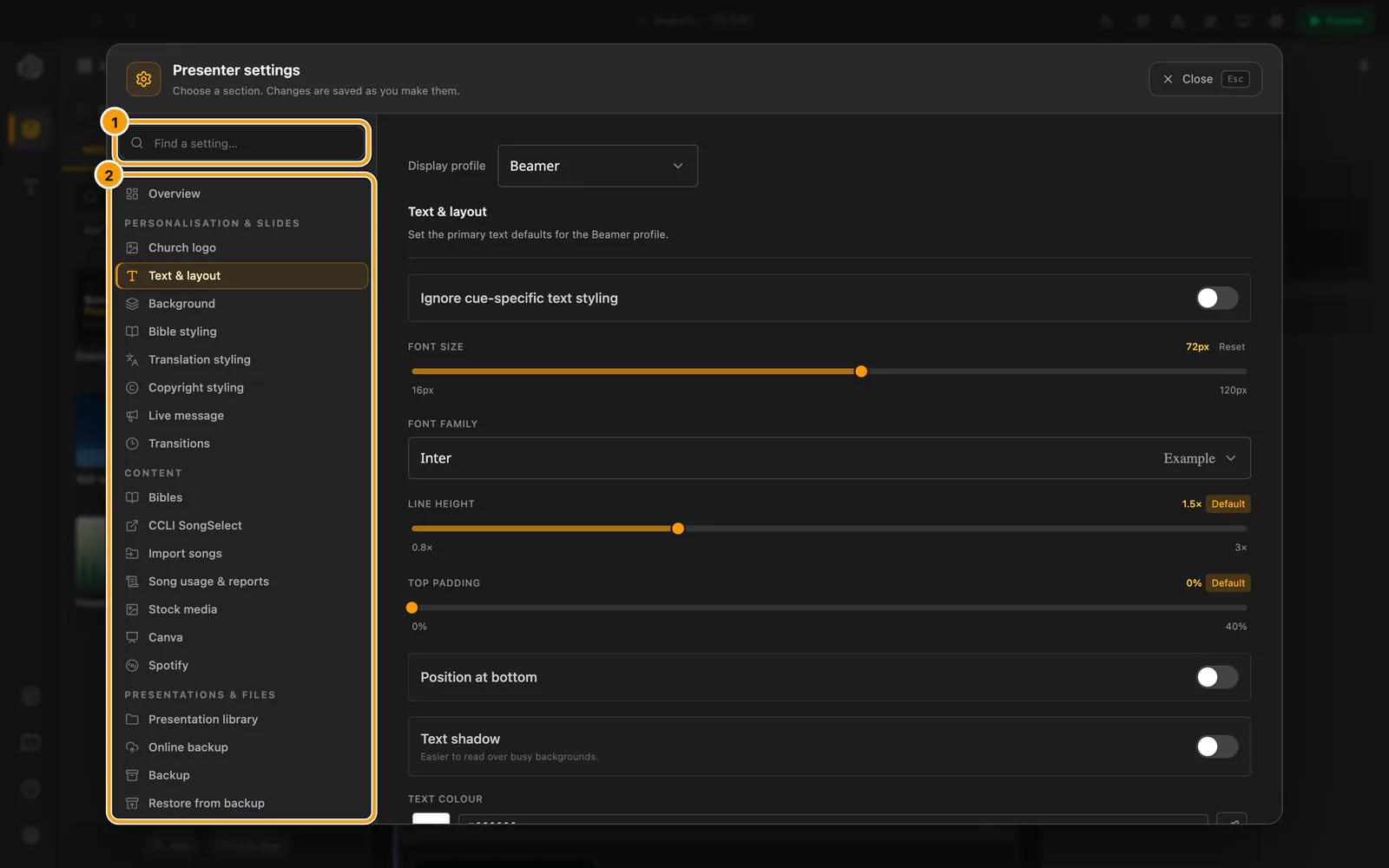
① Search settings · ② Sections
General
- Launch at login
- Interface scale
- Rendering & performance
- Keyboard shortcuts
Presenter 1.2.6 and later: Open Keyboard shortcuts for the grouped overview of deck navigation, Library, Properties and live controls. Expand Built-in shortcuts in each context to see the fixed keys. With the deck canvas, a cue or a section focused, press K without modifier keys to toggle Rows and Columns, both while stopped and while presenting.
Presenter 2.0 and later: Learned shortcuts at the top of Keyboard shortcuts lists the shortcuts you taught Presenter with Learn shortcut… (right-click a live control), with Learn and remove buttons for each action. Shortcuts for deck cues and sections follow at the end of the list, marked when their cue is not in the open deck.
Open Rendering & performance → Diagnostics to inspect this computer's CPU, memory and disk usage. Measurements are collected only while the details are open and remain available when AI is turned off. If a measurement cannot finish, close and reopen Diagnostics to retry.
Presenter 2.0 and later: Rendering & performance → Profile sets how much work Presenter does for pictures and motion. Full shows every picture and all motion. Balanced turns off backdrop blur and checks for changes less often. Lite is for older computers with little memory, a slow processor or a simple hard disk:
- Library items show their type icon in a list instead of a picture, and videos do not play on hover. Stock media search results keep their small pictures.
- The deck stays in Columns, which show no pictures. Rows and the
Kshortcut are not available; your own layout returns when you choose another profile. - PDF pages and PowerPoint slides in Properties show their number instead of a picture.
- The Preview keeps text, layout and pictures. A video cue shows a still frame with a play button, and a background loop shows a still frame.
- The Live view stays visible and keeps playing the sound. Its background loop is a still frame there, while your screens play it as usual. It shows only the main screen; when you inspect another display profile, it shows a short notice instead.
- Motion is off.
In Lite, background loops repeat without a crossfade unless a cue turns it on.
Custom follows the switches below the profile, such as Pictures in the Library and Rows layout in the deck. When Presenter detects 4 GB of memory or less, or a processor with two threads or fewer, it suggests Lite once. It never switches by itself.
Presenter 2.0 and later (Mac): Output screens open as borderless windows, so starting and stopping a presentation does not switch desktops (Spaces) on those screens. To use macOS full screen instead, turn off Rendering & performance → Output windows → Borderless output windows. The screen showing Presenter, and any screen a borderless window cannot cover, still uses full screen.
Presentations & files
- Presentation library: the folder containing decks and their reusable content.
- Backup: choose what goes into the ZIP. Media & deck files includes only supported media and
.deckfiles directly in the current collection folder, plus source metadata belonging to those media files; linked external files and media in subfolders are not included. Thesongsfolder is included recursively when Lyrics is selected. Configuration and presentation logs are separate choices. - Restore from backup: confirm first, then preferably choose a new, empty destination folder. Files with matching names in that folder are overwritten. If the ZIP contains
config.json, it replaces the active configuration and the previous version is saved asconfig.backup. Presenter then opens the restored collection and its first deck.
Online backup with paid Presenter or Complete
Open Online backup in Settings, or use the shortcut in the Connect account popout. Paid Presenter includes 1 GB per account, without media: Flex while the subscription qualifies, or Own during its update year. Back up decks, songs, saved Bible passages and portable preferences. Complete keeps 50 GB shared with Connect media, including online backups with media. Presenter Free and the 28-day trial do not include online backup.
Choose All collections for collections opened in Presenter, or One deck. Included content lets you exclude categories or collections. Under the 1 GB allowance, media cannot be selected; use a local backup for images, PDFs, audio and video, or Complete for online backups with media. With Complete, relevant media is selected by default unless you previously excluded it. Automatic backup stays off until you review the estimated size and available space and confirm. Review is also required before Back up now or adding media. Missing files and selections exceeding capacity cannot be confirmed. Presenter checks for changes every 15 minutes while open, connected and not presenting; unchanged content creates no new snapshot. The latest two completed backups per computer are kept.
Use Previous backups → Restore to recover files into a new folder. Restore Presenter settings only if you select that option; sign-in details and device connections stay local. Saved Bible passages are added without replacing existing ones. After paid access ends, new uploads stop; your existing backups remain available to restore with the same account and organisation while you retain the required organisation access.
Content
- Bibles: Presenter 1.2.6: The default Bible selector is farther down in Bible settings, and My Bibles and Offline Bibles are separate sections. Presenter 2.0 and later: choose Default Bible Version at the top, manage downloads and imports under Offline Bibles, and find online Bible access and bible.com pasting under Integrations. Tick Languages used in services so Bible and licensed song offers, and the AI’s second-language suggestion, follow every language your church uses.
- Stock media: Sign in to SundayAssist to use the enabled managed providers; personal keys are optional local overrides for their provider.
- Canva: connect your Canva account so Deck Builder can download presentations as local PDF or MP4 cues. The browser opens SundayAssist; sign in to the same SundayAssist account you use in Presenter, then approve access in Canva. Imported copies remain available offline.
- Spotify
- CCLI SongSelect
- Import songs
- Song usage & reports
Song usage & reports
Presenter 1.2.6: Review song counts for a date range and use the existing export action to save the underlying JSON logs. That export is not a selected CSV report, and the logs can contain lyrics and Bible text.
Presenter 2.0 and later: The separate song/Bible CSV reports, metadata-only logs and removal of previously stored text described below arrive with this update.
Open Settings → Song usage & reports, choose Songs or Bible passages, then select a date range. The song report shows each song’s title, author, CCLI song number when available, and number of performances. Consecutive slides from the same song count as one performance. Returning after another song, or a gap of more than 20 minutes, starts another.
The Bible report shows when each Bible slide was presented, its passage reference and translation. Usage logs and exports contain metadata only, without lyrics or Bible text. Presenter automatically removes previously stored text from older usage logs.
Choose Export CSV… and select a folder to save the selected report and date range. Open the CSV in Excel or another spreadsheet app. Use the song report when preparing your CCLI report; Presenter does not submit it for you.
Live tools
- AI Assistant
- Quick screens
- MIDI controllers
- Network video (NDI)
Presenter 2.0 and later: Quick screens shows a phone pairing QR code on the projector in any deck, without adding a QR cue: QR for Mobile Control, QR for Mobile Viewing (the audience also scans it to join polls) and QR for WorshipAssist. While presenting, choose Show, or press a shortcut taught with Learn (any key, mouse button, clicker, game controller or MIDI control). Press it again, or choose Stop showing, to return to what was on screen: the live cue, or the blank screen if you had blanked the output first. Blank, Space and the arrow keys leave a quick screen the same way they leave a blank screen; Esc and the panic keys leave the screen blank. Phones pair exactly as with the QR cue, with the same Presenter edition requirements. Linked rooms (Presenter Link) that follow this Presenter show a blank screen instead. While presenting, you can also show them from Quick screens at the top of the live panel.
Account & app
- Cloud account & data
- Privacy & permissions
- Diagnostics & support
- Updates & license
- Credits
Under Privacy & permissions, Send periodic diagnostic info is off by default and can be turned off at any time. If you opt in, Presenter sends a coarse summary at most once a day while it is open: app version, operating system, app language, feature-use summaries and startup reliability statistics. These help improve quality and guide product and marketing decisions. Reports exclude logs, presentation content, files, names, and email addresses. Diagnostic attachments in a manually submitted feedback report are a separate choice.
Open Settings → Diagnostics & support → Send diagnostics. Search Settings or global Search for Diagnostics, Support, or Send diagnostics. Choosing Send diagnostics collects and sends the report immediately. The control shows sending progress; wait for the sent confirmation. If sending fails, use Try again.
The report includes available current and recent Presenter logs, frontend/startup and latest launcher-crash logs, the latest available native macOS crash report for Presenter, redacted configuration, startup recovery state, app/runtime and system health, AI and song-sync status, recent event categories, and symbolic Go thread stacks (technical function names). Recognised credentials are removed; paths and content already recorded in logs may remain. Microphone recordings, media and arbitrary user files are not attached. Large logs may be shortened; the report records which files were included, shortened or unavailable.
Presenter 1.2.6: Beside an error, Send diagnostics opens a report form. Automatic-error consent has a separate expandable option below the error; an enabled preference can be changed under Settings → Privacy & permissions.
Presenter 2.0 and later: Beside an error, Send diagnostics opens a report form with the error already included; submit the form to send it. The chevron next to this button opens Always report errors automatically, with its privacy explanation and separate consent choice. When automatic reporting is enabled, the button shows progress and confirms a successful report; its chevron remains available to change the preference.
Sending diagnostics does not enable automatic error reporting or periodic diagnostics; those remain independent consent choices. If Presenter is frozen, reopen it first and then send diagnostics. Available previous logs and recovery information can help investigate, but cannot reconstruct every earlier freeze.
Advanced
Data location changes where Presenter stores its config.json file and copies the current configuration to the chosen folder. It is not the Presentation library and does not move decks, media, or lyrics. Change it only when you deliberately need a different configuration location.
Presenter 2.0 and later — macOS: Presenter uses ~/Library/Application Support/SundayAssist Presenter for its default data folder. Existing default data moves automatically when this can be done safely, and the old folder name remains as a link so saved file paths and older Presenter versions still work. If the move cannot complete safely, Presenter keeps using the existing folder. Custom data locations stay unchanged; Windows and Linux folder names also stay unchanged. You do not need to move your files manually.
Updates and licenses
Open Settings → Updates & license to check your installed version, license, and available update options.
Presenter 2.0 and later: In Presenter Free, choose the large Upgrade Presenter button to compare paid options. Open Already have a license? for activation and online license checks. Paid plans show a compact plan summary; Manage opens those same details. Flex and Complete show the renewal date, or the end date when cancellation is scheduled, if the billing date is available. Own shows the date through which updates are included.
Presenter 2.0 and later: A license belongs to the computer it was activated on, not to the account that is signed in. When nobody is signed in, the summary says Activated on this computer, so a computer can show Complete while nobody is signed in. Own keeps working without an end date. Flex and Complete keep working until the date shown, at most 30 days after the last online license check, then for 14 more days with a reminder; after that Presenter continues as Presenter Free. On Windows, the Microsoft Store edition and the download from SundayAssist share the license activated on that computer. Presenter cannot remove a license from a computer yet; when every computer on a license is in use, activating another computer lets the license owner or a church administrator confirm which one it replaces.
Presenter 2.0 and later: Your version and Check for updates are below the license summary. Open Revert to previous version for recovery options when your installed edition supports them.
Presenter 2.0 and later: When you start a Presenter or Complete purchase inside Presenter, confirm the payment account in your browser before paying. After payment is confirmed, the page tries to open the same Presenter and activate it automatically; Open Presenter tries again. If the app cannot open, you use another computer, or the return has expired, open Settings → Updates & license → Already have a license? → Sign in & activate and use the account used to pay. Automatic activation never replaces another computer. If every seat is in use, the license owner or a church administrator must review and confirm the exact computer to replace in the license controls.
Presenter 2.0 and later: After cancelling checkout or changing the plan, billing period or number of computers, the page may ask you to start again. Return to Presenter and choose your plan again for automatic activation, or choose Continue manually in your browser and use Sign in & activate after paying.
The update method follows the edition you installed:
| Installed edition | How to update |
|---|---|
| Downloaded for macOS or Windows from SundayAssist | Check for updates in Presenter and follow its download and restart steps. |
| Microsoft Store | Use Microsoft Store updates; Presenter can also offer the Store's update flow. |
| Linux | Use your package manager if you installed from the SundayAssist APT repository, or install the newer Linux package from SundayAssist. |
Finish and save your work before updating. Read the release notes, back up the collection and any linked files you need, then update with time to rehearse your deck and outputs before the next service. Presenter refuses an in-app update while presentation output is live; stop presenting first. Store or operating-system update settings are managed separately.
For direct downloads, Presenter checks whether the release is covered by your license before installing it. An update outside that coverage does not replace your installed version. Check the license details before choosing a different download or renewing coverage. Your Presenter license and the organisation's Connect plan are separate; a free Connect account does not by itself license Presenter.
Presenter 2.0 and later: while you are signed in to Connect with an organisation selected, the Connect account popout also leads here. Choose Account & organisation, then Updates & license; that row names your current license.
Presenter purchases from the website open the shared SundayAssist payment window after sign-in. Flex is a monthly or yearly subscription; Own and an additional update year are one-time purchases. Business invoice (optional) sits below Coupon code in the order summary. Complete any bank authorization, then sign in to Presenter with the same account; payment confirmation can take a moment.
In a Flex checkout, choose Buy once with Own in the order summary to switch to Own before paying. Own costs €299 once, including VAT, and includes 12 months of updates. You can keep using the covered Presenter version afterwards without a subscription. Review the new order total and accept the terms before paying.
Returning to an earlier version
Presenter 2.0 and later: For direct-download installations, Settings → Updates & license → Revert to previous version can return to the app copy kept by the last update; confirm in the dialog and Presenter restarts. Presenter refuses a target before 2.0.0, or one whose version cannot be verified, because it cannot safely preserve the current protected-content deck format. The target stays visible with an explanation. Automatic startup recovery uses the same barrier, keeps the current app and leaves AI off with safe startup settings.
Plain NBV21 passage cues retain the older reference format, including inside sections, when they have no extra arrangement choices. Protected song arrangements, Bible slide arrangements, pinned source revisions and saved protected Bible defaults require the current format. Compatibility for an ordinary passage reference does not mean an older app can reopen and save the whole service safely.
Installing an older app yourself, including 1.2.6, bypasses Presenter's rollback barrier. An older app can fail to show protected cues and drop them when saving. Keep a separate untouched backup of your service and linked files before using an older app. If cues are missing, stop saving that service and reopen the original in the current version.
Private recovery copies of protected services
Before replacing a deck file containing protected content, Presenter keeps verified encrypted recovery copies. If the copies cannot be verified, it refuses that replacement. These copies live in .protected-deck-recovery inside the original presentation library, separately from Time Machine history, and survive its pruning. They require this computer's secure key store and the original library location. Keep that folder and its location intact, and continue making normal backups of services and linked files.
Use Send error report to ask support for assisted recovery. Recovery creates a new .deck file in the original library without overwriting your service. If protected references cannot be restored safely, recovery stops and keeps the encrypted copy.
If you cannot find a setting
Use the search field at the top of Settings or global Search. Operational controls such as Connect, phone pairing, displays and microphone choice live near the title bar. Slide styling is available both in Settings and through the palette above the cue preview or Live View.
Interface language
Use the language menu to choose English, Nederlands, Français, Español, Português (Brasil) or Deutsch. The selected language applies to Presenter’s controls, native file dialogs, output controls and bundled Help. Remote and WorshipAssist have their own language menu, so musicians and operators can choose independently. French uses the dimancheAssist company wordmark; Presenter, Connect, Remote and WorshipAssist keep their product names. Changing the interface language does not translate your songs, Bible editions, event titles or imported documents.
Release notes and update history follow your interface language, including older published versions.