Organisation settings
Owners and admins open the profile menu and choose Organisation settings. Editors do not have access to organisation settings.
Every organiser can choose Profile settings or Canva directly from the profile menu. Organisation management remains limited to owners and admins. Use Show next gathering in Display settings to restore the readiness card at the top of Agenda.
Canva
Open the profile menu and choose Canva to connect your Canva account, check its status, change the connected account or disconnect. You can also open Profile settings → Your Canva connection. To connect, choose Continue to Canva, check the SundayAssist account in the new tab, then choose Continue to Canva again and approve access in Canva. This is your personal SundayAssist account’s connection, shared with Presenter when you use the same account; changing churches does not change it. After you approve the connection in the browser and the connection is confirmed, you return to Connect automatically. A success notification confirms that Canva is connected when you return. If the connection page remains open, choose Back to Connect.
Once connected, this view shows your Canva account and explains how to add a presentation from a service. Open Connection & privacy to change accounts, check the connection, disconnect or read how your data is used.
To import, open Attachments → Canva in a service for an organisation with Complete. Choose PDF slides or an animated MP4, then wait until Connect confirms that the exported file has been saved. Disconnecting Canva leaves imported files intact. Imports are snapshots; import again to include later Canva edits. Canva must permit your account to use the integration.
Organisation details
Set the organisation name, city, country, and Connect timezone. Agenda dates, reminders, and the Presenter handoff use this timezone. Changing it does not move an existing event’s stored moment, so review existing dates afterward and check it before creating a recurring series.
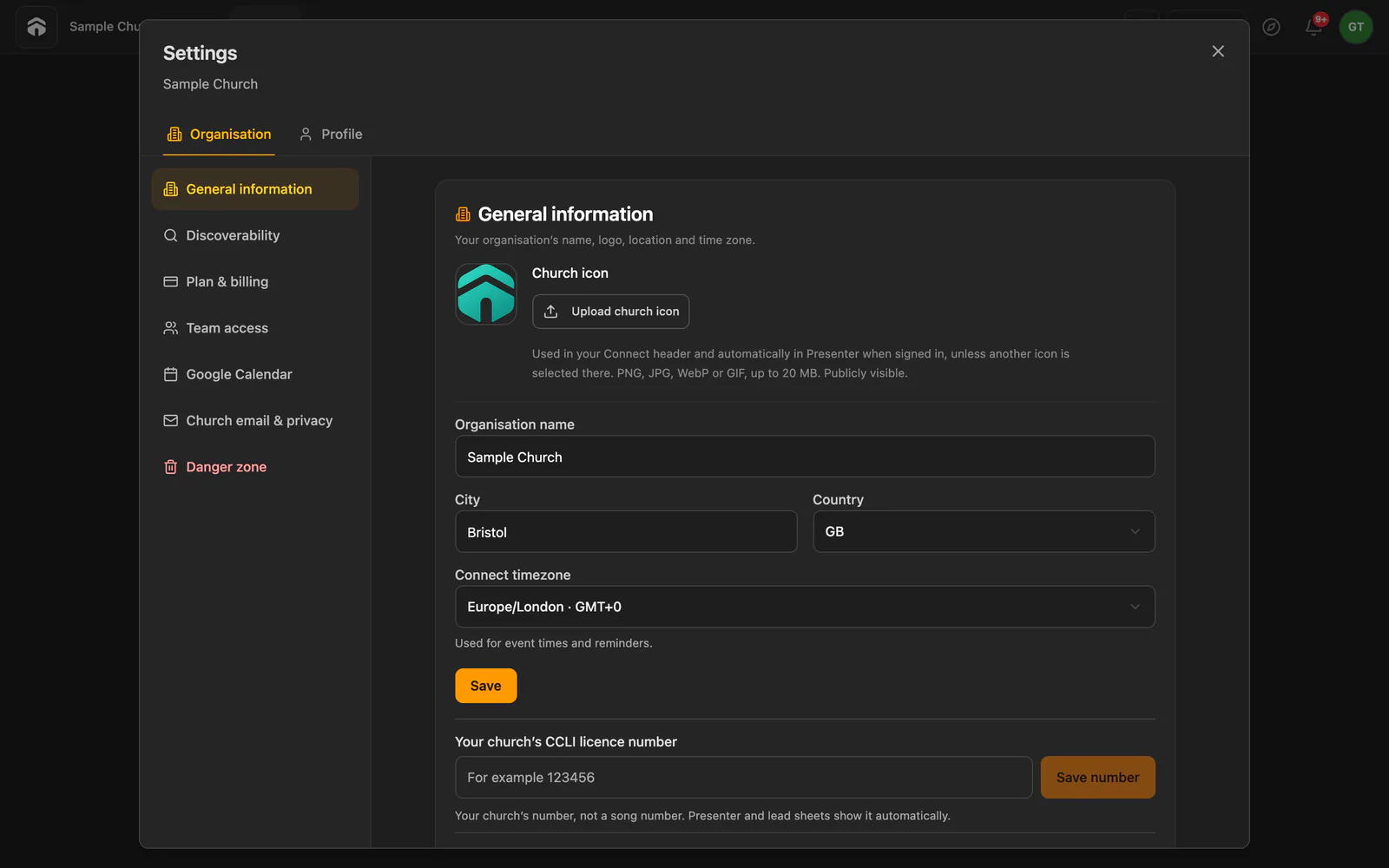
Use the data export action before a major cleanup or deletion, but do not treat the download as a backup. It is a JSON reference export and Connect cannot import it to restore an organisation. It includes core organisation, people, event, roster, template, song, and audit records. Attachment entries contain metadata only, not file contents. Email privacy policy versions, unsubscribe preferences, and retained email delivery attempts are also included; the private unsubscribe links are not. Availability-request history, nested-group links, Presenter sync receipts, and Chord Assistant analyses or jobs are not included. Download every file you must retain separately.
Church icon
Under Organisation settings → General information → Church icon, an owner or admin chooses Upload church icon or Replace icon; this needs an active Complete subscription or Complete trial. Use a PNG, JPG, WebP or GIF up to 20 MB. The icon is publicly visible.
Choose Show whole image to keep every edge visible, or Fill to crop the image to its frame. With Fill, drag the image in the Image position preview until the area you want is visible. You can also focus the preview and use the arrow keys, or choose Reset to center. The position saves automatically when you release the mouse, lift your finger or release an arrow key; wait for the saved confirmation.
Use Zoom while framing to adjust the image size. Logo background starts on Automatic, which matches opaque image edges and preserves transparency; choose a colour and Apply color for a custom background. The saved framing and zoom travel with the church icon to Presenter; the logo background colour does not.
Presenter automatically downloads the icon for the signed-in organisation and keeps an offline copy. An image or framing chosen separately in Presenter stays in place. Use Use church icon in Presenter's logo controls to restore the shared icon and framing. See Presenter settings.
Email privacy before sending
An owner or admin opens Email privacy before the organisation sends invitations or other Connect emails. Sending stays paused until the required information has been saved.
- Select the lawful basis the organisation has assessed for these messages.
- Describe the actual source of the contact details and the existing relationship with the recipients. This explanation appears in the emails, so it must fit the people you contact.
- Record where authorised staff can find the underlying evidence or assessment. Keep sensitive personal evidence in your own records rather than pasting it into these fields.
- Add the organisation's public HTTPS privacy notice and a monitored privacy contact email address.
- Record the assessment for special-category personal data. If a roster or invitation reveals religious beliefs, the organisation must also assess the applicable exception for that processing.
- Confirm the existing relationship and operational purpose, then save. Connect records the policy version and responsible administrator.
These settings record the organisation's assessment. Checking a box is not the recipient's consent, and an unsubscribe link does not make an unlawful first email lawful. The organisation remains responsible for the actual grounds, evidence, privacy information, and applicable email rules. Revisit the settings when the recipients, purpose, or processing changes; use Connect messages for the existing team's operational planning, not unsolicited recruitment or marketing.
What recipients receive
Organisation emails include the sending organisation, the explanation for using the address, its privacy notice and contact, and an unsubscribe link. This required information stays in the email even when an editable template changes.
The link opens a confirmation page that works without signing in. Only confirming the choice stops the organisation's invitations, reminders, availability requests, roster summaries, and other notifications; opening or scanning the link alone does not. Email clients that offer an unsubscribe action can also use it.
Unsubscribe preferences apply to an email address within one organisation. Editing a person, creating a duplicate record, resending, or processing a queued message does not reset the preference. A requested login or recovery email remains available and does not turn organisation messages back on. Unsubscribing does not delete a profile, decline an assignment, or close an account; handle those requests separately through the organisation's privacy contact.
If an invitation is blocked
Read the delivery result. Invite sent means the email provider accepted the message, not that the recipient received it. A policy block, missing address, or unsubscribe is not a successful delivery. Ask an owner or admin to complete missing setup; do not keep retrying an unsubscribed address or recreate the person to bypass their choice.
Plan & billing
Plan & billing shows the current plan, subscription status, and renewal information. Owners and admins can choose monthly or yearly billing, open Manage subscription, and reconcile the displayed status after checkout.
Presenter 2.0 and later: When you start a Presenter or Complete purchase inside Presenter, confirm the payment account in your browser before paying. After payment is confirmed, the page tries to open the same Presenter and activate it automatically; Open Presenter tries again. If the app cannot open, you use another computer, or the return has expired, open Settings → Updates & license → Already have a license? → Sign in & activate and use the account used to pay. Automatic activation never replaces another computer. If every seat is in use, the license owner or a church administrator must review and confirm the exact computer to replace in the license controls.
Presenter 2.0 and later: After cancelling checkout or changing the plan, billing period or number of computers, the page may ask you to start again. Return to Presenter and choose your plan again for automatic activation, or choose Continue manually in your browser and use Sign in & activate after paying.
Owners and admins can also change the plan or billing cycle there. Each change shows a quote before you confirm. Switching from monthly to yearly billing, from WorshipAssist to Connect, or to Complete takes effect immediately with a prorated charge; switching from yearly to monthly billing or to a smaller plan takes effect at the end of the paid period. Connect includes WorshipAssist for your church's band. A reviewed plan change from Connect or WorshipAssist to Complete immediately ends the personal Presenter Flex subscription of the person who makes the change and refunds the unused time to the original payment method. A new Complete checkout instead offers End my personal Presenter Flex now and refund the unused time, which is unticked by default. No refund is made for an unpaid or past-due Flex invoice.
If a renewal payment fails, Connect and WorshipAssist keep what is already running for up to 14 days while the payment is retried: songs, setlists, running band sessions and practice copies stay available. Nothing new starts until the payment succeeds, such as new band sessions, guest links or guest invitations, and WorshipAssist shows band managers Payment problem with the date until which access continues. Complete features already running in SundayAssist Cloud, such as phone connections from other networks and cloud integration credentials, continue for up to 14 days while the payment is overdue, but new media uploads, Presenter backups and cloud credentials cannot start. If a subscription period ends without renewal, its features stop within 3 days. Update the payment method through Manage subscription.
The payment window shows the order summary beside the payment methods. Business invoice (optional) is below Coupon code in the summary. On a phone, tap the total to see the item and VAT breakdown. The included VAT amount comes from Stripe's calculation; it is already part of the displayed total. Your payment method may open your bank to complete authorization.
If payment completed but Connect still shows the old plan:
- Wait briefly for payment processing.
- Return to Plan & billing and use the subscription status sync action.
- Refresh Connect once.
- If the status is still wrong, do not repeat checkout; contact support with the organisation name and payment date.
Team access
Use Team access to invite or manage people who can plan across the organisation.
| Access | What it allows |
|---|---|
| Owner | Full access, including billing and organisation deletion |
| Admin | People, settings, access, billing, organisation deletion, and all events |
| Editor | Create events and edit every event’s roster and plan, without People or Settings management |
The recipient must accept an organisation access invitation before gaining membership and access, even if they already have a SundayAssist account. Sending the invitation alone does not grant access. Acceptance does not lower an existing stronger role or turn organisation emails back on after an unsubscribe.
Access invitations expire after 14 days. Revoke a pending invitation when the address is wrong, then send a new one. Owners cannot be removed. Check the selected role before granting access; volunteer roster invitations do not require Editor or Admin access.
A service invitation is separate from an organisation access invitation. Invitees get read-only event access unless an owner, admin, or editor enables Collaboration in that event. See Plan an event.
Google Calendar
Open Google Calendar and choose Connect for import. Grant read-only access, select the Google calendar and choose Save connection. Your Google account must be able to read event details in that calendar; edit access is not needed.
Start an import from Agenda → Import from Google or All events → Connected calendars. Load a date range, review the events and import only the ones you select. The import copies their titles, dates and times into Connect. Events already imported are marked Already in Connect.
Connect does not create, edit or delete events in Google. Editing or deleting an imported event affects only its Connect copy. Later changes in Google are not automatically applied to Connect; review and adjust the Connect event separately when needed.
If an older connection asks you to update its permissions, choose Disconnect, then Connect for import again and save the calendar. Disconnect requests revocation of the Google grant; other Connect organisations using the same Google account may also need to reconnect. If old write permissions still appear, remove SundayAssist in your Google Account connections before connecting again. Existing Google events remain in Google, including copies created by the previous integration.
Disconnecting removes the stored connection and credentials. Events already imported into Connect remain until you remove them separately. If loading events fails, confirm that the account still has read access and that the correct calendar is selected.
Update Connect in your browser
When a newer version is available, an open Connect tab offers Update now and Later. Finish your current edits and wait for them to save before choosing Update now; this reloads the page and returns to the same place. Later lets you continue working and dismisses that release for the current tab session. Connect does not automatically reload an open tab to apply an update.
This browser update is separate from installing a Presenter desktop update.
Danger zone
Organisation deletion is permanent. It removes the organisation and its Connect data, and it attempts to cancel linked billing, disconnect integrations, and clear stored files. Do not rely on that cleanup attempt as your only billing or file-retention safeguard.
Before deleting:
- Export the organisation JSON for reference; it cannot restore the organisation.
- Download any files you must retain because the JSON contains attachment metadata only.
- Open Plan & billing → Manage subscription, cancel any active subscription, and confirm that it will not renew.
- Confirm that you switched to the organisation you intend to remove.
- Read the deletion summary.
- Type the exact organisation name only when you are certain.
There is no restore action after deletion. Keep the billing cancellation confirmation with your export, and contact support if the subscription still appears active.
Interface language
Choose your language under your personal language settings or from the language menu: English, Nederlands, Français, Español, Português (Brasil) or Deutsch. Connect and WorshipAssist use the same language choices for their controls and Help. The roster PDF export also lets you choose a language independently. Your language preference does not change your church’s time zone, billing country, songs, event titles or other content entered by your team.
The link in About opens the SundayAssist website in your selected interface language.