NDI: network video
Use NDI to send Presenter pictures to video software or a network receiver, or receive an NDI feed as a slide background. An output sends a display profile from Presenter; an input brings a source into Presenter. Both use the local network.
Before you start
Connect Presenter and the other NDI devices to the same local network. Open Settings → Network video (NDI) and check the availability message. Follow any runtime installation or macOS screen-recording permission instructions shown there, then restart Presenter when requested.
NDI is unavailable in the Mac App Store edition and the native Windows ARM64 edition. The settings message explains the restriction; on Mac it also offers the direct edition.
Send Presenter output
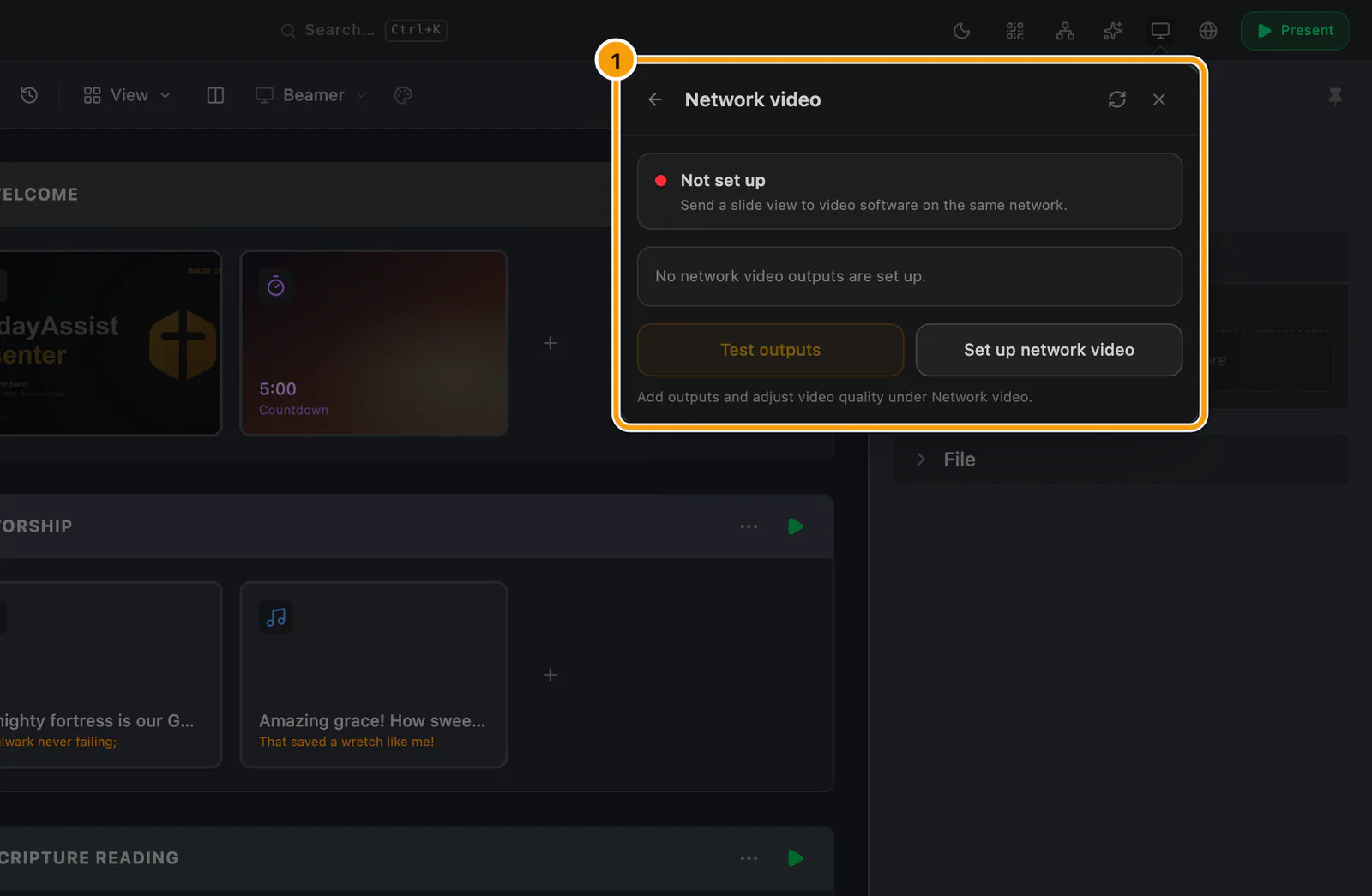
① Network video (NDI)
- In Settings → Network video (NDI), choose Add NDI Output.
- Give it a recognisable name, set its width and height, and choose the Display profile to send. A new output starts at 1920 × 1080, with audio off.
- Leave its switch on. Each enabled output sends its own view of that profile; you do not need to enable a physical projector screen to use NDI.
- Open Displays → Network video and choose Test outputs.
- In your NDI receiver or video software, select the source matching the output's name. Confirm the signal using the name in the test picture and check that Presenter reports a connected receiver. Choose Stop test before presenting your deck.
Use one output shared by several receivers when they need the same picture. Add separate outputs when they need different profiles or content. For video timing and receiver delay, read Presenting.
Send transparent lyrics
Choose the output's display profile in Display settings, open Background, set Background type to None, enable Ignore cue-specific backgrounds, and turn on Transparent NDI output. Assign that same profile to the NDI output. This sends the foreground, such as lyrics, with transparency for compositing over video in the receiver.
The output's Alpha mode offers Straight alpha (OBS/vMix) and Pre-multiplied alpha. Match it to the receiver's expected mode, then test the edges of the text over the actual video background.
Receive an NDI background
- Start the NDI sender on the other device or application.
- Open the styling palette, choose the intended display profile and Global, then open Background.
- Set Background type to Live. In Live source, choose the entry labelled NDI with the sender's name. Use the refresh button if it has just started.
- Check a lyrics, Bible or countdown slide on that profile. A cue's own background can override the global background; enable Ignore cue-specific backgrounds when the profile should always use this feed.
You can also check Discovered NDI Sources in Settings → Network video (NDI). Incoming NDI supplies video only; route the source's sound separately.
Include program audio
Use the speaker button beside an output in Displays → Network video or Settings → Network video (NDI). Audio is off by default and saved separately for each output. This includes Presenter program sound from local video and audio cues, independently of the computer speakers.
YouTube, Spotify and website embeds do not supply sound to this NDI route. Camera, screen and incoming NDI backgrounds also supply video only. Choose the intended audible route and check picture and sound together at the receiver; several audible routes can cause an echo.
If something does not work
| What you see | What to check |
|---|---|
| No source appears | Confirm that the sender is running and reachable on the same network, then refresh the source list. On Linux, check that the Avahi discovery service is running. |
| Output is on but waiting for a receiver | Select that source in the receiving device or application. The enabled switch alone does not mean a receiver is connected. |
| Receiver is connected but the picture is wrong or black | Run Test outputs, stop the test, then check the selected display profile, active cue and output enable switch. On Mac, resolve any screen-recording permission message. |
| Sound is missing | Enable the output's speaker button and test a local audio or video cue. Check the source limitations above and the receiver's audio routing. |
| Video stutters or displays differ in timing | Reduce unused outputs or the output resolution and rehearse the complete receiver setup. See Presenting for timing checks. |
For a persistent problem, use Settings → Diagnostics & support → Send diagnostics. See Settings for what the report contains.