Library & sources
The Library contains reusable content. It does not determine service order; drag an item into the deck to use it in the current service.
Use the + beside a Library item to choose a section without presenting it. If you opened the Library with a section's +, additions keep going to that section until you cancel or leave the Library. Double-click a local item, press Enter, or choose Properties from its right-click menu to inspect it. Folders open their contents.
Right-click a Library item and choose Present now to show it immediately. Presenter adds the cue to a section called Present now, creating it at the end of the deck only when it does not already exist. Later ad hoc cues are appended to that same section, including while live. Add to lets you choose a different section without presenting. Presenter 2.0 and later: The same Add to and Present now buttons sit at the top of a Library item’s Properties.
Library tabs
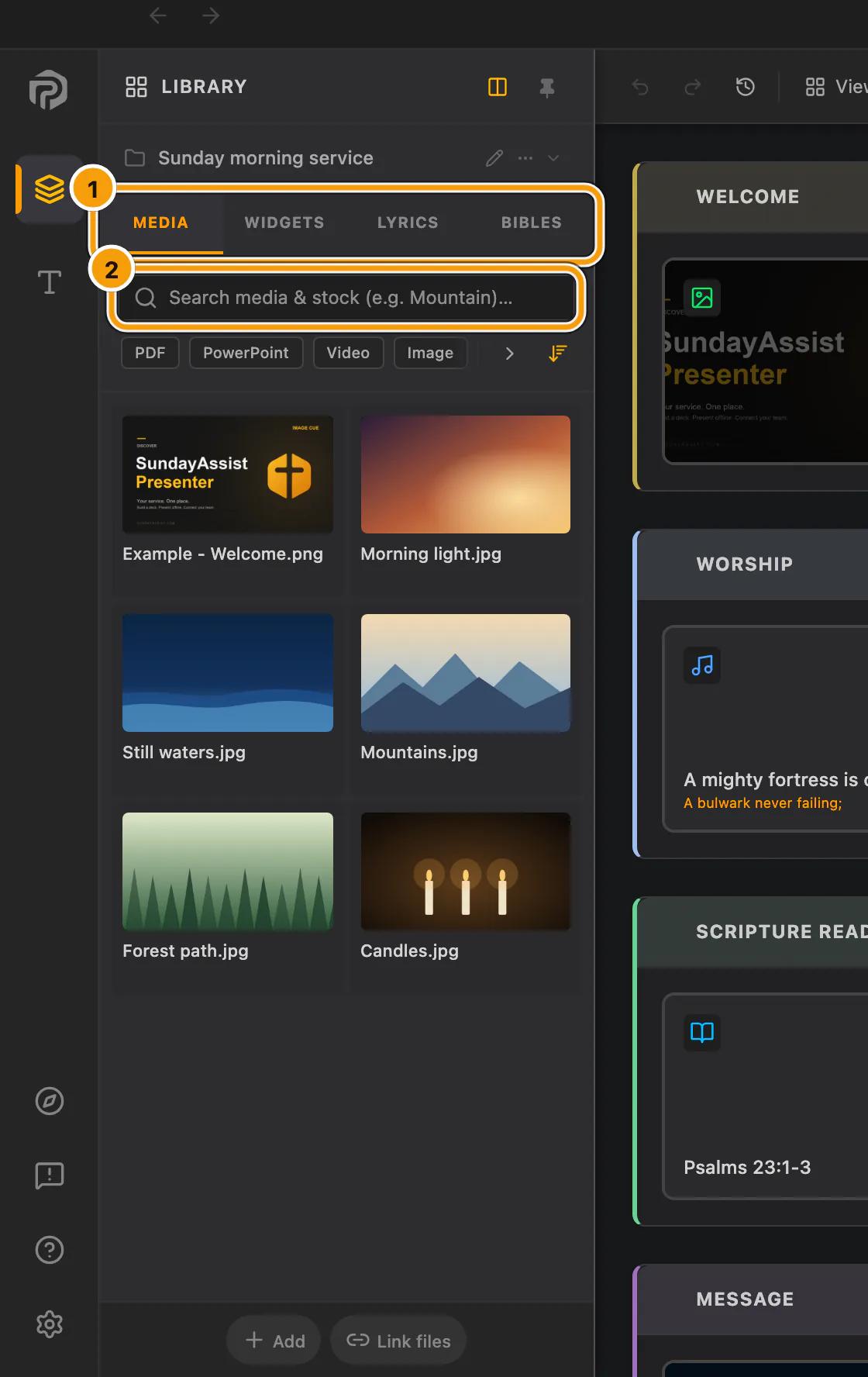
① Media, Widgets, Lyrics and Bibles · ② Search
| Tab | What belongs here |
|---|---|
| Media | Collection folders, images, video, audio, PDFs, and other supported local media. Filters include PDF, Video, Image, Audio, Folder, and Synced when Connect media is present. Select Connect in the same filter row to browse your organisation's cloud media. |
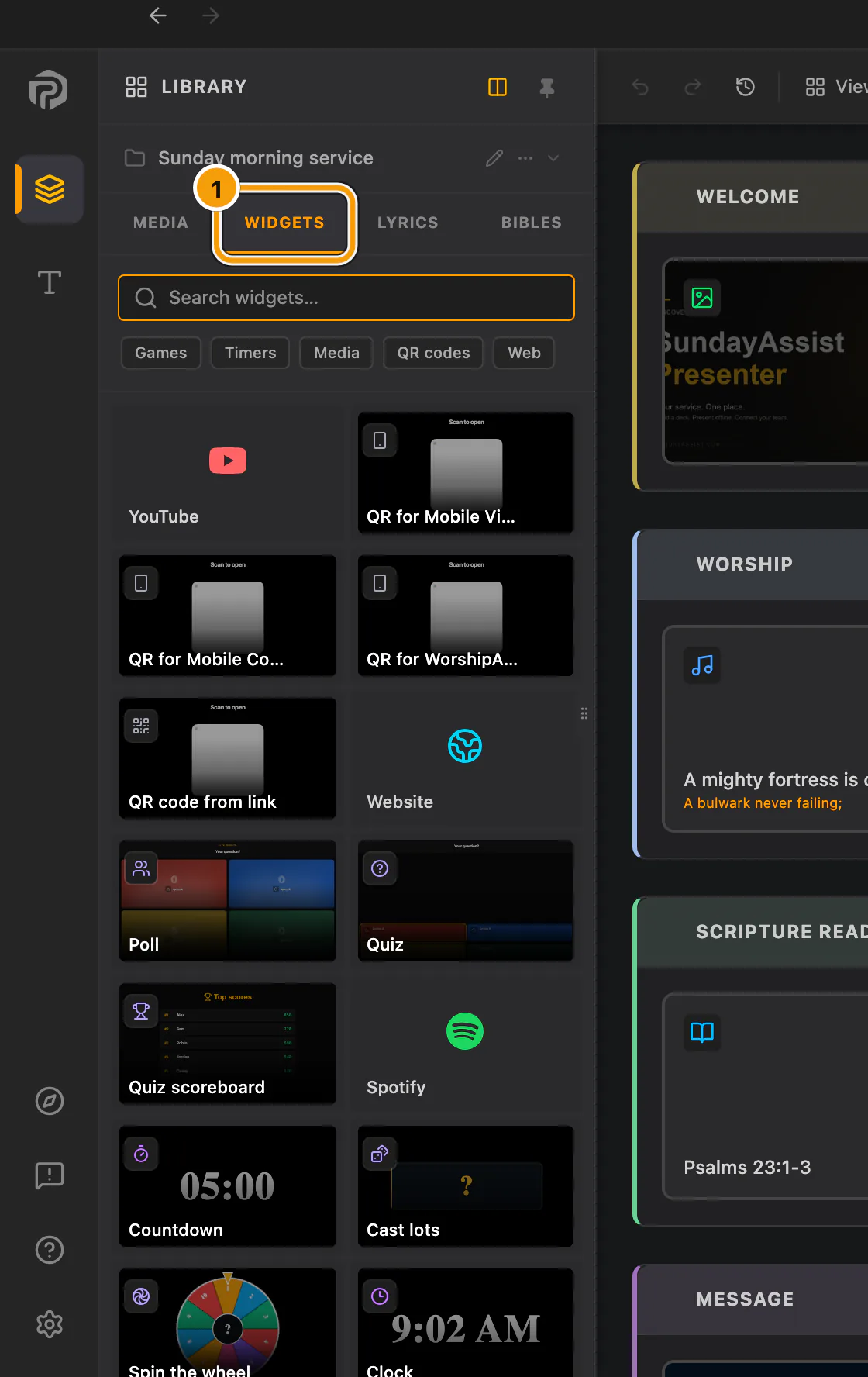
| Widgets | YouTube, Spotify, mobile QR cues, QR links, websites, countdowns, polls, quizzes, and the quiz scoreboard. |
| Lyrics | Songs created in Lyrics Designer or imported from text, ChordPro, SongSelect, or another presentation system. |
| Bibles | Saved passages and the passage search for available online, offline, imported, or pasted translations. |
Presenter 2.0 and later: In Widgets, the information icon at the bottom right of each card explains what the widget does and how to use it. Like +, it appears when you point at the card or focus its controls with the keyboard, and remains accessible on touch devices. Click outside the information dialog to close it. The same information appears in the library item’s Properties. The colour groups and filters are Games, Timers, Media, QR codes and Web. Media includes YouTube and Spotify; Web includes websites. Select one or more filters to show widgets from any selected group. Select a filter again to remove that group; clearing all filters shows every widget. Clearing search keeps the selected filters.
In Focus mode only, when the Library dims while idle, primary card and type icons, names, actual media or artwork thumbnails and authored content previews remain visible at reduced opacity (45%). Only secondary controls and actions, including add, information, edit and link buttons, badges and search or filter controls, hide completely. Loading and error indicators stay visible. Nothing moves or changes row spacing. Presenter 2.0 and later: In Focus mode, inactive filter and source strips hide in Widgets, Lyrics and Bibles as they do in Media; active filter or source indicators remain visible. Move the pointer into the Library or use the keyboard there to restore its controls. With reduced motion or interface animations disabled, changes happen immediately.
Browse with the keyboard
Presenter 1.2.6 and later: The expanded search/focus shortcuts and Space-to-add workflow below apply from this version.
While stopped, press Tab from a deck cue, Library row or Properties subitem to focus search in the current Library tab. In search, Tab selects the next tab and Shift+Tab the previous tab, keeping search focused. The tabs cycle through Media, Widgets, Lyrics and Bibles.
From search, press Down to select and focus the first visible result, or Up for the last. With no results, focus stays in search. On a row, Up/Down selects the previous/next visible item in the current filter and sort order. The selected row stays focused and visible, including in long lists, and Properties follows the selection. Navigation stops at the first or last row.
Press Escape on a row to focus search and clear any query. In search, Escape clears a non-empty query and stays there; with an empty query, it returns focus to the selected deck cue. The current Library tab and filters, including Setlists and Connect, stay selected. Pairing, adding cues, dragging and open menus handle cancellation first. These browsing shortcuts do not add content, change the deck or start presentation.
To add with the keyboard while stopped, first select the destination section in the deck. Focus an addable Library row in any tab and press Space twice: the first press arms confirmation and the second adds the selected item to that section through its usual + flow. This keeps focus in the Library and does not start presentation. In search, spaces remain part of your query.
Copy media or link it
- Media → + → Import file… copies supported media into the collection. A
.txtfile opens as an unsaved song draft in Lyrics Designer; review and save it, then add or drag the saved song into the deck. Files dropped from Finder or File Explorer follow the same split. - Link external files leaves the source file in its original location and adds a reference to the deck. Keep that file available at the same path; use Unlink to remove the reference without deleting the original.
- Import from Canva opens your connected Canva presentation library. Choose PDF for click-through slides or MP4 to preserve Canva's timed animation, optionally select a page range, and import. Presenter downloads the export into the collection before creating the cue, so playback works offline. Connect the account first under Settings → Canva.
- PowerPoint offers direct
.pptxplayback or PDF conversion when you add or drop a presentation. See PowerPoint presentations for importing, previewing and presenting your slides. - Dropping files directly onto a deck section copies and inserts supported media, including PowerPoint presentations. A
.txtfile opens in Lyrics Designer and is not inserted until you save and add the song.
For a portable deck that will move to another computer, copy media into the collection instead of linking it.
Stock media search
Presenter 1.2.6 and later: The managed access and provider availability described below apply from this version.
In Library → Media, type a search and press Enter to find stock photos and video. Sign in to SundayAssist inside Presenter to use providers enabled by SundayAssist without entering provider API keys. Availability depends on the provider and its current service limits. Optional personal keys in Settings → Stock media override managed access for that provider and stay on this computer. Imported files and their licence metadata are saved in the collection for offline use. Presenter 1.2.6 and later hide Pexels from Settings and search. Previously imported Pexels files and their source information remain usable.
YouTube widget and account
The updated YouTube widget requires an internet connection and a SundayAssist account signed in inside Presenter, including during the pilot. Open Connections → Connect to sign in, then retry the YouTube cue. Signing in only on the SundayAssist website does not sign Presenter in.
Playback also checks access for this Presenter installation through your licence or an active YouTube pilot. If playback reports an access problem after signing in, check the account and Settings → Updates & license.
Older Presenter versions: The public relay no longer plays YouTube videos. Update Presenter and sign in to keep using YouTube. Opening a SundayAssist relay link directly shows “Open in Presenter” instead of playing a video.
Add YouTube from Library → Widgets. Rehearse the actual video while online before the service. For video timing across displays and NDI setup, see Presenting. YouTube sound is not included in Presenter's NDI audio output; use a separate audio route and test picture and sound together.
Cast lots and Spin the wheel
Presenter 2.0 and later: Cast lots and Spin the wheel arrive with this update.
Add Cast lots or Spin the wheel from Library → Widgets. Both widgets are included in paid Presenter editions, like the other widgets.
For Cast lots, enter names, one per line, up to 200, and an optional Heading. Choose a Duration of 1–60 seconds (default 5). While presenting, Cast lots in Subitems shuffles the names on screen for that duration and lands on one name. Use Cast again to draw again. Advance (Space or the phone Remote’s next control) draws only before the first result; after a result it moves to the next cue.
For Spin the wheel, choose From and To (default 1–10), using whole numbers and a range of up to 1000 numbers. Small ranges show each number on the wheel; larger ranges show the number in the centre. Choose a spin Duration of 1–60 seconds (default 5). Spin in Subitems spins the wheel; Spin again spins again. Advance draws only before the first result; after a result it moves to the next cue.
Enable No repeats until everything has been drawn to avoid repeating a result until every name or number has come up. Then a new round starts.
Start again clears the result and bingo board; click it a second time to confirm Start again?. The controller phone has its own card for these two cues: a short how-to, an amber main button (Cast lots / Cast again or Spin / Spin again), the result, Drawn: n of m and Start again.
Presenter makes one draw. Every projector, the stage display, phone viewers and linked Presenters show the same result.
Hymn board, Clock and Stopwatch
Presenter 2.0 and later: Hymn board, Clock and Stopwatch arrive with this update.
Add Hymn board, Clock or Stopwatch from Library → Widgets. All three are included in paid Presenter editions, like the other widgets.
Hymn board lists the deck’s songs and Bible readings in deck order, leaving out hidden cues and disabled sections. Verse numbers appear when the lyrics have numbered verse headings such as “Verse 1” or “Vers 3”. By default, the first song or reading after the board is highlighted; turn off Highlight the next song or reading to disable this. Turn off Include Bible readings to list songs only. Alternatively, choose Custom lines and enter up to 40 lines yourself. You can add an optional Heading. The board updates when the deck changes.
Clock shows the time of day. Each screen uses its own computer or phone clock. Choose whether to show seconds and the date, and add an optional Heading.
Stopwatch starts when you use Advance while presenting. Use Advance again to stop it, and once more to move on. In Subitems, the live cue offers Start, Pause, Resume and Reset. You can hide tenths of a second and add an optional Heading. Every screen shows the same elapsed time. Showing the cue again starts from zero.
Keyboard shortcuts for widgets
Presenter 2.0 and later: These shortcuts act on the widget on screen. Selecting another cue never redirects them. While stopped or blanked, Enter keeps its existing behaviour. Typing and open menus keep their keyboard controls; a learned binding takes priority. Right-click a live button to learn a keyboard, MIDI or clicker shortcut, or find its command in quick search.
| Key | Live action |
|---|---|
Enter | Start, pause or resume the stopwatch; draw again; reveal the next game step; open or close word collection or voting; open the buzzer or start its next question; show poll or quiz results. On Team scoreboard, add a shared symbol, play again at a full goal, or open score setup. |
R | Reset the stopwatch, restart a game or draw round, or draw teams again. Destructive actions need a second press to confirm. |
A | Reveal the whole picture, verse, answer or story order. |
Y | Approve the first pending word. |
I | Ignore the first pending word. |
H | Hide the first approved word. |
W | Award a point to the first buzzer team. |
G | Add a shared score symbol. |
U | Undo the last score action. |
Shift+1 / Shift+2 / Shift+3 / Shift+4 | Award a point to the corresponding team. |
V | Show or hide the score. |
M | Turn score sound on or off. |
Shift+R | Reset the score. |
Shift+X | Stop keeping score; press again to confirm. |
Shift+S | Open score setup. |
Shift+Enter | Start keeping score from setup. |
Shift+Escape | Cancel score setup. |
O | Open more score options. |
Buttons show their shortcuts. Only available actions run; Enter never advances past the end of a widget. Space keeps its existing Advance behaviour. Clock, Countdown, Hymn board and QR cues have no live operator buttons of their own; media and web widgets keep their existing playback and navigation controls.
Widget appearance
Presenter 2.0 and later: The widget appearance settings below arrive with this update.
Under Styling in a widget’s Properties, change its Background, Font family, Text colour, Accent colour and Text size (50–200 %). The default font follows the display profile. Drag an image, video or PDF from Media onto the widget card, or choose a solid background colour. Media backgrounds also offer overlay colour, opacity and blur. For Mystery picture, dropping an image sets the puzzle picture; dropping a video sets a moving background.
① Widgets
Widgets with dark panels offer Panel opacity. Clock and Stopwatch offer Position: centre, top, bottom or a corner. Spin the wheel and Word cloud offer Colours: colourful, warm, cool or shades of the accent colour. Settings follow display profiles like other cue styling and apply to outputs and previews; phones keep the standard look. Polls and quizzes keep their usual dark look unless the cue sets its own background or font.
For Clock, Time format offers Automatic (interface language), 24-hour or 12-hour (AM/PM).
Children's game kit
Presenter 2.0 and later: The children's game kit below arrives with this update.
Presenter 2.0 and later: Games pick up where you left off. Show a film or song and return: the wheel keeps its result and bingo board, Cast lots its round of drawn names, mystery picture, memory verse and clues/story order their step and the same tiles or words, and team draw its teams, on every screen and phone. Properties → Subitems and the phone card say Picked up where you left off. Carry on with the main button or choose Start again; a second click or tap confirms. Games start fresh when you stop presenting, open another deck or change names, numbers, verse, lines, picture, tiles or team numbers. Changing a heading keeps progress. Nothing is saved in the deck file. The word cloud keeps its approved, waiting and ignored words and each phone’s word allowance, and the buzzer keeps its round, in the same way. Answers that phones sent before you left are not accepted when you return. Scores work across cues as before.
In decks with games, choose Quick screens → Keep score… to open the score setup in Properties → Subitems. Choose Together: the whole group fills one row of stars, hearts, fish or crowns; add one when the group does well. Or choose 2–4 teams, identified by colour and shape, and award points to the team that answers. A shared row is optional for teams. When full, choose Start a new row. Sound is optional; Keep totals for next time saves scores only on this computer.
Use the team buttons, Shift+1–Shift+4, or the controller phone. G adds one shared symbol; U undoes the last point. Scores appear on every screen; Team scoreboard from Library → Widgets shows them as a cue. The main live button follows the advance key (Space), except after a Cast lots or Spin the wheel result: the button draws again, while Space moves on.
The controller phone shows the same game card as Presenter for Cast lots, Spin the wheel, mystery picture, memory verse, clues/story order, team draw, word cloud and buzzer: instructions, the same main button, progress and, where available, Show all / Start again; its Score card offers +1 and Undo. In Presenter, Stop keeping score sits below Undo and takes the score off every screen; click it a second time to confirm. Start again, Hide score and Sound are in the ⋯ menu next to Score.
- Team draw: give each child a number, then press Divide into teams to show their teams.
- Memory verse: children say the verse together; press Hide more words, then Show the whole verse to check.
- Clues: children guess from the clues; press Show next clue, then Show the answer.
- Story order: children arrange the story; press Put the next line in place to check each line.
- Mystery picture: drop an image from Media onto the cue; children guess as you press Uncover tiles, then Show the whole picture.
- Cast lots offers card mode, keeping options hidden until drawn. Spin the wheel can show a bingo board of the numbers called.
- A leader-only quiz uses no phones, QR code or voting; Advance reveals the answer.
- Word cloud: children send words from phones; press Start collecting words, then Close the word cloud. Each phone has the configured word limit; approve or ignore words in Subitems while the cue is live, or on the controller phone, or turn approval off.
- Quiz buzzer: press Open the buzzer and ask a question; the first buzz answers. Press Next question for a fresh round. Phones or tablets buzz once per round; team players choose their team colour.
In New deck, choose Use children's game template for a ready-made session in your interface language, including Bible detectives, story order, acting, a speed challenge, word cloud and bingo. All these widgets require a paid Presenter edition.
Chat on the screen
Next desktop update: The Chat cue below arrives with this update.
The Chat cue puts short messages from people's phones on the screen, such as greetings at the start of a service. Add Chat from Library → Widgets (it is in Games). Like the other games, it needs a paid Presenter edition.
In the cue's Properties, Text above the messages is what people see above the chat; a new cue starts with "Send a greeting or a short message" in your interface language. Approve room messages before they appear is on unless you turn it off: every message then waits for your approval.
While you present, Properties → Subitems shows one button at the top; Enter, Space, Advance and the clicker press it too:
- When the cue goes live, the QR code shows on the screen. People scan it with their phone; phones that already follow the service through QR for Mobile Viewing can join too.
- Open the chat. Phones ask for a name once, then offer a message box with Send.
- Close the chat when you are done. The messages stay on the screen; Advance then moves on to the next cue. Closed too soon? Click Reopen the chat to open it again with every message kept.
Below the button, each message is a card, in the order it arrived. Beside Chat, for example 3 waiting counts the messages waiting for you.
- Click a waiting message to show it on the screen. Its card turns amber with the LIVE label, like a slide on the screen.
- ✕ on a card ignores a waiting message, or hides one that is on the screen.
- ⋯ beside it, or a right-click on the message, opens its menu: Show to speaker (for a message on the screen) and Block sender.
Y shows and I ignores the oldest waiting message; H hides the newest message on the screen.
Show to speaker puts the message on the stage monitor for 2 minutes, for example so the person speaking can greet someone by name. Its card then shows a small screen mark, and its menu offers Stop showing to speaker. A newer one replaces it, and it also goes when you hide the message, block its sender or show another cue.
Block sender first asks Block this person? and says what it does; choose it again to block. All their messages are removed, from the screen too, and nothing more from that device is accepted during this chat, that is until you stop presenting, open another deck, or change Text above the messages or Approve room messages before they appear. It can't be undone. If another device dealt with a message first, Presenter says "That message is no longer there."
A second volunteer can approve messages from the controller phone in Full mode. With the Chat cue live, it shows Messages waiting for approval with Allow, Ignore and Block sender, under Messages on screen each message with Hide and Block sender, and Reopen the chat once the chat is closed.
What people see:
- Their phone shows the text above the chat, the messages on the screen with the newest at the bottom, and the message box. The phone remembers their name. Under their own message it says "Sent. The church chooses which messages to show." until it appears; it keeps saying that if you ignore the message, block its sender or close the chat first. Above the box it says that their name and message can appear on the screen in church and for people watching online.
- The screen shows the latest messages that fit, each with the name first, the newest at the bottom. Until one is allowed it says "Send a message from your phone. Messages appear here."
- The stage monitor shows only the cue's title while the QR code is up. Once the chat is open it shows the same messages as the screen, or "The chat is open." and "No messages on screen yet." while there are none. After Close the chat it says "The chat is closed." under the newest message.
Messages waiting for approval never appear on the screen, the stage monitor or other people's phones; only the sender sees their own.
The limits people will notice: a name has at most 24 characters and a message at most 200, on one line. Links and e-mail addresses can't be sent, the same message twice within a minute is not sent, one person can send one message every few seconds and at most 12 in ten minutes. The phone explains each of these before it sends. A phone is not told when you ignore a message or block its sender.
What is kept: in Presenter, messages and names stay in memory only. Show another cue and come back, and the chat is as you left it, blocked senders included. Everything is forgotten when you stop presenting, open another deck, or change Text above the messages or Approve room messages before they appear. Messages are never saved in the deck or in any file on this computer.
Add songs
For a complete move from another program, follow Migration to Presenter. It covers WorshipTools, ProPresenter, EasyWorship, OpenLP, SongBeamer, and what needs to be recreated manually.
- Use Lyrics → Create a new song for manual entry.
- Use Import songs to scan ProPresenter, EasyWorship, OpenLP/OpenLyrics, SongBeamer, ChordPro, CSV, or plain-text exports. Review duplicates and warnings before committing the import. Leave a detected duplicate on Skip unless replacement is deliberate: Replace existing overwrites that local song in place, has no Presenter undo, and can affect decks that reference it. Back up the song first.
- For SongSelect, open Settings → CCLI SongSelect, enable the Downloads watcher if desired, then download the
*-lyrics.txtfile from SongSelect in your browser. Presenter watches only the folders you configure and imports matching lyric files locally.
Drag a saved song or passage into the open deck. Use its edit action to open it in Lyrics Designer.
Add a prepared setlist
Open or create a deck, then choose Library → Lyrics → Setlists, at the left of the Lyrics shortcut row. The Library shows prepared setlist cards with their name, creator, song count and date. Use the existing search field and sort menu (the icon at the right of that row: Newest first, Oldest first, A–Z, Z–A) to find a list. Click its card to inspect the ordered songs and saved keys in Properties on the right. This preview uses the downloaded copy and works offline; selecting a list does not add it to the deck or start presentation.
Choose the card’s + to add its songs. The compact menu offers Selected section first, followed by the existing sections and New Section at the bottom. Selected section is unavailable until a cue or section is selected. Choose a named section to append the songs there, or New Section to create a section named after the setlist. Song order, repeated occurrences and saved arrangement keys are preserved. You can also drag a setlist card into a deck section to add its songs there. Your existing deck stays in place and presentation does not start.
If you opened the Library using a section’s + (Add cue), choose Setlists and select a card, then use Add cue in the Library banner. All songs go into that target section. The card’s + also adds directly to the target while this flow is active.
Sign in to the correct Connect organisation to browse its lists. Create and edit them in Connect or WorshipAssist. Once added, the lyrics are saved in the deck for offline use; later changes to the shared setlist do not rewrite this copy. The keyboard browsing above also applies to setlists: while stopped, Escape clears search first, then returns focus to the deck with Setlists still selected. If loading fails, use Retry or Send diagnostics.
Presenter automatically downloads the prepared lists and their songs for the signed-in account and organisation. These copies survive restarting Presenter. While online, it checks when the account or organisation changes, about every 5 minutes while running, and when you open Setlists if an update is due. Use the Library header’s existing refresh action to download changes now, and wait for the confirmation.
Downloaded lists appear immediately, including without internet. A network or server failure keeps the last complete download; retry online to get newer changes. First-time downloading requires a connection. Downloads stay separate per account and organisation, and confirmed loss of music access blocks access to those copies. Sync only downloads shared data: it does not upload changes to Connect or alter songs already added to a deck.
Prepared setlists require an active WorshipAssist, Connect or Complete subscription, or an eligible music trial, for that workspace. If a list or song is unavailable, Presenter reports the problem and leaves the deck unchanged; fix the shared list and try again. A setlist containing unavailable songs is marked Unavailable and cannot be added or dragged into the deck. Fix it in Connect and sync again; other complete setlists still download normally.
To load a setlist with a whole service, link it to an item in the Connect Plan, then create the service auto-deck in Presenter.
Add Bible passages
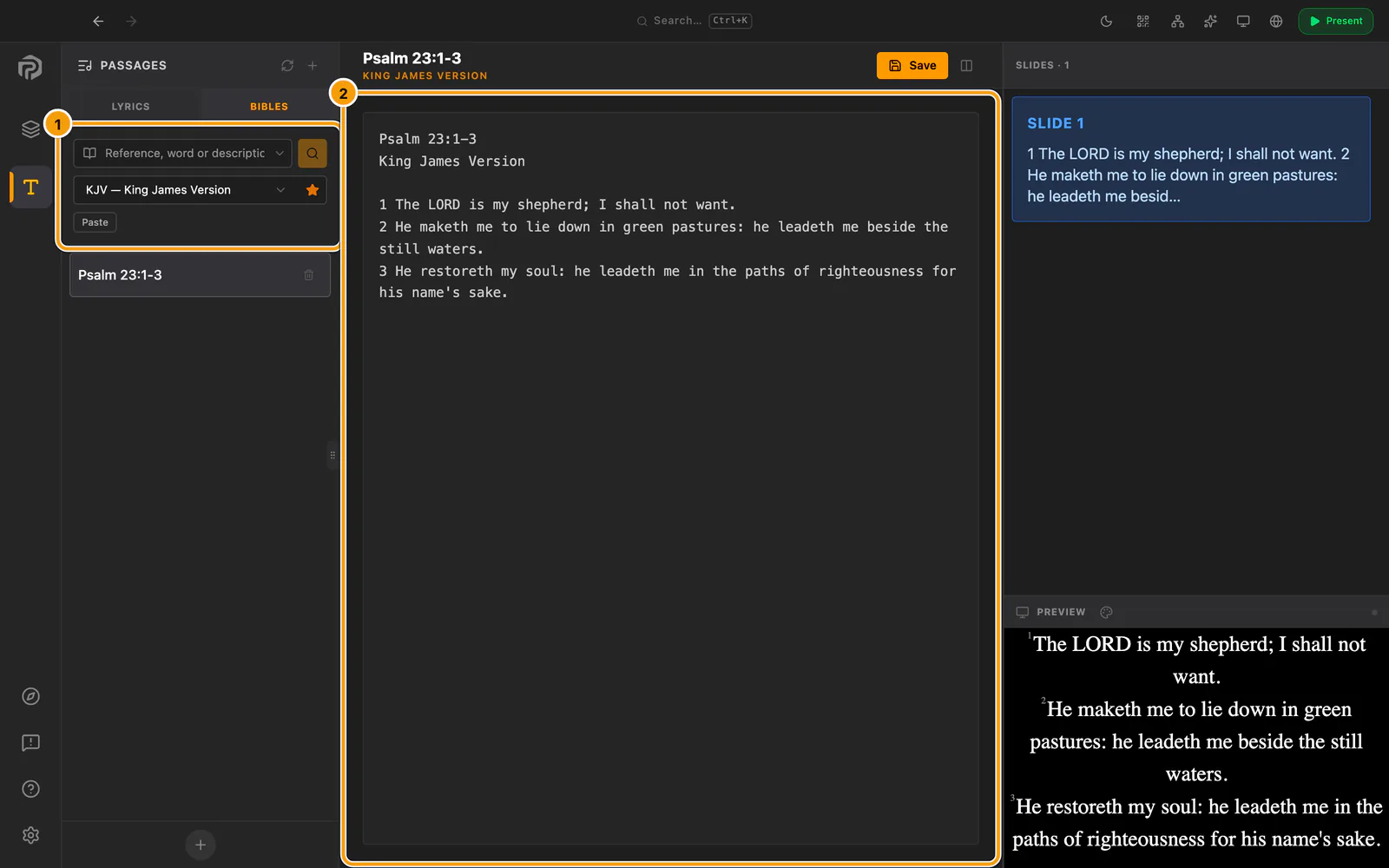
① Find a passage · ② Passage text
- Open Bibles and enter a reference, or click the field or its chevron to pick a book, chapter, and first and last verse.
- Choose a translation, then select the search button (magnifying glass) or press
Enter. A passage picked from the list is looked up straight away. - Review the fetched text and drag it into the deck, or save it in Lyrics Designer for reuse.
Presenter 2.0 and later: Successful passage lookups are kept in Recent on this computer. Right-click a fetched result and choose Save as passage to keep it in your passage library immediately, without adding a cue. Use the compact Recent and Saved filters to scan either list; select the active filter again to see both. A bookmark marks saved passages and a clock marks unsaved recent lookups. The quiet row at the bottom right shows the translation and, where applicable, Default. Point at the storage or cloud icon to check whether this passage is available offline or needs internet. Successfully fetched online passages are kept on this computer for up to 30 days, so they reopen offline after restarting Presenter; using one with internet refreshes it. Older history entries without a local copy still need internet. Saving a passage keeps it in your library independently of the recent cache. Licensed passages use the downloaded encrypted translation while its access remains valid.
Presenter 2.0 and later: Saving a Bible passage puts a heading above each verse, such as [5:3], [5:3-4] for merged verses, or [5:48] and [6:1] across a chapter end. Properties and Lyrics Designer show these sections as “Verse 5:3”; the headings never appear on the projector, Viewer or Remote. Rename a heading in Lyrics Designer to give that section your own name. Previously saved passages keep their text; delete one and save it again to add headings.
Presenter 2.0 and later: The sort menu at the right of the Recent and Saved row works as in Library → Lyrics: Newest first, Oldest first, A–Z and Z–A. It orders saved passages and recent lookups together and keeps the passage you just looked up at the top. A–Z follows the passage reference, with chapters in number order. Newest means the latest lookup, save or change, or the last time the passage was added to the deck or presented. Choosing a passage in the list shows it in Properties without moving it. While your pointer is over the list, or you move through it with the keyboard, rows stay where they are, and the order updates when you move away. Lookups from before this update have no time and appear last.
The Recent and Saved filters sit directly below the translation selector, in the same fixed filter row as the other Library tabs. Use the star beside the selector’s chevron to make the selected translation the default; a filled star marks the current default. Recent entries use the full Bible card immediately, with the translation name, passage reference, quiet metadata and normal actions. The card keeps its shape when selected; passage text is retrieved when needed.
Presenter 1.2.6: The default Bible selector is farther down in Bible settings, and My Bibles and Offline Bibles are separate sections. Presenter 2.0 and later: The overview and import path below describe the reorganised Bible settings arriving with this update. The default translation always appears first in the selector, above the source groups, including while searching or filtering. The star uses a subdued dark amber.
Manage sources under Settings → Bibles. Choose Default Bible Version at the top; this choice applies across Bible sources.
| Area | What it contains |
|---|---|
| Languages used in services | The languages your church reads and sings in. Presenter offers Bibles and licensed songs in these languages and suggests them as the AI Assistant’s second language; your interface language always counts. Ticking a language in a new collection’s Bible offer or in AI setup saves it here too. |
| Offline Bibles | An overview of offered downloads with their access requirements and download status. With Dutch as the interface language or a service language, NBV21 shows its Own, Flex, Complete or complimentary access alongside the public-domain translations. Previously installed NBV21 remains available after changing either language setting. My Bibles contains your imported translations and the USFM/USX import controls. |
| Integrations | Built-in online Bible access with an optional personal API key override, and Paste from Bible.com for text you copy manually in your browser. |
Find a passage by its words or meaning
Presenter 2.0 and later: In Library → Bible, type a word or description in the passage field and press Enter, select the search button, or choose Search for “…” at the top of the book picker. References such as “John 3:16” or “Jude” still open directly.
Use the Words and Meaning filters above the results. Words works offline: it finds verses containing every word, in Bible order, showing the typed form before other forms (for example, “roses” also finds “rose”, labelled Also matches rose). Put words in quotes, such as “lily of the valleys”, to match them exactly; capitals and accents do not matter. If no verse contains every word of a longer description, results contain the most matching words. To search one book only, end with “in” and the book’s full name, such as “roses in Song of Songs”: Words and Meaning then search only that book, shown as the first filter; turn that filter off to search the whole Bible. Add a chapter number to search one chapter, such as “love in John 3”.
Meaning finds passages about your description, for example “do not worry about tomorrow” → Matthew 6:34. It uses the AI Assistant’s passage-recognition models: download multilingual recognition in AI Assistant → Required downloads, with optional Bible quotation comparison. Allow a second or two; speech recognition keeps priority during a service. The first search after starting Presenter also loads these models, which can take longer on a busy computer: verses with your words appear at once, and Meaning fills in by itself when it is ready. Searching never presents anything or creates a suggestion card.
Search covers only downloaded free Bibles (KJV, ASV, WEB, Statenvertaling 1637, Louis Segond 1910, Reina-Valera 1909 and Almeida) and your USFM/USX imports. Licensed or online translations, including NBV21, YouVersion/Bible.com and pasted passages, are never searched. When one is selected, a notice names the installed free Bible searched in the same language, or offers a free download if none is installed; the chosen passage still opens in your selected translation.
Choose a result to preview it in Properties. Use + on its Library card to add it; right-click that card to present it or save the passage. You can also drag it into the deck. Choosing alone never adds or presents; your query and results stay. The first Escape clears the field and results; the next leaves the field.
When a chosen result loads successfully, Recent keeps the words or description that found it on a muted Searched: … line, including after restarting Presenter. Click that line, or focus it and press Enter or Space, to restore the query and search again in that passage’s translation. This only reruns the search. Searches without a chosen result and typed references do not add a query line. Using or saving the same passage again preserves its query; choosing it from a new search replaces the earlier query.
Licensed Bible downloads
Presenter 1.2.6 and later: The workflow below requires NBV21 to be enabled for your account; installing this version alone does not activate publisher downloads. Existing public-domain downloads and imports of USFM/USX files you are licensed to use remain available.
When NBV21 is available for your account, a purchased Presenter Own licence, an active Presenter Flex subscription, Complete or active complimentary access provides access. Sign in through Connections → Connect. With the interface set to Dutch, Presenter automatically downloads the Bible. Settings → Bibles shows the translation name, download progress, readiness and a retry action if downloading fails. Presenter 2.0 and later: New NBV21 downloads, including the automatic download, are offered when Dutch is the interface language or one of the Languages used in services. A church with an English interface that also reads Dutch can use NBV21. An installed or saved NBV21 source and a chosen NBV21 default remain accessible after changing either setting.
Presenter 1.2.6: Read the displayed reason and use the existing account or retry controls. Diagnostics is a separate action for errors.
Presenter 2.0 and later: If sign-in or licence access is needed, the translation shows a lock and Open account. If the download itself fails, Retry and Send diagnostics appear together below the reason.
After downloading, NBV21 becomes the Dutch default if you have not chosen a default translation yourself. Your saved choice stays in place. The protected download works offline while its access permission remains valid; reconnect before it expires so Presenter can renew it. If access or downloading fails, existing public-domain and imported translations remain available.
The publisher’s Bible source is stored encrypted. Publisher notices remain visible on the first slide and in About Presenter.
Presenter 2.0 and later — protected catalogues: NBV21 and Opwekking require a purchased Presenter Own licence, an eligible active paid subscription or active complimentary access. Trials and free accounts without an entitlement do not qualify. Complimentary access continues while granted, including verified Own licences supplied at no charge and sponsored Complete access. In Library → Lyrics, choose Licensed to show available licensed song catalogues. The full label is Licensed content. This source stays visible in every interface language. New Opwekking content is offered only when Dutch is the interface language or a service language; saved catalogue songs remain accessible in any language. The button turns amber while selected, and the search field stays available for a title or number. Choose Licensed again to return to your songs, or choose Setlists to switch sources. Clearing the search keeps the selected source. In Lyrics Designer → Database, the same Licensed filter appears beside Conflicts. The two filters are mutually exclusive. Selecting a catalogue song opens it in Lyrics Designer. Use the familiar edit action from the library or a cue to change slide breaks, stanza order, repeats or omissions, with a live preview. Save one arrangement for the song; all its cue items use that arrangement. The words remain protected. Saved choices survive a cache refresh and remain tied to the same source version. For Opwekking, opw 731, opw. 731, opwekking 731 and 731 find the same song. The current protected test catalogue contains 10 user-supplied songs. Test use is excluded from publisher reports; the official Opwekking database is still pending. In Deck Builder → Properties, preview the saved arrangement and use the existing Beamer styling controls. Change the arrangement only in Lyrics Designer. Saved passages, decks and shared setlists keep references and display choices rather than licensed wording. The app blocks copying and text export and shows the licence notice. Presenter’s encrypted offline copy works while its access permission is valid. If Presenter cannot open the words, for example because you are signed out or access has expired, the screens show no words and no explanation; when you present the cue, a message tells you why and what to do, and the Deck Builder → Properties preview says the same. In Presenter, with Licensed selected, use Refresh licensed content in the library header to retrieve the latest catalogue and renew the encrypted offline copy and its access. Wait for the success message; if refreshing fails, read the reason and try again. With the protected packages installed and access valid, the AI assistant can find NBV21 passages and Opwekking songs even when they are absent from your private library. Real NBV21 text still requires the publisher package to be activated.
Next desktop update: After updating Presenter, refresh licensed content once while online. Presenter stores the complete Bible or song catalogue encrypted on this computer. It remains available offline while Presenter accepts this computer’s paid licence or verified complimentary access, including its normal offline allowance and grace period. Presenter Own keeps access on versions covered by your purchase after the update year. Reconnect when Presenter requests a licence check. Publisher agreement expiry and revoked access still apply. Older versions may require a daily content check.
Use imported Bibles for discovery
Presenter 1.2.6: Use the separate My Bibles section in Bible settings.
Presenter 2.0 and later: Under Offline Bibles → My Bibles, import the USFM/SFM, USX or ZIP files you are permitted to use and set the edition's language to English, Dutch, French, Spanish, Portuguese or German where applicable. The language helps Presenter choose the appropriate speech setup. Replacing the same imported edition keeps its saved references associated with that edition; new or changed text must finish preparing before quotation discovery can search it. Presenter 2.0.2 and later: the AI Assistant also understands the book names your imported Bible uses when someone names a passage aloud, and it works out the language of an import that has none set, so it can keep following when the reader goes on.
Named references and quotation suggestions are available in the new Suggestions pane. You can review the passage before presenting and choose an installed display translation when the default is unavailable. See AI Assistant for setup, optional downloads and the difference between Assist and Auto-follow.
Connect content
Select Connect in the Media filter row to browse cloud media. If you are signed out, it opens the Connect account panel. You can also open this panel through Connections → Connect. An ongoing Complete subscription includes 50 GB of cloud storage per organisation. Once signed in, the account panel shows the selected organisation's storage usage and uploads in progress; use the refresh button to check again.
After a Connect song sync, cloud songs appear in Lyrics. With Complete, event attachments downloaded by an auto-deck appear in Media; the Synced filter is shown only when matching Connect media exists. A free auto-deck still includes the plan, notes, and linked songs, but it does not download event or item files.
Media shows your local collection by default. With Complete, select the Connect filter to search only your current organisation's cloud catalog, including files with a valid local copy. A cloud icon identifies an online-only file; downloaded files remain in the Connect catalog and are also available in your local collection. Choose Add to deck to use a Connect file. Presenter always downloads and validates an offline copy in the current collection before adding the local cue. If a valid local copy already exists, it is reused. With a collection open but no deck, Save offline copy saves the file for later. You do not need to import the whole service, and later cloud removal does not delete your local copy.
Files that cannot become a cue directly, such as PowerPoint originals in Connect, offer Save offline copy. To present that file, add the saved copy through Media → + → Import file… and choose how to import it, or use the PDF preview stored in Connect. See PowerPoint presentations.
In Connect, Keep in Connect preserves recurring files beyond the usual 30 days after a service ends. Up to 10 GB per organisation can be kept within its 50 GB media allowance. This is separate from saving a copy on the presentation computer; use both for a welcome movie needed every week.
To share a local file, right-click its Library item and choose Upload to Connect. Review the destination and transfer progress, and wait for the completion message. The original collection file stays available offline. Your uploaded file can then be reused in Connect services within the organisation's Complete storage allowance.
If a song you edited locally has not appeared in Connect, save it first and use Connections → Connect → Sync songs with Connect. Event auto-deck creation and song-library sync are separate actions.
Publisher Bible downloads require the eligible licence shown in Presenter. Import and share other Bible translations and song lyrics only when your organisation is permitted to use them.
The downloadable Bible catalogue includes English editions, Statenvertaling 1637 (Dutch), Louis Segond 1910 (French), Reina-Valera 1909 (Spanish), and João Ferreira de Almeida (Portuguese). Download an edition in the Bible library before the service; its text remains available offline afterward. These are historic public-domain editions, so their wording follows the original translation rather than modern interface language.