AI Assistant
Presenter 1.2.6 and later: The document-command behavior described below for deck-wide Auto-follow applies from this version.
AI Assistant listens locally and brings likely songs, Bible passages and WorshipAssist requests into Suggestions, beside Live View. In Assist, you review song and Bible matches before showing them. Auto-follow additionally lets AI navigate to recognized lyrics and Bible passages and follow spoken navigation commands on every live cue. This choice applies across the deck.
Presenter 2.0 and later: When you turn on AI Assistant, the AI menu immediately shows AI starting… and Preparing to listen… while recognition loads. Once AI is actively listening, 30 seconds of exactly zero microphone input shows a passive We don’t hear anything card in Suggestions. It identifies the selected microphone; Check microphone opens the existing microphone menu so you can check the input. The card disappears when a signal returns. This warning does not change your microphone selection. The card does not open Suggestions or take keyboard focus, and does not change the live output.
Set it up before rehearsal
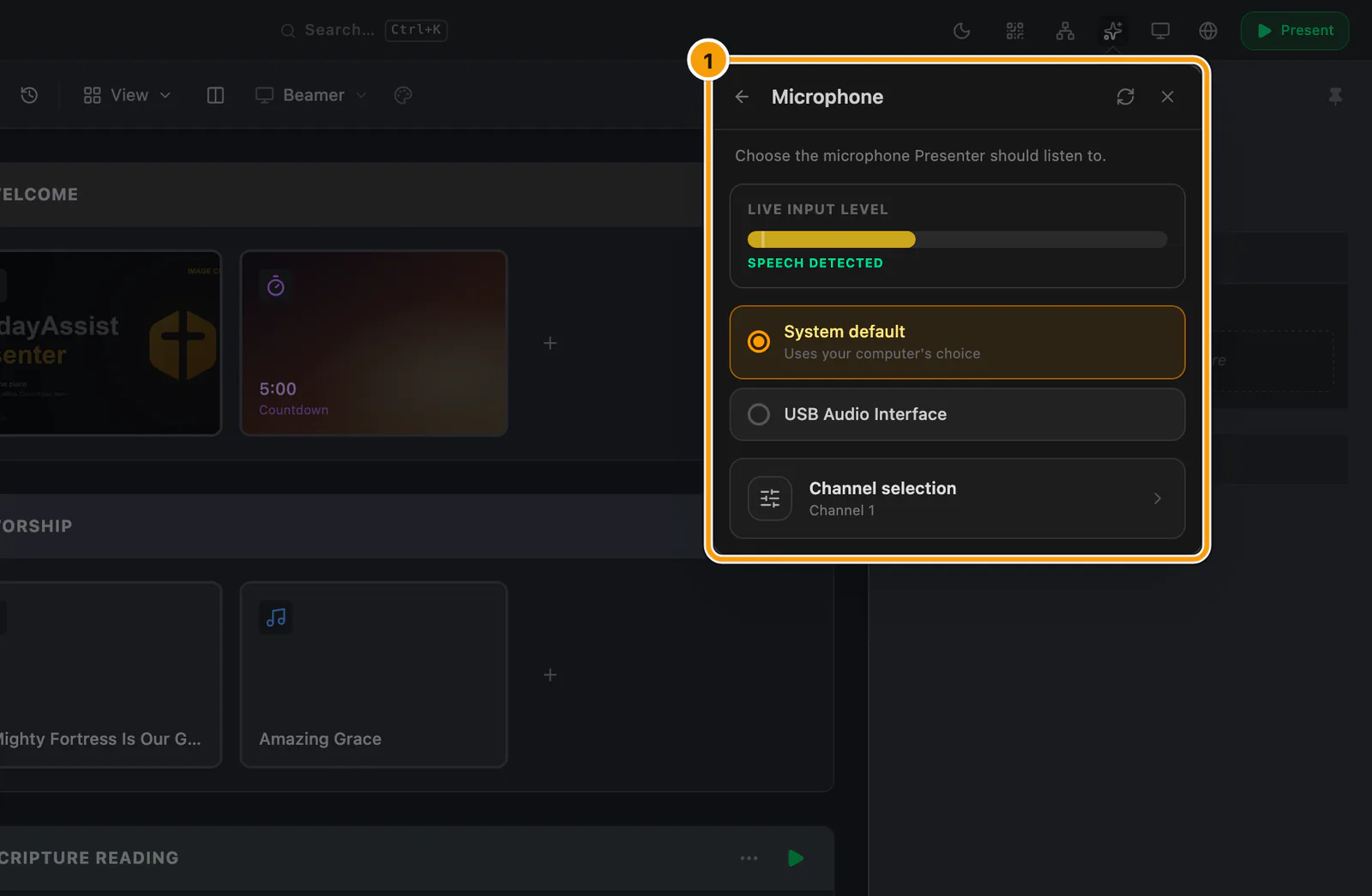
① Microphone and live input level
If your input has several channels, open Channel selection at the bottom of Microphone. Watch the levels while someone speaks into the microphone you want, then select that channel. If AI is listening and some levels are unavailable, choose Pause AI to check them, then Resume AI when ready. Some inputs cannot show a level for every channel. Going back or closing the menu leaves AI in its current state.
- Open AI Assistant in the title bar and choose Set up & test.
- Under Computer setup, use the recommended setup for this computer. Apple Silicon uses Metal; other available setups are labelled in the app when their support is experimental.
- Open Required downloads and finish the downloads for the recognition you want to use. The main AI menu shows any missing Bible recognition models with a Download action, so you can prepare them without opening Settings.
- Choose Secondary language directly in the AI menu for bilingual recognition. It initially uses the interface language; an English interface starts with automatic language detection. Presenter keeps your saved selection, including automatic detection, when you later change the interface language. Presenter 2.0 and later: If Settings → Bibles → Languages used in services includes a language the AI can listen for that is not your secondary language, the AI menu suggests it. Presenter never switches on its own, because a second language can need another model download. An accelerated setup runs English alongside Dutch, French, Spanish, Portuguese or German with multilingual speech models. Presenter 1.2.6: CPU compatibility, also used on Linux, keeps one English-only model; Linux x64 needs a processor with AVX2. Presenter 2.0 and later: CPU compatibility offers Speech language in the AI menu, Settings and the setup wizard: English, Dutch, French, Spanish, Portuguese or German. One selected language handles songs, speech and slide commands with one model. English keeps its smaller download; the other languages use a larger multilingual model. Changing the CPU language preserves your saved accelerated secondary language. Multilingual CPU recognition can be slower: use the microphone and slide-command tests on this computer. Accelerated profiles keep the separate command-language setting under Languages.
- Open AI Assistant → Microphone in the title bar to choose and test the input. If AI is on, it switches to the new input by itself. Presenter 2.0 and later: The Microphone row in the AI menu shows the selected input, or System default with the computer's current default microphone, so you can check it without opening the list. Presenter 2.0.2 and later: If the input is a mixing desk or an audio interface with several channels, for example over USB, Channel below the list chooses which of its channels AI listens to. If the desk appears as several inputs of two channels each, choose the input that carries the speaker's channel, then its first or second channel. If the same input is listed more than once, use the one that shows Channel; a listing that cannot tell its channels apart shows none. While the list is open, a level per channel shows which channel moves when someone speaks. If the levels don't show while AI is listening during a presentation, choose Pause AI. Ask your sound technician which channel carries the speaker's microphone, or ask for a mix on one channel. Presenter remembers the channel for each input. If the input later offers fewer channels, or cannot be opened with the chosen one, AI listens as if no channel was chosen and shows a notice.
- Open Suggestions beside Live View. Use Assist to review matches, or explicitly choose Auto-follow in the live toolbar to let AI navigate.
- Turn on AI Assistant and test the actual microphone, room, and service content before going live.
Suggestions work on manually operated cues too. Lyrics, Bible passages and spoken navigation commands use the same deck-wide choice; there is no separate switch to enable for each section or cue. Presenter starts in Assist. Older saved section or lyrics/Bible AI settings neither block suggestions nor enable Auto-follow.
Choose the right AI mode
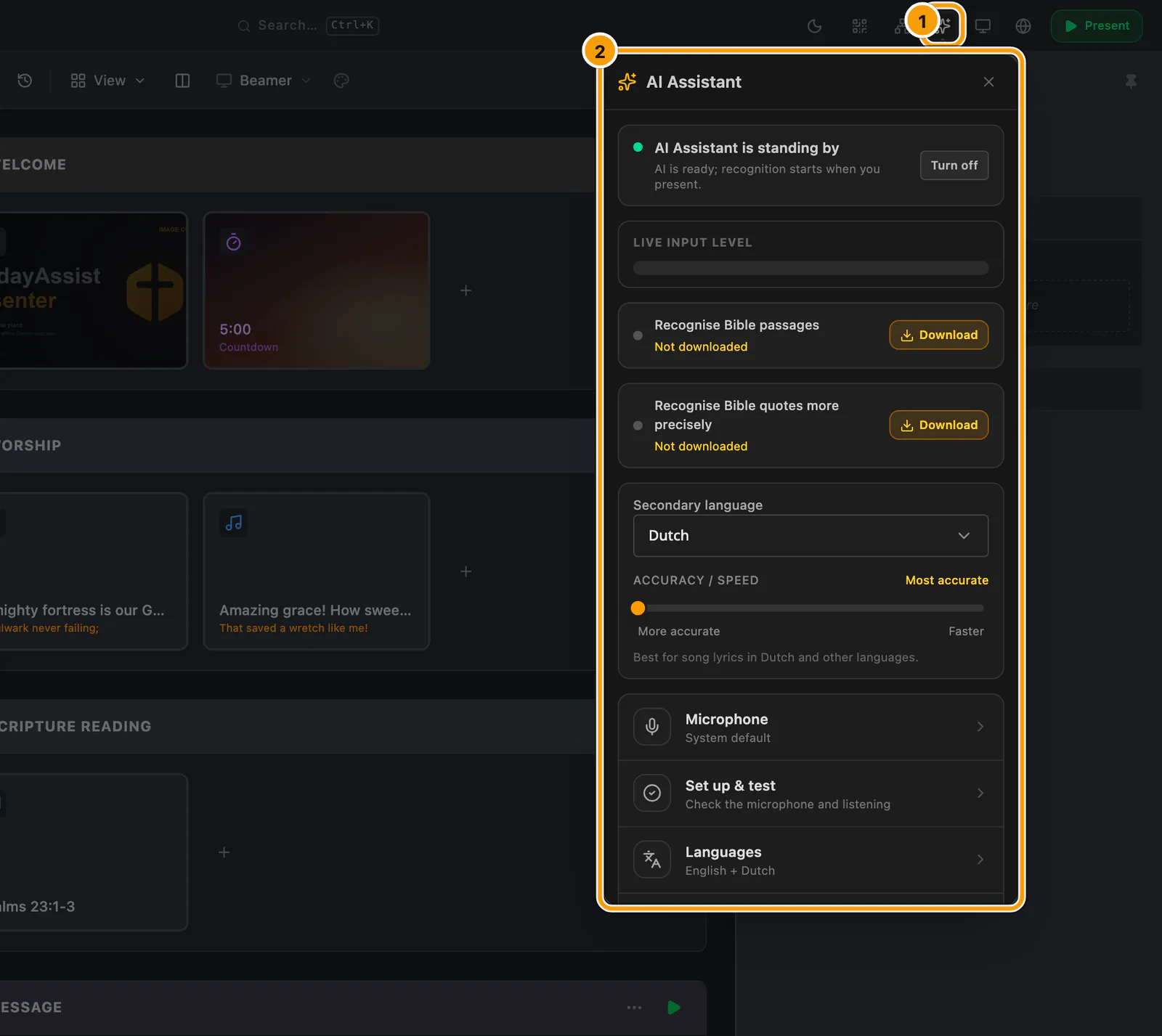
① AI Assistant · ② Status, downloads and settings
| Mode | Use it for |
|---|---|
| Assist | Review song and Bible suggestions and detected stanza or verse highlights, then decide what goes live. |
| Auto-follow | Allow AI to navigate when it confidently recognizes a song, stanza or Bible passage, or hears a navigation command for any live cue. |
Section, lyrics and Bible Advance mode controls retain manual and timed playback. For a PDF or PowerPoint cue, Advance mode → AI assistant configures dedicated page tracking, which also works in Assist. It does not enable deck-wide Auto-follow by itself. Selecting deck-wide Auto-follow leaves saved cue modes and timers unchanged; existing timers keep their priority.
On every live cue, AI listens for navigation commands such as “next slide”, “go back two slides” or “next section”, including on Manual or timed cues. PDF and PowerPoint also support page-number commands such as “go to page four”. Auto-follow performs recognized commands without requiring you to accept a suggestion, subject to AI pause, manual-control holds and existing timers. In Assist, commands appear in Suggestions unless the live PDF or PowerPoint has dedicated page tracking enabled. The card shows the command; PDF/PowerPoint cards also show its page or animation target.
Choose Advance once to perform just that command without changing the saved mode or timer. For PDF/PowerPoint, Advance & follow this item also saves AI assistant as that cue's Advance mode and disables its timer. This item-specific choice leaves deck-wide Auto-follow unchanged. The existing Advance mode control remains available too.
Commands expire when the live position changes or after 15 seconds. PowerPoint advances through supported click animations before changing slides; page-number commands jump directly. PDF/PowerPoint page commands stay within the current cue, including at its first and last page. The same command flow supports English, Dutch, French, Spanish, Portuguese and German, including accented words and spoken page numbers. One microphone and transcript serve command detection and song/Bible recognition together. With Spoken commands, page tracking responds to explicit navigation commands; it does not infer the slide from what is said about it. A cue can also follow its words read aloud (see below).
Presenter 2.0 and later: English commands such as “next slide”, “go back one slide” and “next section” also work during a service in your secondary language, such as Dutch. If speech decoded in that language contains no command, Presenter checks it once more with its small English command model. Songs and Bible readings are not checked again; ordinary speech keeps its own language. CPU-only setups that listen in one language are unchanged.
Presenter 2.0 and later: Commands also work inside ordinary sentences, such as “if we go to slide four”, “let's jump ahead to the third slide” or “let's go back to the beginning of the presentation”, in all six languages. Presenter ignores a command that is negated or postponed (“not yet”, “later”), quoted or in the past, and words that point elsewhere, such as “the beginning of the story” or “page four in your Bible”. A bare “back to the beginning” or “go to the end” only appears in Suggestions, also with Auto-follow; say “the beginning of the presentation” or “the last slide” to move there directly.
Remote and voice controls can be used together. A manual or Remote action temporarily holds voice advance. To stop deck-wide Auto-follow, choose Assist in the live toolbar or turn off the following switch. If the current document has dedicated page tracking enabled, Stop voice advance beside the AI control returns that item to Manual and also turns off deck-wide Auto-follow if active. The toolbar then shows Assist. This stop does not automatically resume after the hold expires; Bible and song suggestions remain available.
Presenter 2.0.2 and later: A PDF or PowerPoint can also move on when its words are read aloud as written, such as a creed, a prayer said together or a responsive reading. Select the cue, set Advance mode to AI assistant, and under AI behavior choose Follow the words read aloud. Each cue keeps its own choice, and it stays off until you choose it; Spoken commands is the default and works either way, also without Auto-follow. AI moves on only after it has heard the slide on screen read: at least half of its words in order, and its last words. Then it shows the next slide when it hears that slide's first words, so the first slides of a reading come a few seconds after their first words; once a reading has gone on over two slides, it moves already at the last words of the slide on screen. It is not for slides that are talked about: sermon points said in other words, a point read aloud and then explained, two points read one after the other and the second explained, the last point said again before the next one is read, or a line quoted from the next slide do not move the slide, and while a slide is only talked about the AI pill says Waiting. If a reader skips the end of a slide, AI follows a few seconds later, once the next slide has clearly been read for a while. When several people read equally loudly into the microphone, AI may stop following; move the slide yourself. AI moves one slide at a time and never into the next cue. A slide with very few words, such as a short response, is only reached in order, after the slide before it. In a litany whose petitions are only a few words long and all end with the same response, AI moves on when it hears the response after each petition; if only the leader is heard, it does not follow, because naming the petitions sounds the same as reading them. On a PowerPoint slide with animations still to come, AI waits until you click through them. If AI cannot read a document's words, for example because its text is pictures or outlines, the option says so and the cue keeps spoken commands. While such a cue is on screen, the AI pill shows Following, Waiting or Over to you, also when Auto-follow is off. To put a wrong move back, press Z or click the reason under the live tabs, such as “Heard words of slide 4”. Moving the slide yourself also holds AI for a moment. If you say “next slide” just after AI moved, it does not move twice. Stop voice advance beside the AI control returns the cue to Manual and stops following its words until you choose it again.
After a scripture suggestion, an ad hoc cue or a jump away from the planned cue order, Return to {cue title} beneath the live tabs restores the previous slide, animation, stanza or verse. It is available in both Controls and Suggestions, even while AI is paused. Presenter 2.0 and later: Selecting the next available cue in deck order, including across sections, does not add a return position. An existing detour remains available as you continue normally; selecting its saved cue directly clears that return action. Consecutive detours keep up to eight return positions for the live session. Returning briefly holds AI and stops timers so you can continue from that position. Stopping the presentation or changing decks clears these positions.
Operate it live
- Open Suggestions for AI matches and WorshipAssist requests. Their count remains visible on the tab; Controls retains cue, slide and screen buttons.
- Click a suggestion card or its Show on screen action to add or reuse an ordinary cue and present it. A new library song is added to the active section; a song already in the deck reuses its planned cue, even in another section. The accepted song becomes the selected cue, with its stanzas ready to control. If the current or planned section has a timer, Presenter places the song in the active manual section or creates a new manual section to avoid interrupting it. Bible cues use the same Bible system as
Cmd+K/Ctrl+K, including the stored text from the selected translation. The × dismisses a suggestion. Choosing an available translation does not present the card by itself. Presenter 2.0 and later: If you showed the wrong one, the confirmation tells you how to go back: choose Return to {cue title} above the suggestions. - Open the AI mode control in the live toolbar to choose Assist or Auto-follow. Assist highlights the detected verse or stanza in blue while the item actually on screen stays amber. You can use that guidance without handing over navigation. The menu also has Languages and Microphone buttons. Each opens that view in the AI Assistant menu so you can quickly change the speech language or input during a service. Presenter 2.0 and later: While AI loads its speech models after you resume it or go live, the control shows AI starting… with a spinner; it changes to Assist or Auto-follow when listening begins.
- The compact Follow automatically switch in Suggestions controls the same deck-wide following choice. Turning it off keeps suggestions available and remains in effect across cue changes. It does not clear a document's dedicated page-tracking setting; use Stop voice advance for that item.
- Manual navigation while following temporarily holds automatic actions. The AI pill shows when following resumes, with a shrinking progress bar. Suggestions continue during this hold.
- The default hold is 5 seconds, adjustable from 5 to 120 seconds in Settings → AI Assistant → Manual control. Switching deck-wide following off cancels its automatic resumption.
- Presenter 2.0.2 and later: With Auto-follow on, the AI pill shows with a short label what AI is doing with the song or reading on screen. Following: it knows where you are. Waiting: nothing to follow yet, for example during a short intro, between stanzas, or while someone talks over a Bible slide; the slide stays as it is. Over to you: move the slides yourself, because AI hears nothing, the microphone stopped, or it cannot follow this reading on this computer. In a song, it also hands over when the words it hears do not fit the song, or when it has heard music or singing for about 40 seconds without words it can follow. If Over to you is caused by what AI hears, it stays until AI has clearly found its place again, another song or reading starts, or you move the slide yourself. If the sound or microphone is the cause, it goes back to Waiting when they return. A small dot shows the same, and the pill's menu says why in one line.
- Presenter 2.0.2 and later: When AI changes the slide by itself, the row under the live tabs says why in a few words, for example “Heard Chorus begin” or “Reading went on: verse added”. Press Z, or click the reason, within 30 seconds to put it back: AI shows the slide before again, takes out the verse it added, or goes back to where you were before a suggestion or a spoken command. AI then waits a moment and does not make the same move again on what it already heard. If you moved the slide yourself in the meantime, there is nothing to put back. Click the reason when it appears as a button, even if you use a different key or have no shortcut set. The reason is plain text when AI steps back by itself. If the deck has changed since AI added a verse, Put back leaves the verse and your edits in place. When the row also offers Return, Return stays on the left and the reason stands on the right. Change the key in Settings → Keyboard shortcuts → Presenting mode. If Z is already used for something else, this shortcut stays empty until you choose a key. Putting back a Bible passage or song that AI put on screen by itself also takes out the cue AI added, if nobody changed it since; Time Machine can bring it back.
- Pause AI inside the status pill stops listening and automatic actions indefinitely. Resume leaves deck-wide following in Assist; a document's dedicated page-tracking setting remains configured. WorshipAssist retains its own acceptance preferences.
- The microphone opens during presentation while AI is enabled, including manual cues. Pause AI stops capture. The empty Suggestions pane shows an audio waveform while listening; use the microphone test if no audio is detected. Presenter 2.0 and later: The waveform also shows voice activation. Amber bars are loud enough for voice activation and grey bars are too quiet. The label underneath shows the latest recognition decision: Voice activation: sound allowed means the sound reaches recognition, and Voice activation: sound blocked means voice activation held it back, for example because it was too quiet or did not sound like a voice. For songs this label can lag a few seconds behind the bars. Voice activation off means all sound is recognised.
Make Suggestions work for your service
Use Make default view in Controls or Suggestions to choose which view opens when you start presenting. Settings → AI Assistant → Open Suggestions automatically can bring new AI or WorshipAssist recommendations into view during a presentation. Returning to Controls keeps your choice until a new recommendation arrives.
When you select a song to present, Presenter treats it as the current song in both Assist and Auto-follow. Matching lyrics guide its stanzas without filling Suggestions or pulling you away from Controls. Another song is offered only when fresh recognition is clearly more confident than the match for the current song. A short, exact line can produce a suggestion as soon as it is transcribed. When matches are equally strong, Presenter prefers songs already in your deck, then an occurrence in the active section. Suggestions stay compact and do not flash when new cards arrive; Bible comparison continues quietly in the background.
Presenter 2.0.2 and later: With Auto-follow, while a song is on screen, another song that is in your deck goes on screen the first time it is clearly heard, at the stanza that is being sung. The first words of any of its stanzas are enough, in whatever order the singers take them. A line that two songs in your deck share, or that the song on screen also has, does not change the song. If Presenter chooses the wrong song, it goes back as soon as the next lines of the previous song are heard; after that, for one minute, Presenter switches between those two songs only after the new song has been heard twice, so the screen does not keep switching between them. A song that is only in your library, hidden, or in a disabled section still needs to be heard twice, and so does any song while something other than a song is on screen, such as a Bible reading, slides or a countdown. Earlier versions waited for a second hearing for every song.
Presenter 2.0.2 and later: With Auto-follow, Presenter moves to the next stanza or verse while the last words of the current one are sung or read, the way an operator does, instead of waiting for the first words of the next. It keeps listening: if the singers repeat a line or go to another stanza instead, the slide goes there a moment later. Until Presenter knows which stanza they went to, it hides the words of the stanza it showed and keeps the background on screen: better no words than the wrong ones. The right stanza appears with its words as soon as Presenter recognises it; after six seconds at most the words come back in any case. Anything you do yourself, such as moving to another slide or pressing Hide words, shows the words at once. When Presenter has moved too early twice in one song, it waits for the first words of each stanza again for the rest of that song. To turn it off, open Settings → AI Assistant → Speed and accuracy improvements and switch off Move on at the last words.
Presenter 2.0.2 and later: To follow a song in two languages, link its translation and turn on Show linked translation on its cue, for example Dutch with English below it. When the band sings a stanza in the other language, Presenter keeps its place and moves on at the last words, as it does for a song in one language. The two languages must be English and your Secondary language; with CPU compatibility (the AI menu says when AI runs in CPU compatibility mode), English and your Speech language. With CPU compatibility and English as Speech language, a stanza sung in the other language is not followed.
Presenter 2.0.2 and later: When someone speaks while the song is on screen, Presenter tries the other language once and then listens in the song's own language, so a spoken command such as “next slide” in the song's language still works. Right after someone has spoken, the first seconds of a stanza in the other language may be followed a little late. AI always treats a linked translation as the same song. It switches to it as a separate song only if it is also a visible cue in an enabled section of your deck. If the translation has a different number of stanzas than the song, or is in the same language as the song (another arrangement), the song is followed in its own words only. A copyright notice at the end of either text does not count as a stanza.
Presenter 2.0 and later: Suggestions follow what is on screen. During a Bible reading, the verses that follow come first, with a blue outline like the verse AI marks in Subitems: Next verse for the very next one and Further on in the reading when the reader is a few verses ahead. A verse recognized from the reading that is already on screen is not suggested again. A Bible reference someone names aloud, such as “Romans 5:8”, is also listed near the top. Song lyrics recognized during a Bible reading, or Bible wording recognized during a song, move to the bottom of the list and look dimmer, labelled Less likely during the Bible reading or Less likely during the song; you can still show them. Within each group the newest suggestion comes first; when nothing is live, the whole list is newest first. While your pointer is over the list, or you move through it with the keyboard, the cards stay where they are: new suggestions are added below them, and the order updates when you move away. Only the order and look of Suggestions change: Auto-follow makes exactly the same decisions as before.
Presenter 2.0 and later: Each suggestion has a colour, icon and source label: green for WorshipAssist, purple for AI presentation commands, blue for AI lyrics, and sky blue for AI Bible. Use the four source buttons below the Suggestions toolbar to show or hide each source independently. Presenter remembers this choice on this device. The hidden count tells you how many pending suggestions your filters hide; Show all restores every source, even if you turned all four off. These filters only change what you see: hidden suggestions remain pending, and hiding a new suggestion does not mark it as read. Recognition, automatic following and history keep working as before.
When you stop presenting, Suggestions collapses to a header with its pending count. Click the header to review requests without starting output. Open new suggestions while not live is a separate, optional setting and starts off. Showing a song or Bible suggestion still starts a presentation; reviewing a playlist or its history does not.
The Suggestion history button shows used and declined suggestions for the current Presenter session, including automatic decisions. History survives a UI reload and clears when you exit Presenter. If an action fails, the card keeps its reason and Retry action so you can recover without losing the request. Use Send diagnostics for a persistent problem.
If AI does not move the deck
Check these in order:
- The title-bar AI status says it is on and ready.
- Auto-follow is selected in the live toolbar for automatic lyrics/Bible navigation and spoken PDF/PowerPoint commands. In Assist, song/Bible highlighting without advancing is expected; documents only follow commands automatically if their dedicated page tracking is enabled. Songs from the lyrics library and passages from installed Bibles can appear in Suggestions without a section-level setting.
- The correct microphone is selected, its level moves during speech or singing, and operating-system microphone permission is allowed.
- Every required model download is complete.
- The chosen language matches the content being spoken or sung.
- AI is not paused or still in a manual-control hold.
If recognition becomes slow or audio queues up, open AI Assistant → Computer setup and use the recommended or lighter setup. Use Settings → AI Assistant → Troubleshooting only when you need the live debug panel.
If AI is off after an interrupted session, open the title-bar AI Assistant menu and More info to read the saved recovery reason. This reason can remain from an earlier session; it does not establish when or why Presenter stopped. Use Retry safely to start AI with the current settings, then check the microphone and readiness before going live. If the reason says speech inference stopped responding, restart Presenter before retrying.
For a recurring freeze, open Settings → Diagnostics & support → Send diagnostics. One click collects and sends the available logs, redacted configuration and runtime information; wait for confirmation or retry if sending fails. If Presenter is frozen, reopen it before sending. Earlier logs and recovery information may help investigate, but cannot reconstruct every past freeze. See Diagnostics and support for report contents and privacy choices. Automatic error reporting and periodic diagnostics remain separate consent choices.
Recognize Bible passages
Find a passage from its reference
Spoken references such as “John chapter three verses sixteen through twenty” and “Johannes 3 vers 16 tot en met 20” resolve to the same passage in your default Bible. French “Jean chapitre trois, verset seize”, Spanish “Juan tres, dieciséis” and Portuguese “João três, dezesseis” also resolve to that reference. Numbered books, spoken compound numbers and verse ranges are supported. Presenter can combine a book, chapter and verse spoken across short pauses, and extend a verse into a range as the speaker continues. No optional passage-recognition download is required for named references; the speech model and desired Bible must be available. In German, try “Johannes Kapitel drei, Vers sechzehn” or “Im ersten Buch Mose, Kapitel eins, die Verse eins bis drei”.
Presenter 2.0.2 and later: With Auto-follow, Presenter shows a named reference by itself once the speaker has finished saying it. A reference with a verse appears as soon as the verse has been said. When what Presenter heard ends right on the verse number, it waits a moment for what it hears next, so a number cut off in the middle (“six…” of “sixteen”) does not go on screen. If a cut verse still appears, Presenter goes on listening and, a moment later, shows the verse that was said; the cut one stays in the presentation as an extra cue. When the speaker names only a book and chapter, Presenter waits about three seconds in case a verse follows, and shows the whole chapter if none does. The suggestion card appears straight away in both cases: click it to show the passage sooner.
Install the desired Bible through the existing Bible library. If the default translation is unavailable offline, the suggestion lets you choose an installed translation before showing it. The language of the installed Bible determines its speech setup; it does not have to match the interface language. Set English, Dutch, French, Spanish, Portuguese or German when importing your own Bible. Multilingual speech weights are required for non-English content. To match German wording and follow a German reading, import a German Bible edition you have permission to use.
Discover a passage from a quotation
Presenter can look for a passage when someone quotes or paraphrases it without naming the reference. It searches installed offline Bibles, including your licensed USFM/USX imports, and can offer a small set of possible passages for you to review. The card's Display Bible is the edition that will be projected; it is not a claim that the speaker quoted that edition.
- Open AI Assistant in the title bar. Missing Bible recognition models are shown directly, with their download actions; Required downloads shows the full status.
- Download multilingual recognition (135 MB) for passage discovery across wording and languages.
- Download Bible quotation comparison (588 MB) to compare possible passages before a quotation suggestion appears. It also needs multilingual recognition. This optional feature requires macOS 13.4 or later on Mac; named references remain available on older supported macOS versions.
- Let the installed Bible sources finish preparing before rehearsal. Presenter can reuse prepared recognition data for KJV, ASV, WEB, Louis Segond 1910, Reina-Valera 1909, João Ferreira de Almeida and Statenvertaling. Other imported sources are prepared locally.
- Rehearse actual quotations through your chosen microphone. Comparing possible passages can take several seconds and runs quietly in the background; a card appears when a result is ready to review.
Prepared passages and models remain on this computer for offline reuse. New source preparation pauses while the live microphone is active; already prepared sources remain searchable. Download failures show their reason, and local preparation remains available when prepared source data cannot be downloaded. Check download and preparation progress in AI Assistant → Required downloads. Use Settings → AI Assistant → Passage recognition to manage the optional models, including removing them.
Presenter 2.0 and later: Every Bible on this computer, including one you imported yourself, can be searched by meaning, for example “a passage about roses”, and recognized from the microphone. Presenter prepares your default Bible first; if your default is an online Bible, it prepares a free Bible in the same language instead. The card of each local Bible in the Library shows the progress, and AI Assistant names the Bible it is listening against, and the one it uses until yours is ready. Other local Bibles follow while you are not presenting and the microphone is not live; on battery, only the default Bible is prepared. Preparation pauses while you present, and it happens on this computer: the text is never uploaded.
Presenter 2.0.2 and later: A Bible is used to recognize verses book by book: as soon as every verse of a book is prepared, that book is in use. Presenter first prepares the books your presentation reads from, then books that are often read in services, such as the Gospels, the Psalms and Romans, and then the rest. The Bible's card in the Library shows how many books are ready and already in use. Until a book is ready, it is recognized through the Bible that AI Assistant names in the meantime or, for a book that Bible does not have, through another Bible on this computer that has it ready, so nothing that already worked stops working while a Bible is being prepared. A meaning search in Library → Bible that names a book can also use that book as soon as it is ready. A licensed default Bible, such as NBV21, is now used in the same way while this computer's licence allows it; before 2.0.2 a free Bible in the same language was prepared instead. Where the licence for that Bible allows it, Presenter keeps the licensed Bible's recognition data on this computer, encrypted in the same way as the Bible itself and usable only while the licence allows it, so it does not have to be prepared again each time Presenter starts. Otherwise the licensed Bible is prepared again at each start and its recognition data exists only while Presenter is open. It is never uploaded. On battery, a licensed Bible that is prepared again at each start prepares only the books your presentation reads from; the other books wait until the computer is plugged in.
Presenter 2.0.2 and later: While your default Bible is still being prepared to recognize verses that are said in other words, the menu that opens from AI Assistant in the title bar shows its name and progress. It says when preparation waits (it continues when you stop presenting, or when the computer is plugged in) and names the Bible that recognizes such verses in the meantime; slides still show your default Bible. Spoken references and following a reading work straight away and do not need this preparation.
Presenter 2.0 and later: The same models also find passages you describe in Library → Bible (see Find a passage by its words or meaning), without the microphone and without suggestion cards.
Possible paraphrases always require your confirmation, even during Auto-follow. Brief generic phrases and uncertain matches may produce no suggestion. Presenter projects stored Bible text, never AI-written verses. Review the reference and text before showing it; recognition cannot be guaranteed for every quotation.
Continue beyond a prepared reading
Presenter 2.0 and later: With Auto-follow and Follow continued reading enabled, Presenter can extend a prepared Bible cue while its final verse group is live and visible. When Presenter confidently recognizes the opening words of the immediately next verse in order, it adds that one stored verse to the same cue. It keeps the original wording, translation and verses-per-slide layout; the new verse may join the final group or start the next one. A verse that is too short to recognize reliably on its own, such as “Jesus wept.”, is added together with the verse after it once that one is recognized too. Presenter 2.0.2 and later: one misheard word in a verse's opening no longer stops Presenter adding the next verse. Some Bibles number verses differently, for example counting a psalm's title as verse 1; Presenter uses the numbering of the Bible you show, so it still reaches that chapter's last verse.
This works with offline Bibles and your own USFM imports. Presenter 2.0.2 and later: it also works with licensed Bibles such as NBV21 while this computer's licence allows them. The cue's passage then grows to include the verses that are read; their words are never saved in the deck. Where a licensed Bible numbers a chapter's verses differently from the usual numbering, reading on stops at that chapter's last usual verse. Online sources and pasted passages are not extended. Presenter can cross a chapter boundary only when the next chapter in the same book is known locally. It never guesses a chapter or changes books. AI pause, manual-control holds and active timers prevent extension. Navigating away invalidates listening results from the previous position.
Blue Added by Assistant markers appear only on operator deck cards, in Properties and in Live View. They survive saving and reopening; audience colours stay unchanged. In Properties → Subitems, choose Accept added verses to keep all added verses in the selected cue and clear their markers. Editing verse text also clears its marker; styling changes keep it.
Verses the Assistant adds one after another to a cue are grouped: one Undo removes the whole group from the saved cue, not just the latest verse, and adjusts the live slide if that slide was removed. It also prevents further additions to that cue for the rest of the current presenting session.
Speed and accuracy improvements
Presenter 2.0 and later: Settings → AI Assistant → Speed and accuracy improvements lists every option that can make recognition faster or more accurate on this computer. Two are on by default because they only remove slow worst cases: Skip slow retry passes and Stop runaway transcripts. Word timing is also on by default: it records when each word was heard. Keep up with whoever is speaking and the experimental Follow with word timing use these timings, and recording them adds a little decoding work. Keep up with whoever is speaking is also on by default: instead of recognizing speech every few seconds, Presenter recognizes what was just said as often as this computer can manage, and straight away when the speaker pauses. Spoken slide commands, Bible readings and stanza changes are noticed sooner. A slower computer keeps its usual pace. It makes the computer work a little harder and needs Word timing. Listen in English and your secondary language is also on by default. Detecting the language of every listening window roughly doubles the recognition work, so Presenter recognizes each window in the language of the prepared song or passage, or the language it heard last. A song in the other language is recognized from the first window that matches nothing, and every fifth window still checks the language; after a change, for example with an interpreter, every window is checked for a minute. If Presenter keeps hearing another language, the AI menu suggests choosing it as Secondary language. With automatic language detection selected, every window is detected as before. Everything marked Experimental stays off until you turn it on. Try it at a rehearsal first. Presenter 2.0.2 and later: Move on at the last words is also on by default. It needs Keep up with whoever is speaking or Follow with word timing (see Make Suggestions work for your service).
- Speech recognition: Fast encoder for short windows, Expect the next lyrics, Cut speech at pauses, and Detect speech during songs. In a replay of spoken Bible readings with the large speech model on a Mac, Fast encoder for short windows recognized far fewer verses; leave it off unless a computer without a graphics card cannot keep up, and check it at a rehearsal.
- Bible recognition: Recognize other translations quickly, Compare likely passages first, Prepare Bible comparison in advance and Follow continued reading are on by default. In a replay of readings from other translations, loose quotations and retellings, the first two brought the wait for a suggestion from about 11 seconds to a quarter of a second, with the same correct results. Prefer the planned passages is experimental. Planned passages include their cross references (OpenBible.info, CC-BY). A close call is offered as a choice; it is never shown automatically. Recognize other translations quickly suggests a reading from a Bible translation you have not installed, or a close quotation, as soon as its wording and its meaning both point to the same passage in your installed Bibles, instead of waiting several seconds for the full comparison. You still choose Show.
- Following songs: Show the next line early subtly shows the first line of the expected next stanza on the screens near the end of a stanza. Listen for the leader's cues and Use the band's WorshipAssist position help predict that stanza, and Use MIDI clock from backing tracks makes the preview appear on the beat at the start of a bar. MIDI clock works only with Show the next line early turned on and your playback rig's MIDI clock arriving on a MIDI input of this computer; Presenter assumes 4/4. The band position comes only from this Presenter's own WorshipAssist QR session, not from Play together band sessions: on the Controller phone, tap a section heading in the WorshipAssist chord chart to mark the section the band is playing; the section with the active chord also counts. These only choose what is previewed.
- Follow with word timing counts words that overlapping listening windows hear twice only once, also counts the moment in which a stanza starts, and measures the singing pace in real time. Progress through a stanza becomes more accurate, so the next line can appear earlier and the next stanza can be accepted sooner. Compare it at a rehearsal: with Compare the AI with your operator turned on, song results are shown separately for Standard and With word timing.
- Compare the AI with your operator records, without audio or text, how often the AI detected the same stanza changes as the person presenting, and how much earlier or later.
To see the effect, open Speech processing diagnostics while presenting. Delay after speaking shows how long after the most recent words the AI Assistant can act on them, averaged over the last minute. Lower is better: about one second means it keeps up with spoken commands; if the figure keeps growing, this computer is too slow or too busy. Speech settings comparison shows the timings of the four most recent combinations of improvements used since Presenter started.
Privacy
Recognition audio is processed locally. Presenter does not send microphone audio to a cloud transcription service and does not write spoken transcript text to routine logs.