Send songs to a Presenter
Playing at a visiting church? Send your saved songs or a setlist to that church's Presenter as a suggestion. You keep your own workspace, and church membership is not required.
Send a suggestion
- Open More/Menu → Send to Presenter, or the options menu of a saved setlist.
- Scan that Presenter's WorshipAssist QR, or paste its link.
- Select your saved songs or setlist.
- Confirm the rights to the music and choose Send suggestion.
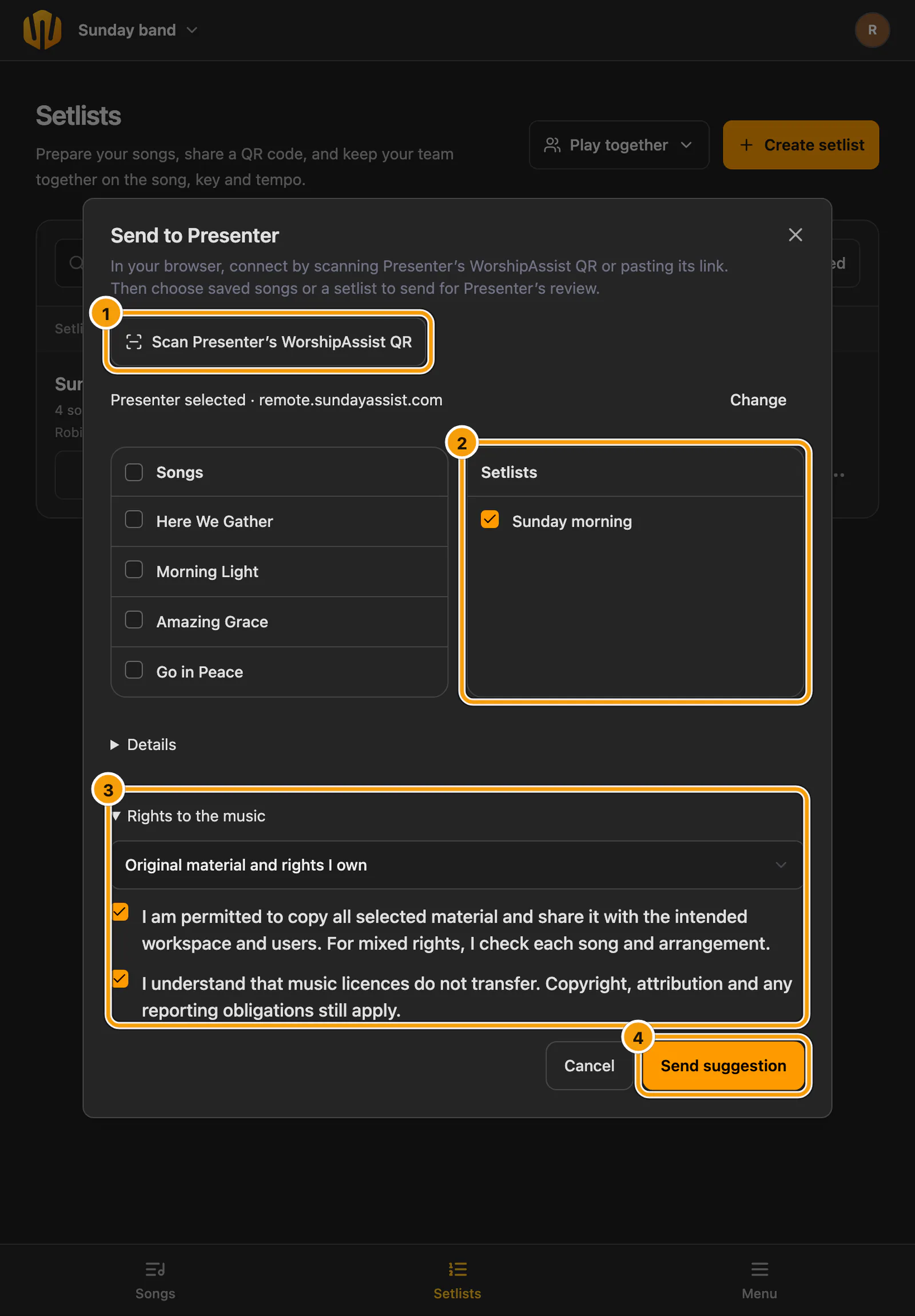
① Scan Presenter's WorshipAssist QR · ② Choose a setlist · ③ Rights to the music · ④ Send suggestion
Your library's export permissions still apply. Everything you select is sent with its full lyrics and chords, songs that appear more than once, and the saved setlist keys. Your own key in My chords is not sent.
What happens in Presenter
Presenter shows the proposal in its usual suggestions pane. Its operator chooses the current or another section and accepts or declines. Accepting saves the songs in Presenter's library and adds the selected occurrences without starting the presentation.
With a connected church workspace, the received setlist and songs are also saved there with the band or event label. Saves that are still waiting for the cloud keep the local result and can be retried.
Receiving these songs and setlists requires an up-to-date Presenter. Updating the web app does not add this to an older installed Presenter.
On the same network, or from anywhere
- A local QR uses the same network as Presenter.
- With Anywhere selected in Presenter (Presenter Flex (monthly or yearly), Presenter Own during its update year, or Complete), the QR also connects through SundayAssist Cloud, on mobile data and from other locations.