Offline practice
Download songs and setlists before you go somewhere without internet, such as a rehearsal room, a camp or a church with weak Wi-Fi.
Download music before you go offline
- While online in WorshipAssist itself (play.sundayassist.com, not WorshipAssist inside Connect), open a saved setlist and choose Download for offline use. On a phone, choose it under … next to the setlist name.
- To take the whole library, open Downloads (on a phone, under Menu). The page Downloaded songs and setlists opens. Choose Download all church songs for the correct workspace.
- Wait for the download to finish and check Available until. Open the saved music once before leaving your connection.
- Return to Downloads to read your copies. Refresh them online after the team changes songs or arrangements.
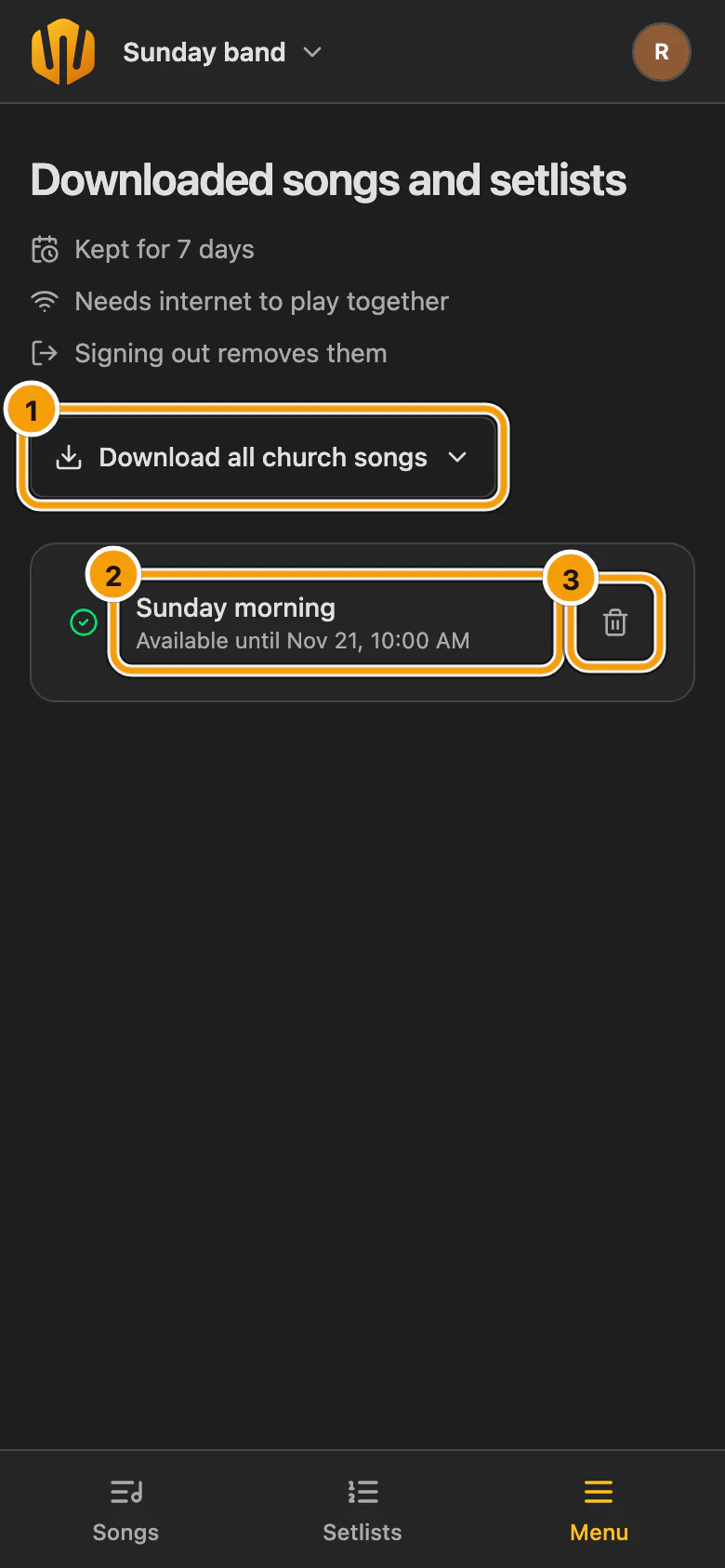
① Download all church songs · ② A downloaded setlist · ③ Remove download
Merely opening a song online does not prepare an offline copy. When you work in Connect, open WorshipAssist itself to prepare these downloads.
How long downloads last
The Downloads page sums this up in three short lines: Kept for 7 days, Needs internet to play together and Signing out removes them.
- Downloads are personal, read-only practice copies on this device.
- They are available for up to 7 days, and sometimes less if access ends sooner.
- Signing out removes them. Online access checks can remove copies when workspace access ends.
- Licensed Opwekking and NBV21 wording is not included in ordinary offline song downloads.
Shared sessions, editing and fresh music require internet.
When the internet drops
Opening WorshipAssist on Wi-Fi without internet keeps you signed in: your downloads stay readable and the app reconnects by itself when the connection returns. A check that cannot reach SundayAssist never removes your downloads; they are removed only when the end of your access is confirmed.