Lyrics Designer
Presenter 1.2.6 and later: The stanza-pencil/E quick-edit route and expanded Database keyboard workflow described below apply from this version.
Lyrics Designer creates and maintains reusable songs and Bible passages. Open it with ⌘2 / Ctrl+2; return to Deck Builder with ⌘1 / Ctrl+1.
Presenter 2.0 and later — Opwekking: Open a protected song with the usual edit action or find it directly in Database by title or number, for example opw 281 or 281. Licensed shows only licensed songs. The source words stay fixed; adjust slide breaks, stanza order, repeats or omissions and review the preview. After you split a stanza, you can drag each of its slides on its own, with the mouse or the keyboard; Copy and Delete on a stanza’s first slide repeat or remove the whole stanza. Save one arrangement in Lyrics Designer: every cue for that song uses it. When you are signed in to your church, this arrangement syncs with Connect: changes made in Connect appear here, and saves from Presenter reach Connect. Properties shows the result and keeps the normal Beamer styling controls. Arrangement choices are saved separately from the encrypted cache, so refreshing the same source version preserves them. Copying and text export remain blocked.
Song format
The first block is the song header. Every following block, separated by a blank line, becomes one stanza or slide. A bracketed section name is a label and is not projected.
The label applies to following blocks until the next bracketed section name. In the example below, both blocks under [Verse 1] are named Verse 1, each on its own slide. Blocks before the first section label keep their numbered stanza labels.
Song title
Author

[Verse 1]
First lyric line
Second lyric line

Next part of the same verse
Final line of the verse

[Chorus]
First chorus line
Second chorus line

© Copyright and licence details
The title must be on the first line before a new song can be saved. Trailing blocks containing © or (c) are treated as copyright information rather than lyric slides.
Create or edit a song
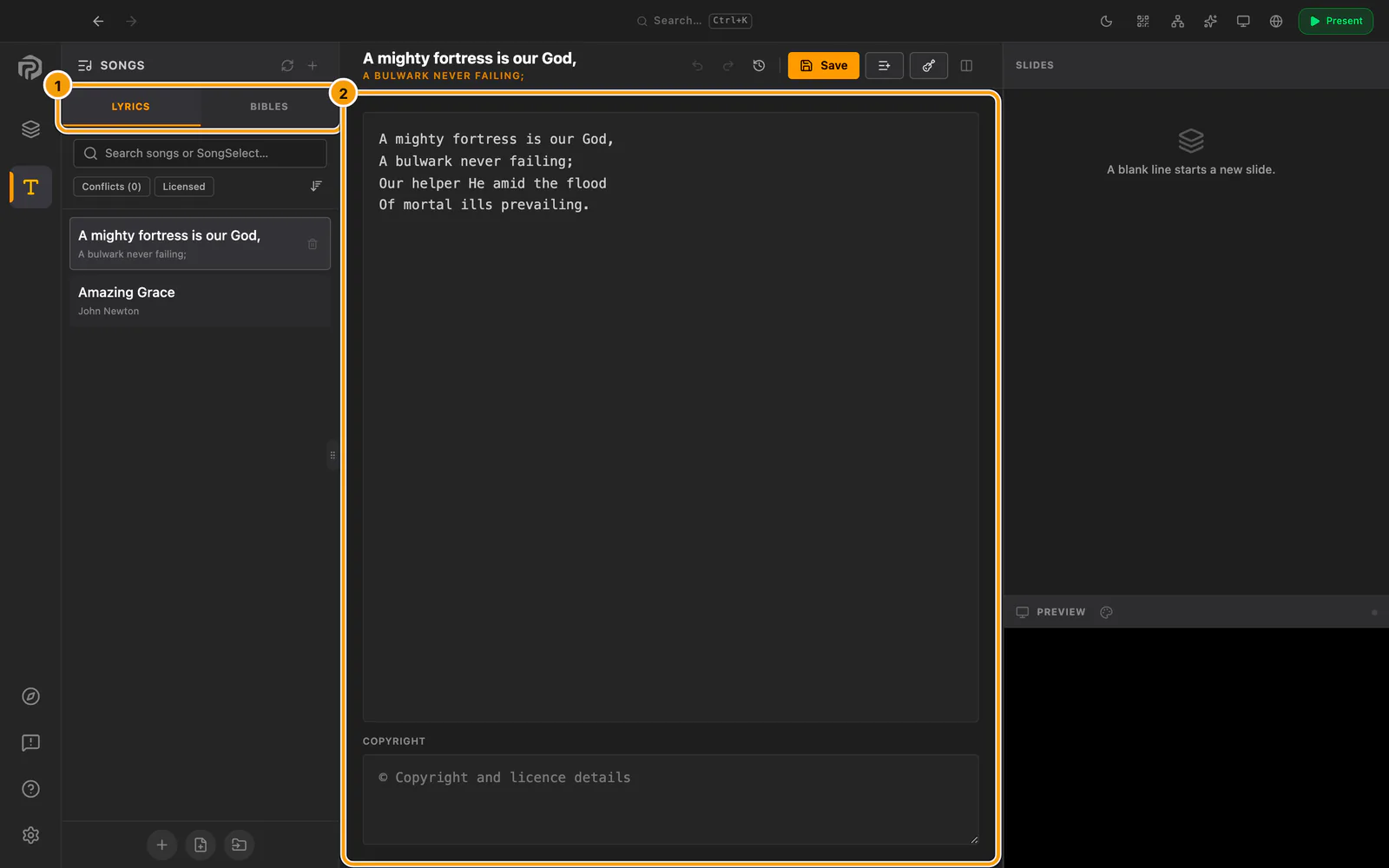
① Lyrics and Bibles · ② Song text
- Select Lyrics, then use the plus button for New song.
- Paste or type the title, author, and stanza blocks. Rich paste preserves paragraph and line breaks when possible.
- Check the parsed stanza cards and the lyric-only output preview on the right.
- Select Save or press
⌘S/Ctrl+S. Existing songs also auto-save after edits; wait for Auto-saved before closing. - Use Add to deck when a deck is open, or drag the saved song from Deck Builder → Lyrics.
To edit a particular stanza of a saved song from the deck, use its pencil in Properties → Subitems. Lyrics Designer opens at the matching source text and briefly highlights it. With a stanza focused in that pane, press E for the same action. In this quick-edit flow, press Escape to return to the deck, even while stopped. A non-empty search or open panel is handled first, and the usual unsaved-change check still applies.
When you open Lyrics Designer normally, Escape clears a search or closes a temporary panel first. While stopped, it keeps Lyrics Designer open; use ⌘1 / Ctrl+1 to return to Deck Builder. Presenter warns before abandoning an unsaved new song.
Browse the Database with the keyboard
While stopped, press Tab on a Database row to focus search in the current tab. In search, Tab switches between Lyrics and Bibles; Shift+Tab cycles backward. Press Down to select and focus the first visible result, or Up for the last. With no results, focus stays in search.
On a row, Up/Down selects the previous/next item in the current filtered and sorted list. The row stays focused and visible, and navigation stops at either end. Selecting another song or passage opens it through the usual unsaved-change check. Linked songs and passages keep their normal list positions. Arrow browsing closes a temporary pair overlay and continues from the originally clicked row.
Press Escape on a row to clear any query and return focus to search. In search, Escape clears a non-empty query and stays there; with an empty query, it focuses the main lyrics or Bible text editor and keeps Lyrics Designer open. Open panels and unsaved-change prompts retain priority. Inside the text editors, Tab and Enter keep their normal editing behavior. These browsing shortcuts do not add a cue or start presentation.
Add chords safely
Select Add chords and choose one of the supported forms:
- Inline ChordPro:
[C]Every eye on [F]him - Chord-only row:
C G Am For|| C | G | Am | F ||
After valid chord notation exists, Show chords and Hide chords control chord visibility in the text editors and stanza cards in Lyrics Designer. Hiding chords does not remove the saved notation; ordinary lyric edits preserve the surrounding chords. The output preview, projectors, normal Controller/Viewer previews, search results, and presentation logs remain lyric-only by design. Chords are available in WorshipAssist in Connect or through paired Remote.
To send newly added chords to Connect, save the song and run Connections → Connect → Sync songs with Connect. Connect's Chords filter recognises valid inline/chord-row notation and saved Chord Assistant charts.
Bible passages
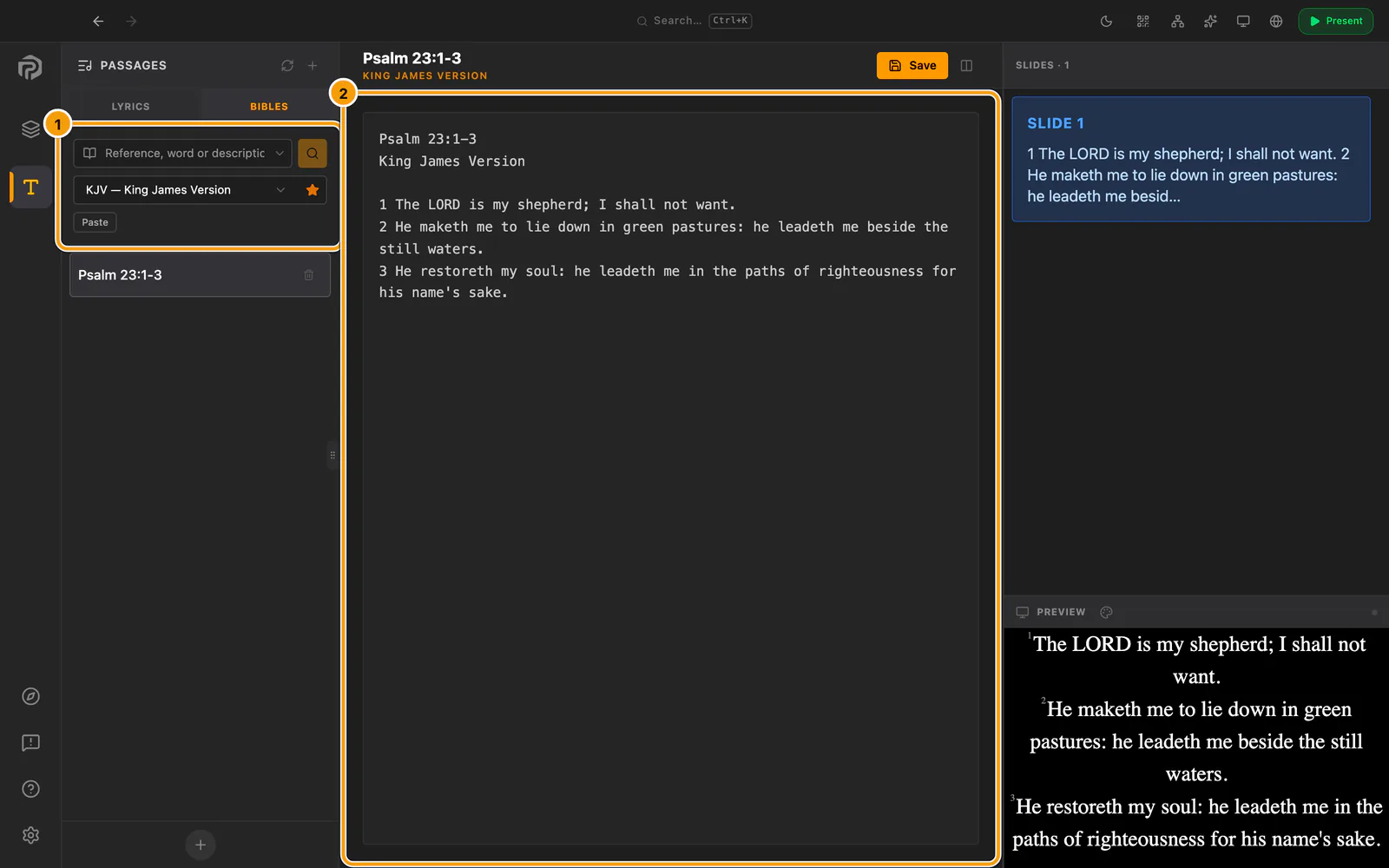
① Find a passage · ② Passage text
Presenter 2.0 and later: Find passages in Lyrics Designer with the same search used in Library → Bibles.
- Select Bibles, choose a translation, and type a reference, word or description in the passage field. Press
Enteror select the search button. - A reference such as John 3:16 opens directly. Words or a description show the same Words and Meaning results as the Library. Choose a result to fetch that reference from your selected source.
- The passage opens as an editable, unsaved draft. Review its reference and fetched or pasted text. Blank lines define verse groups or slides.
- Select Save or press
⌘S/Ctrl+Sto keep the passage in both Lyrics Designer and Deck Builder → Bibles. A new draft requires this explicit save.
Search uses downloaded free Bibles and your USFM/USX imports. Licensed and online translations, including YouVersion/Bible.com, and pasted passages are not searched. When your selected source cannot be searched, a notice names the local edition used in the same language, or offers a free download. Choosing a result then loads its text from your selected source. Meaning needs the AI Assistant’s multilingual recognition download; see Find a passage by its words or meaning.
Use Up/Down to move through search results and Enter to open the focused result. The first Escape clears a non-empty query and its results; with the query empty, the next Escape focuses the main Bible text editor and keeps Lyrics Designer open. Open panels and unsaved-change prompts retain priority.
If the selected source cannot provide the passage, use Load from … when offered to load that reference from the named local translation. You can also open Settings → Bibles to download an offline translation, import a permitted USFM/USX translation, or set up online Bible access.
Licensed translations remain subject to their source’s access rules. Recent YouVersion lookups stay on this computer for at most 30 days after YouVersion last provided them; using them online refreshes the local copy. Passages saved in a deck or as a saved passage keep their text. Paste from Bible.com opens your browser so you can copy the passage manually, paste it into the draft, review it and save it. Presenter does not fetch Bible.com automatically.
Pair a second language
- Save and select the primary song or passage.
- Open Add second language.
- For a song, write or paste a new translation in the second editor, or drag a saved secondary item into the translation area or choose Use in the database list. Save a new translation with its own title; an empty draft does not create a library song.
- Keep the same stanza order and number of stanza groups in both items. Resolve any mismatch warning before presenting.
- In Deck Builder, select the cue and enable Show linked translation or Show linked passage.
In cue Properties, the + beside an unpaired translation or passage opens the selected source in Lyrics Designer with the second-language area ready. For a Bible cue that has not been saved, this action first saves the passage. Choose an existing secondary item or create one, then return to the deck and enable the linked text.
You can also use Pair translation… or Unlink translation beside the song in the Library. Pairing stores the relationship; it does not automatically enable the second language on every existing cue.
Clicking a song or saved Bible passage with a linked translation opens both items in a temporary overlay at the top of the Database. The ordinary list keeps its original rows, filters and sort order. That click scrolls the Database to the top so the pair is visible. Close it with × or by clicking outside to restore the previous scroll position. This pair view opens only after a click; browsing with the arrow keys continues from the originally clicked item's normal list position and scrolls the target row into view.
To recover earlier saved song text, open the Time Machine clock in Lyrics Designer, preview a version, and use Restore this version… while stopped. Presenter preserves the current work before restoring. See Return to earlier work for the difference between workspace navigation, Undo and saved history.