Find things faster
Find events, people, songs and settings quickly with search, notifications and keyboard shortcuts.
Search across Connect
Press Command+K on macOS or Ctrl+K on Windows. Enter at least two characters.
Search includes:
- event titles from today onwards;
- people by name or email;
- groups by name;
- songs by title, author, or lyric body;
- saved setlists by title, creator, or notes;
- active teams; and
- pages and settings available to you, including Canva.
For pages and settings, combine words from the name or use related keywords. Capital letters and accents do not affect matching, and the best matching destinations appear first. Search for Canva to open its connection settings directly.
Event results include today and future dates in the organisation’s time zone, with the earliest date first. Events that started earlier today are included. Open All events or Agenda to find older events.
Selecting an event opens it. Selecting a group opens its group manager. Selecting a team opens Rostering filtered to that team. Selecting a page or setting opens that destination. Selecting a saved setlist opens it in WorshipAssist. Setlists are not restricted by date.
Press Escape once to clear a non-empty search and keep search open. Press it again with an empty search to close it.
If search finds nothing, check spelling, enter at least two characters, clear any narrow wording, and confirm the active organisation. Archived people and inactive teams are not normal scheduling results.
Use notifications as an inbox
The bell shows recent items that need attention:
- declined assignments from the last 30 days;
- pending volunteer proposals; and
- recently accepted assignments from the last 7 days.
Select a proposal to open the proposals inbox. Select an assignment response to open its event. Use Mark all read after you have reviewed the items.
Read status is stored in this browser for each organisation. Clearing browser data or using another browser can make previously reviewed notifications appear unread again; it does not resend invitations or change roster responses.
Keyboard shortcuts
Press ? while you are not typing in a field to open the shortcut list.
| Shortcut | Where it works | Action |
|---|---|---|
| Command+K / Ctrl+K | Connect | Open global search |
| ? | Outside a text field | Open keyboard shortcuts |
| N | People | Add a person |
| Arrow keys | Rostering | Move between cells |
| Enter | Rostering | Open the selected cell |
| Type | Rostering | Search people and groups in the selected cell |
| Escape | Rostering | Clear a non-empty search first; press again with an empty search to close the cell |
| Command+G / Ctrl+G | Rostering or People | Create a group from the selected people |
Shortcuts do not run while focus is in a text field, except normal text-editing keys and Command+K / Ctrl+K for global search. If a shortcut does nothing, click outside the field and try again.
Work on a small screen
The main navigation moves to the bottom bar on small screens. Event and volunteer work adapts to phone width, but large roster reviews and multi-column Rostering planning are clearer on a larger screen.
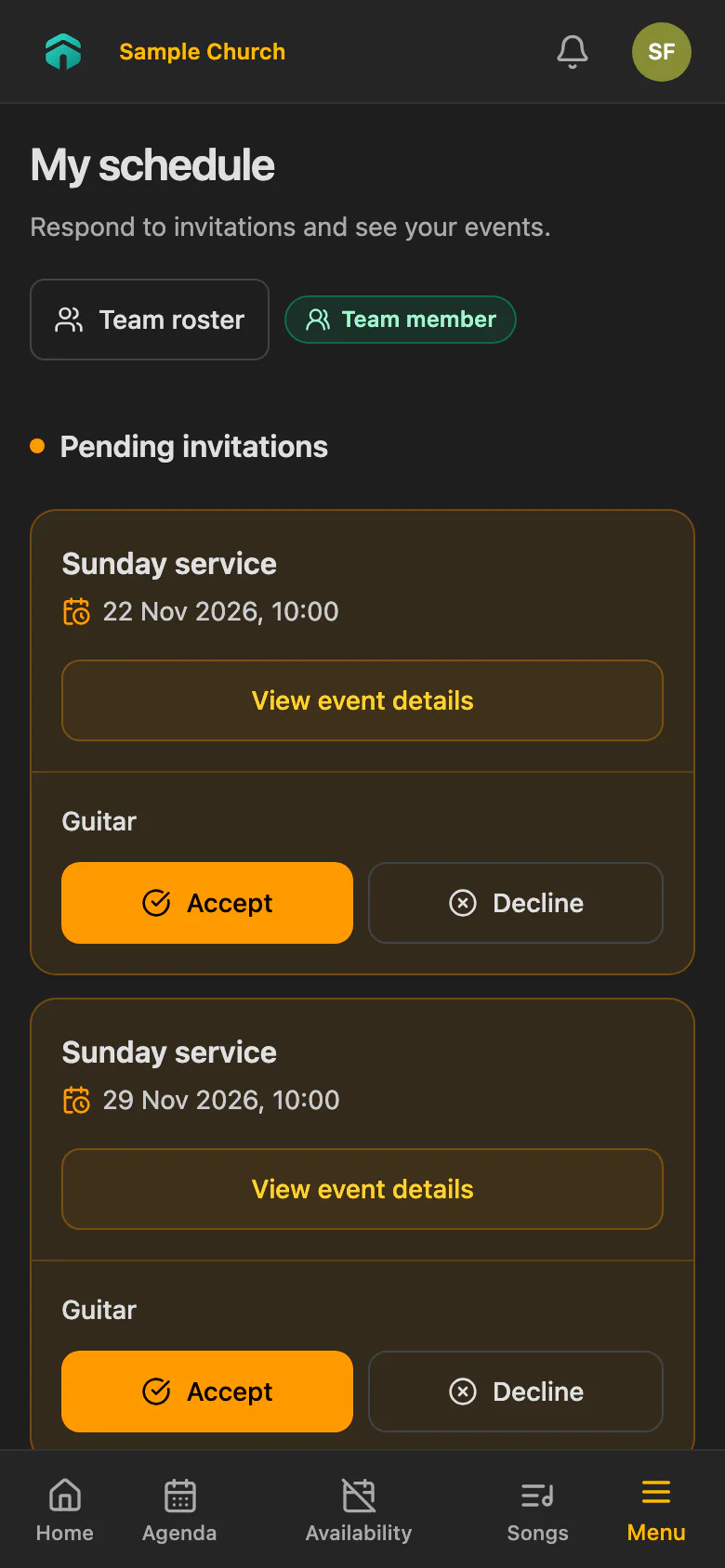
Open this help from the profile menu on a phone. On a wider screen, you can also use the question-mark button in the header.
Tap a confirmation or error message, or choose its Close (×) button, to hide it without closing your current screen. Action buttons inside the message still perform their named action. Hiding a message does not undo a save or an invitation that was already sent.
Recover from a stale screen
- Wait for any save indicator or Live sync state.
- Check the internet connection.
- Confirm the active organisation.
- Reopen the current event or page.
- Repeat only an action that showed an error.
Do not repeat invitations, imports, or checkout while their result is still processing. First check the roster state, All events, or Plan & billing respectively.